Introduction
Are you struggling to connect your computer to an external display? A USB 3.0 adapter HDMI might be the solution you need. This guide will walk you through the installation process, making it easy to extend or mirror your screen. In this article, you’ll learn the step-by-step process to install your adapter, adjust settings, and troubleshoot common issues.
Understanding USB 3.0 to HDMI Adapter
What is a USB 3.0 to HDMI Adapter?
A USB 3.0 to HDMI adapter is a device that allows users to connect a USB-enabled computer or device to an HDMI-compatible display, such as a monitor, television, or projector. This adapter is typically used to extend or mirror the screen of a computer, providing an easy solution for adding additional displays to devices that may not have a built-in HDMI output.
The key feature of this adapter is its ability to leverage the high-speed data transfer capabilities of the USB 3.0 port. This allows the adapter to convert the USB signal into an HDMI output, which can transmit both video and audio to the external display. Whether you need to extend your desktop for multitasking or mirror your screen for presentations, the USB 3.0 to HDMI adapter serves as a simple and effective solution for enhancing your computing experience.
How does it work to connect a USB port to an HDMI display?
The USB 3.0 to HDMI adapter works by using the USB 3.0 port’s data transfer speed to send video and audio signals to an HDMI display. Here's how it typically functions:
1. Driver Installation: Before using the adapter, you may need to install the appropriate drivers. Many adapters offer plug-and-play functionality, where the system automatically installs the drivers upon connecting the device. In other cases, you may need to manually download and install the required software.
2. Connecting the Adapter: Once the drivers are installed, the USB end of the adapter is plugged into an available USB 3.0 port on your computer. The adapter draws power from the USB port, making it a convenient and portable solution.
3. HDMI Output: The HDMI side of the adapter is connected to the display device using an HDMI cable. The adapter then converts the data received from the USB port into a video signal that can be interpreted by the display.
4. Display Recognition: After the physical connection is made, the operating system typically detects the external display automatically. The user can then configure display settings, such as choosing to extend the display for additional screen space or mirror the display for presentations.
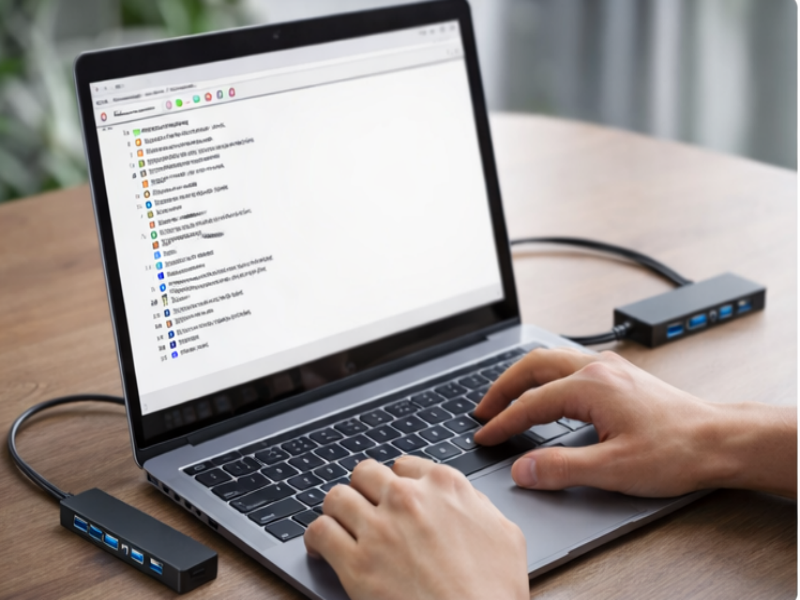
The USB 3.0 to HDMI adapter provides a cost-effective alternative for connecting displays to computers that lack an HDMI port. It is especially useful for laptops and desktops that are primarily designed with USB ports but need to output to high-definition monitors or TVs.
Preparing for Installation
Required System Specifications
Before installing the USB 3.0 to HDMI adapter, it’s essential to ensure that your system meets the necessary specifications. This includes both hardware and software requirements, which will guarantee optimal performance.
Specification | Requirement |
Operating System | Windows 10 or 11 (preferred), or Windows 7/8 (older versions may also work, but might require additional driver support). |
USB Port | USB 3.0 port required for optimal performance (indicated by blue color in most systems). USB 2.0 ports may work, but with reduced functionality and speed. |
Processor & RAM | Dual-core processor (Intel i3 or higher) and 2GB RAM (minimum). Higher specs are recommended for 4K displays and multiple monitor setups. |
Graphics Card | Must support external display output. Most modern systems with integrated graphics (Intel HD or similar) will work for typical use. |
Necessary Tools or Software
To complete the installation, you'll need a few basic tools and software, depending on the adapter model.
● Adapter Drivers: Many USB 3.0 to HDMI adapters are plug-and-play, meaning the system will automatically recognize the device without requiring additional software. However, some models may require downloading drivers. Always visit the manufacturer’s website to get the latest drivers compatible with your operating system.
● Cables: You will need a separate HDMI cable to connect the adapter to the external display (monitor, TV, projector). These are not always included, so make sure you have one on hand.
● Internet Connection (if necessary): If your adapter requires a driver installation that is automatically detected by your operating system, ensure your computer is connected to the internet.
How to Check if Your Computer Meets the Requirements
Before installing the USB 3.0 to HDMI adapter, follow these steps to verify compatibility:
1. Check USB Ports: Ensure your computer has a USB 3.0 port. Most USB 3.0 ports are blue, but if you're unsure, you can check your system specifications or look for the USB 3.0 logo near the port.
2. Verify Operating System: Go to Settings > System > About to confirm your operating system version. Ensure it is Windows 10 or Windows 11, as they offer the best compatibility with the adapter. If you are using Windows 7 or older, make sure to check the specific adapter’s compatibility for that version.
3. Graphics & Processor: Open Device Manager and check your graphics card specifications to confirm it supports external displays. You can also view your CPU specs by navigating to Task Manager > Performance to ensure that it meets the requirements for smooth operation.
Installing USB 3.0 Adapter HDMI
Step-by-step Guide for Installing Drivers
To ensure your USB 3.0 to HDMI adapter works correctly, follow these steps to install the necessary drivers.
● Locate the Driver Files: If your adapter came with a driver CD, insert it into your computer. If no CD is provided, go to the manufacturer’s website and download the correct driver for your system.
● Run the Installer: Open the downloaded file or the setup from the CD. Follow the on-screen instructions to install the driver.
● Restart Your Computer: Once the installation is complete, restart your computer to finalize the driver installation.
Physical Connection Process
Once the drivers are installed, the next step is to physically connect your USB 3.0 to HDMI adapter to your computer and external display.
1. Plug the USB Adapter into the Computer Insert the USB 3.0 adapter into an available USB 3.0 port on your computer. These ports are usually blue or marked with “USB 3.0.”
2. Connect the HDMI Cable Plug one end of the HDMI cable into the adapter and the other end into the HDMI port of your display device (TV, monitor, or projector).
3. Power on the Display Ensure the display is turned on and set to the correct HDMI input source.
Verifying Installation Success
After connecting the adapter, confirm that your system recognizes the external display:
1. Open Device Manager Press Windows key + X, then select Device Manager.
2. Check Display Adapters Expand the Display adapters section. If you see the USB 3.0 to HDMI adapter, the installation is successful.
3. Troubleshoot if Necessary If there's an issue (indicated by a yellow exclamation mark), right-click the adapter in Device Manager and choose Update driver.
Configuring Display Settings & Troubleshooting Common Issues
Adjusting Display Modes: Extend vs. Mirror Display
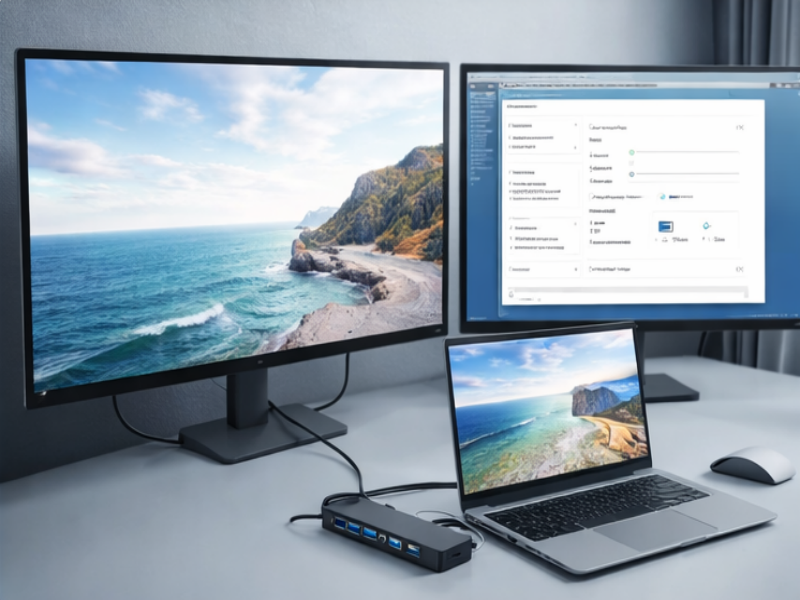
After successfully connecting your USB 3.0 to HDMI adapter, you will likely want to configure how your display works. There are two primary display modes you can choose from: Extend and Mirror.
In Extend Display mode, your desktop is spread across multiple screens, which allows you to use the additional screen space for different tasks. For instance, you can have different applications open on each screen, making it ideal for multitasking.
On the other hand, Mirror Display duplicates the content from your main screen onto the external display. This mode is most useful for presentations, meetings, or situations where you want to show the same content to a larger audience.
To adjust the display mode:
1. Right-click on your desktop and select Display settings.
2. Under the Multiple displays section, choose either Extend these displays or Duplicate these displays.
3. Click Apply to confirm the changes.
Resolution and Screen Orientation Settings
Once you’ve adjusted the display mode, you may need to fine-tune the resolution and orientation of your display for the best viewing experience.
If the display appears stretched, blurry, or out of proportion, adjusting the resolution to match the native resolution of your monitor or TV can resolve these issues. For example, a 1080p resolution is common for most monitors, while 4K is used for ultra-high-definition displays.
Additionally, you may want to adjust the orientation of the screen. If you're using a vertical display setup or adjusting for specific applications, you can change between Landscape and Portrait modes.
Setting | Recommended Value |
Resolution | 1920 x 1080 for HD, 3840 x 2160 for 4K |
Orientation | Landscape (standard), Portrait (vertical setup) |
To adjust these settings:
1. Right-click on your desktop and select Display settings.
2. Under Display resolution, choose the recommended resolution.
3. Under Display orientation, select Landscape or Portrait, depending on your setup.
4. Click Apply to confirm.
What to Do if the Monitor is Not Detected or Has Low Resolution or Flickering Issues
Sometimes, your external monitor may not be detected, or it may display incorrectly with low resolution or flickering. Here's how you can troubleshoot:
1. Check the Connections: Ensure that both the USB 3.0 connection from your computer and the HDMI connection to the monitor are securely plugged in. Loose connections are often the cause of display issues.
2. Reboot Your Computer: A quick restart can often resolve the issue, as it allows the system to reinitialize and properly recognize the connected display.
3. Update Your Graphics Drivers: Outdated graphics drivers can cause display problems. To update them, open Device Manager, expand the Display adapters section, right-click your graphics card, and select Update driver.
4. Test with a Different Display or Cable: If possible, try connecting the adapter to a different monitor or use a different HDMI cable to rule out issues with the hardware.
By following these troubleshooting steps, you can fix most common display issues related to your USB 3.0 to HDMI adapter.
Steps to Fix Driver-related Issues
If your USB 3.0 to HDMI adapter isn't working correctly, there could be an issue with the drivers. Here’s what you can do:
1. Uninstall and Reinstall the Driver: Go to Device Manager, find the USB 3.0 to HDMI adapter under Display adapters, right-click on it, and select Uninstall device. Restart your computer, then reinstall the driver from the manufacturer’s website.
2. Remove Conflicting Drivers: If you’ve used other USB display adapters in the past, their drivers may conflict with the new one. Uninstall any previous display adapters to avoid issues.
3. Use the Latest Driver: Always ensure you're using the most up-to-date driver version. Visit the manufacturer's website to download the latest driver for your operating system.
How to Check for Updates and Resolve Connection Problems
To keep your USB 3.0 to HDMI adapter running smoothly, it’s important to regularly check for updates and resolve any potential connection problems.
Step | Action |
Check for Operating System Updates | Keeping your operating system up to date can resolve compatibility issues. Go to Settings > Update & Security > Windows Update and install any available updates. |
Check for Adapter Firmware Updates | Some USB 3.0 to HDMI adapters offer firmware updates to fix bugs and improve performance. Visit the manufacturer’s website to check for updates. |
Try a Different USB Port | If the connection is still not working, try plugging the adapter into a different USB 3.0 port. Avoid using USB 2.0 ports, as they may not provide sufficient bandwidth. |
Conclusion
In this article, we covered the steps to install a USB 3.0 to HDMI adapter and troubleshoot common issues. You learned how to configure display settings, resolve connection problems, and update drivers. Yuanshan Electronic Technology (Shenzhen) Co., Ltd. offers reliable adapters that simplify extending or mirroring displays. Their USB 3.0 to HDMI adapters provide seamless integration and enhance your external display experience.
FAQ
Q: What is a USB 3.0 to HDMI adapter and how does it work?
A: A USB 3.0 to HDMI adapter allows you to connect a USB-enabled device to an HDMI-compatible display, enabling high-quality video output.
Q: How do I install a USB 3.0 to HDMI adapter?
A: To install a USB 3.0 adapter HDMI, simply connect the USB end to your computer and the HDMI end to the display, then follow the driver installation steps.
Q: What should I do if my USB 3.0 to HDMI adapter isn't detected?
A: Ensure the USB 3.0 to HDMI adapter is properly connected, update drivers, and check if your computer recognizes the adapter in Device Manager.
Q: Can I use a USB 3.0 to HDMI adapter for multiple monitors?
A: Yes, some USB 3.0 to HDMI adapters support multi-display setups, allowing you to extend or mirror your desktop across multiple screens.



