Have you ever plugged in a dual-screen setup only to stare at a blank second monitor? Perhaps you experienced mirrored displays or painfully degraded resolution. We know this setup dilemma well. Adding extra displays requires more than just counting physical ports on a device. It heavily depends on host system constraints, interface bandwidth limits, and internal chipset capabilities. If you ignore these factors, you risk hardware conflicts and frustrating bottlenecks. Our goal today is clear. We want to provide an objective, evidence-based framework for evaluating a reliable USB C docking station. You will learn how to verify compatibility and secure high-resolution dual-monitor output for professional environments. We will explore OS limitations, bandwidth realities, and physical form factors so you can make informed decisions. Proper evaluation ensures your investment yields a stable, highly productive workspace.
Key Takeaways
- OS determines compatibility: Windows relies on Multi-Stream Transport (MST) for native dual screens, while base macOS requires DisplayLink technology to bypass Single-Stream Transport (SST) limitations.
- Bandwidth is finite: Dual 4K displays consume significant data overhead; evaluating precise specification limits is critical to avoid peripheral lag or lowered refresh rates.
- Form follows workflow: Desktop orientation, thermal management, and port spacing dictate whether a horizontal, vertical, or under-desk design is appropriate.
- Enterprise scalability matters: Fleet deployments benefit from a proven supplier capable of delivering custom configurations and standardized firmware.
Overcoming the Bottlenecks of a Dual Monitors USB C Docking Station
To build a highly functional dual monitors USB C docking station setup, you must understand underlying video architectures. The MST versus SST divide dictates everything in this space. Windows laptops utilize Multi-Stream Transport (MST). This powerful protocol splits a single video signal natively across multiple output ports. You can plug in two monitors and easily extend your desktop. The hardware handles the routing seamlessly, maintaining native graphics performance.
macOS users face a starkly different reality. Apple systems rely heavily on Single-Stream Transport (SST). Base M-series chips only support one external display natively. If you plug a standard MST hub into a base MacBook, it will simply mirror the same image across both external monitors. Driving two independent screens requires a dock featuring a built-in DisplayLink chipset. DisplayLink technology bypasses native video limitations. It compresses video data and sends it over standard USB lanes. The dock then decodes this data back into a video signal. This workaround effectively unlocks dual monitors for macOS.
Next, you must consider bandwidth allocation. We must navigate the 10Gbps versus 40Gbps reality. Standard USB-C Alt-Mode shares a very limited data pipe. The cable must handle video out, power in, and peripheral data simultaneously. Driving two 4K monitors at 60Hz consumes massive overhead. This load often throttles standard USB data speeds down to a crawl. Alternatively, it downgrades your video output to a choppy 30Hz. Overcoming this severe bottleneck requires Thunderbolt 3, Thunderbolt 4, or modern USB4 connections. These advanced protocols offer up to 40Gbps of dynamic bandwidth. They handle dual 4K streams effortlessly while keeping USB data speeds fast.
You must also avoid "Mirrored Only" traps during the procurement phase. Many cheap hubs prominently claim dual-screen support in bold letters. However, they bury major caveats deep in their fine print. Always identify docks explicit about "extended display support" for your specific operating system. Manufacturers often use ambiguous language. If you gloss over these details, you will likely end up viewing identical content on both external screens. Always demand clear documentation proving independent extended display capabilities.
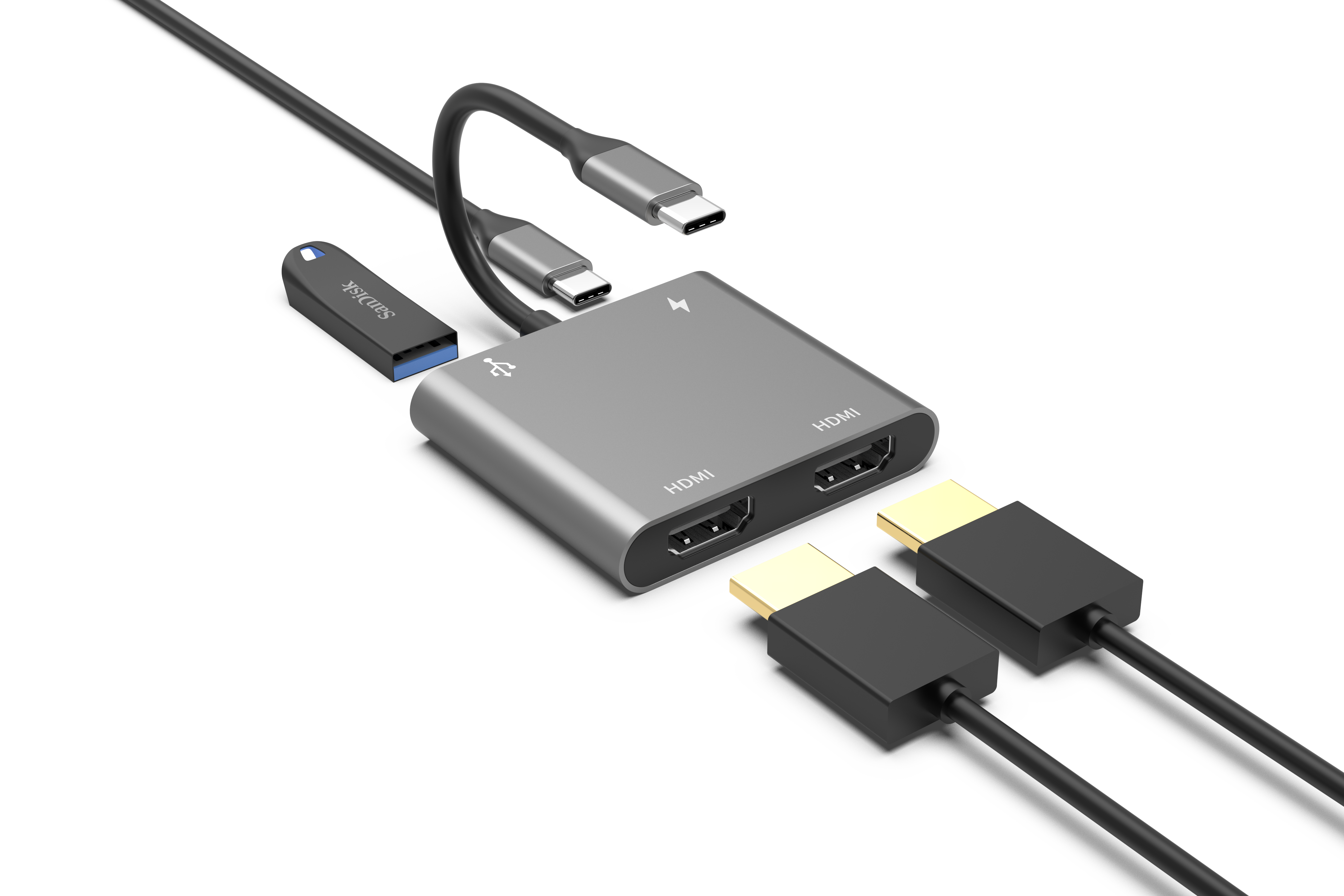
Form Factor vs. Function: Evaluating Physical Designs
Your workspace environment dictates the ideal physical design. You must constantly balance footprint, thermal cooling, and cable management. A poorly chosen form factor can clutter a desk or cause hardware to overheat. Let us examine the most common physical layouts available today.
Horizontal or lay-flat docks represent the traditional choice for most enterprise environments. They sit flat on the desk surface.
- Pros: They offer superior port spacing for bulky cables like DisplayPort and HDMI. They also provide better passive heat dissipation. The wider surface area allows internal heat to escape efficiently without active cooling fans.
- Cons: They take up valuable desk real estate. You lose functional space beneath your primary monitor.
Wedge or stand docks offer a unique dual-purpose solution. They sit underneath the host device.
- Pros: This design doubles as an ergonomic laptop riser. It elevates the keyboard and screen. It hides unsightly cables directly beneath the chassis for a much cleaner look.
- Cons: It can severely obstruct laptop cooling vents. You must check your specific laptop’s intake and exhaust fan placement before purchasing. Blocking these vents leads to immediate thermal throttling on the laptop itself.
Vertical docks cater to specific aesthetic preferences. They hold the laptop upright.
- Pros: They are ideal for "clamshell" mode users focusing exclusively on external dual monitors. They boast a highly minimalist footprint, saving maximum desk space.
- Cons: They are prone to tipping over if you attach heavy, stiff video cables. You also face limited access to front-facing ports, making frequent USB drive insertion awkward.
You must also differentiate between compact hubs and powered desktop stations. Compact hubs are highly travel-friendly. They rely entirely on bus power drawn from the laptop. However, they easily fall victim to thermal throttling under heavy dual-screen loads. They simply cannot dissipate the heat generated by pushing two monitors. Dedicated desktop stations receive stable external power via an AC adapter. They maintain consistent performance during intense multitasking and never drain your laptop battery.
Form Factor Comparison
| Design Type | Primary Advantage | Notable Drawback | Best Use Case |
| Horizontal / Lay-Flat | Excellent port spacing & thermals | Requires significant desk space | Permanent office workstations |
| Wedge / Stand | Improves laptop ergonomics | May block laptop cooling vents | Users preferring dual-screen plus laptop screen |
| Vertical Base | Ultra-minimalist footprint | Can tip over from heavy cables | Clamshell mode power users |
| Compact Travel Hub | Highly portable & lightweight | Prone to thermal throttling | Hybrid workers on the move |
Crucial USB C Docking Station Specifications to Verify
You must verify deep technical details before committing to a deployment. A quick glance at standard USB C docking station specifications reveals major differences among seemingly identical models. Marketers often highlight the absolute maximum theoretical limits. You need to uncover the realistic operational parameters.
- Video Output Standards: Look well beyond the physical port type. Ensure HDMI ports utilize standard 2.0 or 2.1. Verify DisplayPort connections support version 1.4. Older DP 1.2 technology struggles immensely with dual 4K at 60Hz signals. It cannot handle the data rate unless applying severe color compression.
- Power Delivery (PD) Pass-Through Capabilities: Define the critical difference between "supports 100W PD" and "delivers 100W to the host." Frame your expectations accurately. The dock itself typically reserves 15W to 20W for internal operations and downstream peripheral power. If you supply a 100W charger, your laptop will only receive the remaining 80W to 85W.
- Peripheral Data Speeds: Scrutinize the USB-A and USB-C data ports. Ensure at least two ports offer 5Gbps or 10Gbps speeds (USB 3.2 Gen 2). This crucial step prevents bottlenecking external Solid State Drives when your video bandwidth hits maximum capacity.
- Network & Security Features: Enterprise evaluation requires strict networking checks. Highlight Gigabit Ethernet stability. Favor reliable Intel chipsets over budget Realtek options where possible. Confirm MAC address pass-through support. This allows secure corporate networks to identify the unique laptop rather than the shared dock.
Bandwidth Allocation Breakdown
| Connection Protocol | Total Bandwidth | Dual Monitor Capability | Data Speed Impact |
| Standard USB-C (Alt-Mode) | 10 Gbps | Dual 1080p (or 4K @ 30Hz) | Drops USB speeds to 2.0 levels (480Mbps) |
| USB-C with DP 1.4 & DSC | 10 Gbps (Compressed) | Dual 4K @ 60Hz | Maintains USB 3.0 speeds (5Gbps) |
| Thunderbolt 4 / USB4 | 40 Gbps | Dual 4K @ 60Hz (Uncompressed) | Maintains maximum 10Gbps peripheral speeds |
Enterprise Procurement: Sourcing from a USB C Docking Station Supplier
Scaling a hardware deployment across a company introduces new logistical challenges. Off-the-shelf products occasionally miss the mark for specialized environments. You must know exactly when to opt for a custom USB C docking station. Identify specific organizational scenarios requiring customized port arrays. Some environments, like older educational facilities, still demand legacy VGA connections for aging projectors. Healthcare settings might need extra USB-A downstream ports for specialized diagnostic peripherals. Custom solutions offer major benefits over retail models. You can secure private labeling for brand cohesion. More importantly, you can request custom firmware tuned for centralized IT management. This ensures smooth remote updates and rigid security compliance across hundreds of desks.
Next, focus heavily on evaluating supplier credibility. Finding a reliable USB C docking station supplier protects your entire hardware investment. Always check for certified internal components. Look specifically for official Synaptics DisplayLink certification if deploying to macOS fleets. Demand proof of USB-IF certification to guarantee universal charging safety. Assess their long-term warranty terms and bulk unit availability. Ask for transparent failure-rate disclosures upfront. Honest suppliers readily share their quality control metrics.
You must highlight the hidden risk of "white-label roulette." Unverified, low-tier vendors often swap internal chipsets across the exact same product line depending on current component pricing. You might buy ten identical units and receive three completely different internal board configurations. This causes severe IT headaches. Drivers will crash randomly on certain desks while working perfectly on others. Partnering with a verified, experienced supplier eliminates this frustrating variability. They maintain a strict Bill of Materials (BOM) ensuring every unit performs identically.
Conclusion
Successful dual-monitor setups require strict hardware alignment. You must balance the laptop’s OS architecture, the dock's bandwidth capacity, and the user's desk space constraints. Windows leverages MST smoothly, while macOS heavily depends on DisplayLink for multi-screen extensions. Ignoring any single factor leads to compromised resolution, sluggish peripherals, or complete display failure. Evaluating proper form factors ensures your desk remains organized and your hardware stays cool.
Advise buyers to audit their current laptop specifications immediately. Check for Thunderbolt 4 or standard USB-C Alt Mode support on the host machine. Verify your exact monitor refresh rate requirements. Identify whether you need 60Hz for office work or higher rates for specialized tasks. Complete these technical steps before requesting a sample or quote from a manufacturer. Proper preparation prevents costly procurement mistakes.
FAQ
Q: Can a standard USB C docking station run dual 4K monitors at 60Hz?
A: Only if the host device supports DP 1.4 with DSC (Display Stream Compression) or utilizes Thunderbolt/USB4 bandwidth. Otherwise, standard USB-C will drop to 30Hz or limit one screen to 1080p.
Q: Why do my dual monitors blink or disconnect when using my dock?
A: Typically caused by inadequate Power Delivery (the dock is starved for power), thermal throttling of the dock’s chipset, or low-quality/non-certified HDMI/DP cables.
Q: Do I need drivers to run a dual monitors USB C docking station?
A: If the dock relies on DisplayLink technology (necessary for dual screens on base M1/M2/M3 Macs), specific drivers are strictly required. MST-based docks for Windows are generally plug-and-play.