Are you tired of juggling multiple cables for your laptop? A docking station can simplify your workspace and boost productivity. In this article, we’ll explore how to effectively use a docking station. You’ll learn about its benefits, setup, and troubleshooting tips to enhance your laptop experience.
What is a Docking Station?
A docking station is a versatile device designed to enhance the functionality of your laptop. It acts as a central hub, allowing you to connect multiple peripherals with ease. By simply docking your laptop, you can instantly access additional ports and features that your laptop may lack.
How Do Docking Stations Work?
Docking stations operate by connecting to your laptop, usually via USB-C or Thunderbolt. They provide both power delivery and data transfer capabilities. This means you can charge your laptop while simultaneously connecting to various devices. For example, when you dock your laptop, it can communicate with external monitors, keyboards, mice, and other peripherals seamlessly.
Feature | Description |
Power Delivery | Charges your laptop while in use |
Data Transfer | Transfers data to and from connected devices |
Multiple Connections | Supports various devices through a single connection |
Types of Docking Stations
Docking stations come in different types, primarily categorized into vehicle docks and office docks.
● Vehicle Docks: Designed for rugged mobile PCs, these docks allow users to operate laptops safely while driving. They provide charging and connectivity to vehicle systems.
● Office Docks: Ideal for a stationary workspace, office docks enable users to connect multiple monitors and devices, transforming a laptop into a desktop setup.
Common Features of Docking Stations
Docking stations typically include a variety of ports, enhancing connectivity options. Here are some common features:
● HDMI and DisplayPort: For connecting external monitors, providing high-resolution video output.
● USB Ports: Multiple USB-A and USB-C ports allow for connecting various devices like external hard drives and peripherals.
● Audio Jacks: For headphones and speakers, ensuring a complete multimedia experience.
● Ethernet Ports: Offering a stable wired internet connection, ideal for tasks requiring reliability.
Additionally, specialized ports such as Thunderbolt and eSATA are often included in advanced docking stations. Thunderbolt ports support high-speed data transfer and multiple device connections, while eSATA ports allow for connecting external storage devices directly.
In summary, a docking station is an essential tool for anyone looking to maximize their laptop's capabilities. It simplifies connections, enhances productivity, and provides a more organized workspace.
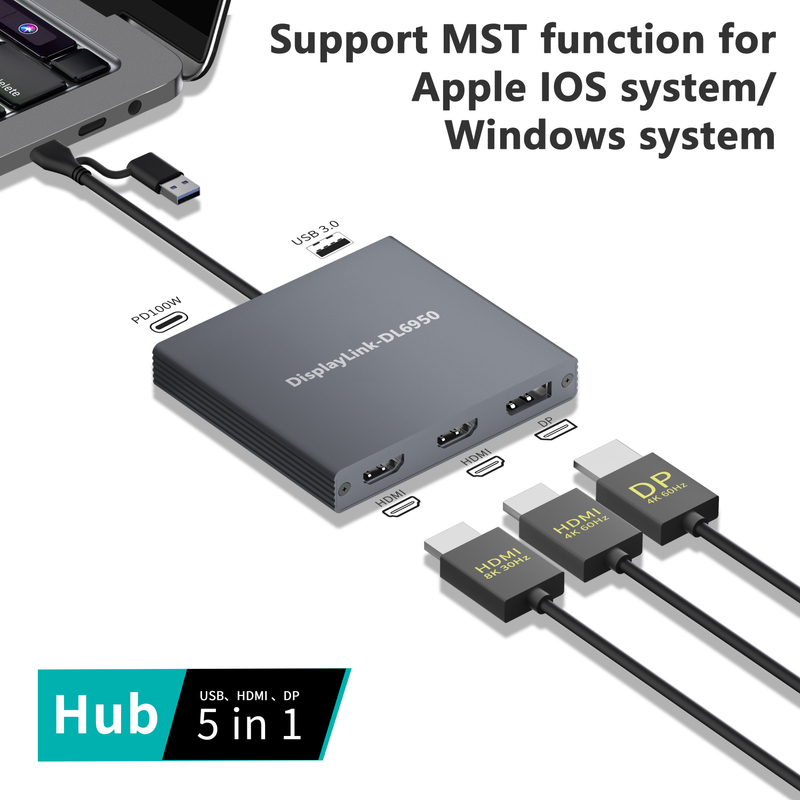
Why Use a Docking Station for Your Laptop?
Using a docking station can significantly enhance your laptop experience. It serves as a powerful tool, offering various benefits that improve connectivity, productivity, and overall workspace organization. Let’s explore why incorporating a docking station into your setup is a smart choice.
Expanded Connectivity Options
One of the primary advantages of a docking station is the expanded connectivity it provides. Instead of struggling to connect multiple devices directly to your laptop, a docking station consolidates everything into one hub.
● Multiple Ports: You get access to numerous ports, including HDMI, USB, and Ethernet. This means you can connect printers, external drives, and monitors effortlessly.
● Versatility: Whether you need to connect a high-resolution monitor for graphic design or a printer for printing documents, a docking station has you covered.
Connectivity Feature | Description |
HDMI/DisplayPort | For connecting high-resolution external monitors |
USB-A/C Ports | For peripherals like keyboards, mice, and drives |
Ethernet Port | Provides a stable internet connection |
Increased Productivity with Multiple Monitors
A docking station allows you to set up multiple monitors, which can dramatically boost your productivity. Imagine working on a spreadsheet while having a video call on another screen. This setup lets you multitask efficiently.
● Multitasking Scenarios:Spreadsheets: Keep your data visible while analyzing trends.
○ Video Calls: Participate in meetings while taking notes on another screen.
This dual-monitor setup minimizes the need to switch between windows, allowing for a smoother workflow.
Clutter-Free Workspace
A docking station helps maintain a tidy workspace. By centralizing all connections, it reduces cable clutter. You can keep your desk organized, making it easier to find what you need.
● Simplified Setup: Instead of dealing with tangled cables, you only need to connect one cable to your laptop.
● Enhanced Focus: A clean workspace helps improve concentration, leading to better performance.
Ergonomic Advantages
Using a docking station also promotes better ergonomics. By elevating your laptop screen and allowing the use of external keyboards and mice, you can create a more comfortable working environment.
● Improved Posture: Docking stations enable you to position your laptop at eye level, reducing neck strain.
● Reduced Physical Strain: Using a full-sized keyboard and mouse can decrease wrist and hand discomfort during long work sessions.
Security Features Offered by Docking Stations
Docking stations often come equipped with security features to protect your devices and data.
● Built-in Locks: Many docking stations include physical locks to secure your laptop when you step away.
● Biometric Security: Some models offer fingerprint readers for enhanced data protection.
Additionally, emergency shutdown capabilities can automatically power down connected devices if they overheat. This feature safeguards your equipment from potential damage.
Incorporating a docking station into your laptop setup not only enhances functionality but also creates a more efficient and secure work environment. With these benefits, it’s clear why many professionals and casual users alike are making the switch.
Setting Up Your Docking Station
Setting up your docking station can be a straightforward process if you follow the right steps. Let's walk through the unboxing, connecting your laptop, attaching peripherals, and ensuring proper power supply to get everything running smoothly.
Unboxing and Initial Setup
When you first unbox your docking station, you’ll typically find several items included:
● The docking station itself
● Power adapter and cord
● User manual
● Any necessary cables (like USB-C or HDMI)
Physical Setup: Positioning your docking station is crucial. Place it in a location that allows easy access to all ports while keeping your workspace organized. Ideally, it should be near your laptop and other devices you plan to connect.
Connecting Your Laptop
Connecting your laptop to the docking station is simple. Here’s a step-by-step guide:
1. Identify the Connection Type: Check if your laptop supports USB-C or Thunderbolt. Most modern laptops do.
2. Connect the Docking Station: Use the appropriate cable to connect your laptop to the docking station. Plug one end into the laptop and the other into the docking station.
3. Power On: Make sure the docking station is plugged into a power source and turned on.
Troubleshooting Connection Issues
If your laptop doesn't recognize the docking station, try the following:
● Recheck Connections: Ensure all cables are securely connected.
● Update Drivers: Sometimes, outdated drivers can cause issues. Check your laptop manufacturer's website for updates.
● Restart Devices: A simple restart of both your laptop and docking station can resolve many problems.
Importance of Using the Correct Power Source: Always use the power adapter that comes with your docking station. Using an incorrect power source can lead to performance issues or even damage your devices.
Connecting Peripherals
Now that your laptop is connected, it’s time to attach your peripherals.
● Monitors: Connect external monitors using HDMI or DisplayPort. Make sure to adjust display settings on your laptop for optimal resolution.
● Keyboards and Mice: Simply plug them into the USB ports on the docking station. If you have older devices, you might need adapters.
Using Adapters for Older Laptops
If your laptop lacks the latest ports, adapters can bridge the gap. For instance, if you have a USB-A laptop but the docking station has USB-C ports, a USB-C to USB-A adapter will allow you to connect seamlessly.
Recommendations for Wireless Peripherals
For a clutter-free workspace, consider using wireless peripherals:
● Wireless Keyboards and Mice: These can connect via Bluetooth or a USB receiver. They help reduce cable clutter and provide flexibility in positioning.
● Setup Tips: Ensure batteries are charged, and follow the manufacturer’s instructions for connecting to your laptop.
Powering Your Devices
Ensuring your docking station and connected devices receive adequate power is essential for smooth operation.
● Proper Power Supply: Make sure the docking station is plugged into a wall outlet. This ensures it can deliver power to both itself and connected devices.
● Using an Uninterruptible Power Supply (UPS): A UPS can protect your devices from power surges and outages. It provides backup power, allowing you to save your work and shut down devices safely during an outage.
Power Supply Option | Benefits |
Wall Outlet | Direct power for stable operation |
UPS | Protection against power loss and surges |
By following these steps, you’ll have your docking station set up efficiently, allowing you to enjoy the enhanced functionality and productivity it offers.
Using Your Docking Station Effectively
Once you have your docking station set up, it’s time to maximize its potential. This section covers how to configure display settings, manage audio and network connections, and utilize additional features for an enhanced user experience.
Configuring Display Settings
Configuring your display settings is crucial for getting the most out of your docking station. Whether you’re using Windows or Mac, extending or duplicating your displays can significantly improve your productivity.
How to Extend or Duplicate Displays
● On Windows:
○ Right-click on the desktop and select Display settings.
○ Scroll down to Multiple displays and choose either Extend these displays or Duplicate these displays.
○ Click Apply to save changes.
● On Mac:
○ Go to System Preferences and select Displays.
○ Click on the Arrangement tab.
○ Check the box for Mirror Displays to duplicate or drag the displays to extend.
Adjusting Display Settings for Optimal Performance
To ensure optimal performance, adjust the resolution and refresh rate. Higher resolutions provide clearer images, while appropriate refresh rates reduce flickering.
● Optimal Resolution: Use the recommended settings for your monitors.
● Refresh Rate: Set it to 60Hz or higher for smooth visuals, especially during gaming or video playback.
Tips for Using Wide Monitors Effectively
Wide monitors can be a game changer for multitasking. Here are some tips to use them effectively:
● Split-Screen Functionality: Use applications like Windows Snap or macOS Split View to organize your workspace.
● Adjust Viewing Angles: Position your monitor at eye level to reduce neck strain.
Managing Audio and Network Connections
Your docking station can simplify audio and network management, allowing you to connect various devices effortlessly.
Setting Up Audio Devices Through the Docking Station
Connecting audio devices is straightforward. Simply plug your headphones or speakers into the audio jack on the docking station.
● Adjusting Audio Settings: On your laptop, go to the sound settings to select the docking station as your default audio output device. This ensures all sound plays through your connected speakers or headphones.
Connecting to Ethernet for Stable Internet Access
For a more stable internet connection, connect your laptop to the docking station’s Ethernet port. This is particularly useful for tasks requiring high bandwidth, such as video conferencing or large downloads.
Connection Type | Benefits |
Wi-Fi | Convenient but can be unstable |
Ethernet | Provides a reliable and faster internet access |
Using Additional Features
Docking stations often come with additional features that can enhance your workflow.
Utilizing Built-in SD Card Readers and USB Ports
Many docking stations include built-in SD card readers, which make transferring files from cameras or other devices easy. Also, take advantage of extra USB ports for connecting more peripherals.
● Fast Data Transfer: Use USB 3.0 or higher ports for quicker file transfers.
Exploring Advanced Features Like Biometric Security
Some advanced docking stations offer biometric security features, such as fingerprint scanners. This adds an extra layer of security for your sensitive data.
● Secure Login: Use biometric authentication to log in quickly and securely.
Linking Multiple Docking Stations for Enhanced Connectivity
If you find yourself needing even more connections, consider linking multiple docking stations. This can be especially useful in complex setups, such as those used in creative industries.
● Daisy-Chaining: Some docking stations support daisy-chaining, allowing you to connect several devices through a single cable.
By effectively utilizing your docking station’s features, you can create a highly efficient and organized workspace that meets your needs.

Common Issues and Troubleshooting
Using a docking station can enhance your laptop experience, but sometimes issues arise. This section addresses common problems you might encounter and provides troubleshooting tips to resolve them effectively.
Connection Problems
One of the most frustrating issues is when your docking station isn’t recognized by your laptop. Here’s how to troubleshoot this problem.
What to Do If the Docking Station Isn’t Recognized
● Check Connections: Ensure that all cables are securely connected. Sometimes, a loose cable can prevent recognition.
● Try Different Ports: If your docking station has multiple ports, try connecting to a different one. This can help identify if a specific port is malfunctioning.
Resolving Power Delivery Issues
Power delivery problems can also cause connection issues. If your laptop isn’t charging through the docking station, consider these steps:
● Use the Right Adapter: Make sure you’re using the correct power adapter that came with the docking station. Using an incompatible adapter can lead to power delivery failures.
● Inspect the Power Source: Ensure the outlet is functioning properly by plugging in another device.
Ensuring Proper Installation of Drivers When Required
Sometimes, your docking station may require specific drivers to function correctly. Follow these steps:
1. Visit the Manufacturer’s Website: Look for the latest drivers compatible with your operating system.
2. Install Updates: Download and install any necessary drivers, then restart your laptop to ensure they take effect.
Performance Issues
If you experience lag or display problems while using your docking station, several factors could be at play.
Addressing Lag or Display Problems
● Check Display Settings: Ensure your display settings are correctly configured for the monitors connected via the docking station. Incorrect settings can cause lag or poor resolution.
● Update Graphics Drivers: Outdated graphics drivers can lead to performance issues. Visit your laptop manufacturer’s site for updates.
Ensuring Compatibility with Peripherals
Sometimes, peripherals connected to the docking station can cause performance issues.
● Use Compatible Devices: Always check that your devices, like keyboards and mice, are compatible with your docking station. Incompatible devices can lead to lag.
● Test Individually: Disconnect all peripherals and reconnect them one at a time to identify any problematic devices.
Managing Power Consumption of Wireless Devices
Wireless devices can sometimes drain power quickly, leading to performance issues.
● Use USB-C or Wired Connections: Whenever possible, opt for wired connections to reduce power consumption.
● Check Battery Levels: Ensure that your wireless devices are charged. Low battery levels can lead to connectivity issues.
Maintenance Tips
To keep your docking station functioning optimally, regular maintenance is key.
Keeping Your Docking Station Clean and Functional
Dust and debris can accumulate and affect performance. Here are some cleaning tips:
● Regular Dusting: Use a soft cloth to wipe down the docking station regularly. Avoid using harsh chemicals that could damage the surface.
● Clean Ports: Use compressed air to clear dust from the ports, ensuring good connectivity.
Updating Firmware and Drivers
Firmware updates can improve functionality and fix bugs.
● Set Reminders: Schedule regular checks for firmware updates on the manufacturer’s website.
● Follow Instructions: Carefully follow the update instructions provided to avoid issues during the process.
Best Practices for Prolonging the Lifespan of Your Docking Station
To ensure longevity, consider these best practices:
Practice | Description |
Avoid Overheating | Ensure proper ventilation around the docking station |
Use Surge Protectors | Protect against power surges that could damage the device |
Store Properly | When not in use, store your docking station in a safe place |
By addressing these common issues and following these maintenance tips, you can ensure that your docking station remains a reliable tool for enhancing your laptop experience.
Conclusion
Using a docking station enhances productivity and connectivity for laptop users. It simplifies connections for multiple devices and monitors. Users can explore various docking station options to find one that suits their needs. We encourage you to share your experiences or ask questions in the comments. For quality solutions, consider Yuanshan, which offers innovative docking stations designed to provide exceptional value and performance.
FAQ
Q: What is a docking station for a laptop?
A: A docking station is a device that expands your laptop's connectivity options, allowing you to connect multiple peripherals and displays.
Q: How do I connect my laptop to a docking station?
A: To connect your laptop to a docking station, use the appropriate cable, such as USB-C or Thunderbolt, and follow the setup instructions.
Q: Why should I use a docking station?
A: Using a docking station enhances productivity by providing additional ports and making it easier to connect multiple devices simultaneously.
Q: What are the advantages of using a docking station?
A: A docking station simplifies connections, improves workspace organization, and allows for better multitasking with multiple monitors.
Q: How much does a docking station typically cost?
A: The cost of a docking station varies based on features and brand, typically ranging from $50 to $300.
Q: What should I do if my docking station isn't recognized?
A: If your docking station isn't recognized, check the connections, ensure drivers are installed, and verify that the power supply is working.



