English


Views: 261 Author: Site Editor Publish Time: 2026-01-22 Origin: Site
A docking station plays a critical role in modern digital workspaces by bridging the gap between portable devices and full desktop functionality. As laptops, tablets, and compact computers continue to prioritize mobility and slim design, they often sacrifice port variety, display outputs, and expandability. A docking station addresses these limitations by transforming a single connection into a comprehensive interface for power, data, displays, and peripherals.
This guide delivers a complete, practical understanding of what a docking station is, how it functions, and how it can dramatically improve productivity across home offices, hybrid work environments, and professional setups. The focus is not just on definition, but on real-world value, configuration strategies, and selection criteria.
A docking station is a hardware device that allows a computer—most commonly a laptop—to connect to multiple external peripherals through one central interface. Instead of plugging and unplugging several cables each time a user arrives at a desk, the docking station consolidates power delivery, video output, network access, and USB expansion into a single connection.
The core reason docking stations exist is efficiency. As devices became thinner and more portable, manufacturers reduced the number of built-in ports. A Universal docking station restores those missing connections without compromising mobility. When undocked, the laptop remains lightweight and portable. When docked, it functions like a full desktop workstation.
Docking stations are especially valuable in environments where users frequently transition between locations, such as hybrid offices or shared workspaces. They reduce wear on device ports, improve desk organization, and ensure consistent performance with external monitors and peripherals.
A docking station operates as a centralized hub that communicates with a host device through a single physical or wireless connection. Internally, it contains controllers that manage data transfer, video output, network communication, and power delivery simultaneously.
Most docking stations rely on a high-bandwidth interface to handle multiple tasks at once. Once connected, the operating system recognizes the docking station as an extension of the device, enabling instant access to connected displays, keyboards, storage devices, and wired internet.
A Wireless docking station removes the physical cable entirely, using wireless protocols to transmit display and data signals. While convenient, wireless models typically prioritize flexibility over raw bandwidth and are better suited for lighter workloads.
Below is a simplified comparison of core docking station components and their functions:
| Component | Function | Practical Benefit |
|---|---|---|
| Video Output | Connects external displays | Multi-monitor productivity |
| USB Expansion | Adds peripheral ports | Keyboard, mouse, storage |
| Ethernet Port | Provides wired networking | Stable, high-speed internet |
| Power Delivery | Charges the host device | One-cable desk setup |
| Audio I/O | Handles sound input/output | Cleaner multimedia setup |
A docking station with HDMI and Ethernet is particularly common in office environments, as it supports both external displays and reliable wired networking through a single unit.
Docking stations come in multiple form factors, each designed to address different user priorities. Understanding these categories ensures the docking station aligns with both current and future needs.
A Compact docking station focuses on portability and minimal desk space. It typically offers essential ports such as USB, HDMI, and power pass-through, making it ideal for travel or flexible workstations.
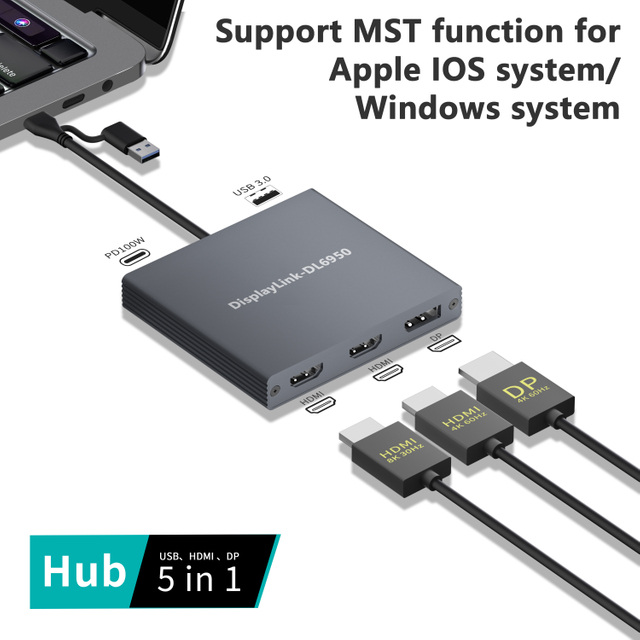
A Dual HDMI docking station is designed for users who rely on multiple external displays. It supports extended desktop setups commonly used in data analysis, design, and multitasking-heavy roles.
A Professional docking station emphasizes stability, higher power delivery, and advanced connectivity options. These are often used in fixed desks where performance and reliability are more important than size.
Finally, a docking station for home office setups balances versatility and cost-effectiveness. It typically supports one or two displays, common peripherals, and wired internet, making it suitable for daily productivity without enterprise-level complexity.
Each type exists to solve a specific problem, reinforcing the importance of selecting a docking station based on actual usage rather than specifications alone.
The primary advantage of a docking station is workflow efficiency. With one connection, users instantly gain access to their entire workstation, eliminating repetitive setup tasks and reducing downtime.
Docking stations significantly improve ergonomics by enabling larger monitors, external keyboards, and better audio positioning. This directly contributes to reduced strain and increased comfort during long work sessions.
Another major benefit is scalability. A single docking station can support future upgrades such as additional monitors or faster networking without replacing the core computer. This makes docking stations a cost-effective investment over time.
From an organizational perspective, docking stations simplify cable management. Fewer visible cables result in cleaner desks, easier maintenance, and a more professional workspace appearance—especially important in shared or client-facing environments.
A docking station is often compared to USB hubs and adapters, but the differences are substantial. USB hubs primarily expand port count but rarely support power delivery, multiple displays, or high-bandwidth peripherals simultaneously.
Adapters are task-specific, designed for single functions like video output or network access. While inexpensive, they lack the integration and convenience of a docking station.
The defining advantage of a docking station lies in its all-in-one architecture. Instead of managing several accessories, users rely on one centralized solution that handles power, data, and displays cohesively. This integration reduces compatibility issues and improves overall system stability.
For users who regularly connect and disconnect from a desk environment, a docking station provides unmatched efficiency compared to fragmented alternatives.
Selecting the right docking station begins with understanding your workflow. Display requirements are often the first consideration. Users working with spreadsheets, design tools, or multiple applications benefit greatly from multi-monitor support.
Next, evaluate connectivity needs. A docking station with HDMI and Ethernet is essential for stable networking and external displays, particularly in remote or hybrid work environments.
Power delivery capacity should match the host device’s charging requirements to ensure consistent performance under load. Additionally, consider future expansion. A docking station that meets only current needs may limit flexibility later.
Physical space and portability also matter. A compact docking station suits mobile users, while a professional docking station fits permanent desk setups. The best choice aligns technical capability with practical usage.
A docking station is far more than a simple accessory; it is a foundational tool for modern productivity. By consolidating connectivity, enhancing ergonomics, and enabling seamless transitions between mobility and performance, docking stations redefine how users interact with their devices.
Whether configuring a home office, optimizing a professional workstation, or supporting hybrid work, the right docking station creates a balanced environment where efficiency and flexibility coexist. Understanding its purpose, types, and benefits ensures informed decisions that deliver long-term value.
1.What is a docking station used for?
A docking station is used to connect a portable device to multiple peripherals, displays, and power sources through a single interface.
2.Is a docking station necessary for a home office?
A docking station for home office setups greatly improves organization, display options, and ease of daily use, though necessity depends on workflow complexity.
3.Can a docking station support multiple monitors?
Yes, many models support dual or even multiple displays, including Dual HDMI configurations.
4.What is the difference between a docking station and a USB hub?
A docking station offers integrated power delivery, display support, and networking, while a USB hub mainly expands port availability.
5.Are wireless docking stations reliable?
Wireless docking stations offer convenience but are generally better suited for lighter workloads compared to wired solutions.