Having trouble getting your usb c hdmi adapter to work? You're not alone. Many users face issues like a black screen or no signal when using these adapters.
In this article, we will explore the common causes behind these problems. You will learn practical solutions to fix your usb c hdmi adapter and get your display working again.
Common Causes of USB C to HDMI Adapter Failures
Not All USB-C Ports Support Video Output
Not all USB-C ports on laptops, tablets, or smartphones are designed to transmit video signals. For a USB-C to HDMI adapter to function correctly, the port must support DisplayPort Alternate Mode (DP Alt Mode) or Thunderbolt 3/4. These two modes enable the port to send video data to external displays. Without this feature, the USB-C port can only handle power or data transfer, meaning it won't work with a USB-C to HDMI adapter.
To confirm if your device's USB-C port supports video output, look for specific symbols next to the port, such as a lightning bolt (indicating Thunderbolt) or DisplayPort logo. If these symbols are absent, the port likely does not support video output.
Cable or Adapter Issues
The cable or adapter itself is a frequent source of problems when using a USB-C to HDMI connection. Over time, cables may suffer from wear and tear, causing signal loss or inconsistent performance. Issues like frayed wires, bent connectors, or damaged insulation can disrupt signal transfer, leading to blank screens, flickering, or no signal.
Key Considerations for Cables and Adapters:
● Quality: Use HDMI cables rated for high-speed data transfer, like HDMI 2.0 or 2.1, to ensure smooth signal transmission.
● Condition: Inspect both the USB-C and HDMI cables for visible damage, such as fraying or bent connectors.
● Replacement: If the signal is intermittent or the adapter is unrecognized, test the setup with different cables or a new adapter.
Compatibility Concerns
Compatibility between your device, HDMI adapter, and external display is crucial for proper functionality. Even if the adapter is working fine, it may not function correctly due to device mismatches. For example, an older monitor might not support newer high-definition signals, or an adapter might be incompatible with certain operating systems.
To avoid compatibility issues:
1. Check Display Resolution and Refresh Rate: Ensure the external display supports the resolution (e.g., 4K) and refresh rate (e.g., 60Hz) you intend to use.
2. Verify System Compatibility: Some older operating systems or devices may not support certain adapter features. Ensure your device and adapter are compatible with your operating system (Windows, macOS, Android, etc.).
How to Check If Your USB-C Port Supports Video Output
Understanding DisplayPort Alt Mode and Thunderbolt
For a USB-C port to support video output, it must be compatible with DisplayPort Alt Mode or Thunderbolt 3/4. These protocols allow the USB-C port to transmit video signals to an HDMI or other external display. However, not all USB-C ports have these capabilities, especially on older devices or those with USB-C ports designed primarily for charging and data transfer.
● DisplayPort Alt Mode: This mode enables USB-C to transmit video, enabling a seamless connection with external monitors. If the device supports it, the USB-C port will output video signals, allowing for high-resolution displays like 4K or 1080p.
● Thunderbolt 3/4: Thunderbolt ports support both video and data transfer. In addition to video output, these ports are known for their high bandwidth and speed, making them suitable for demanding tasks like video editing or gaming.
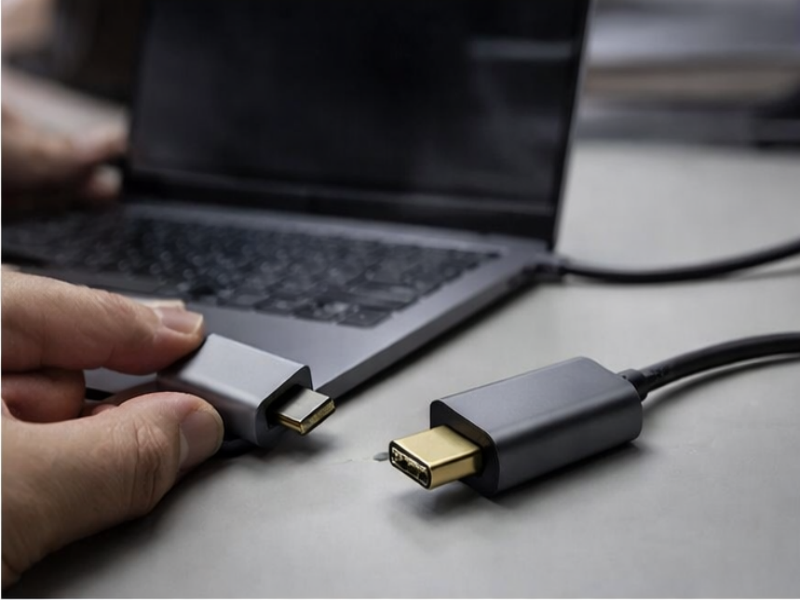
Look for symbols next to the USB-C port to identify if it supports video output. A lightning bolt (for Thunderbolt) or a DisplayPort logo is typically displayed on compatible ports.
Verifying with Manufacturer Specifications
To confirm if your USB-C port supports video output, the most reliable method is to check the manufacturer specifications for your device. The device’s user manual or technical specifications page will typically list whether the USB-C port supports DisplayPort Alt Mode or Thunderbolt capabilities.
Here are the steps to check compatibility:
1. Device Manual: Review the technical section for references to video output capabilities, such as DP Alt Mode or Thunderbolt 3/4.
2. Online Product Specifications: Visit the manufacturer’s website and locate the product details for your device model. Look for any mentions of video output support via USB-C.
3. System Settings: On some operating systems, like Windows or macOS, you can check the device settings or use diagnostic tools to confirm whether the USB-C port is capable of video output.
How to Resolve Connection Issues Between the USB-C Adapter and Display
Securing Physical Connections
One of the most common causes of connection issues between a USB-C adapter and a display is an insecure physical connection. Loose or improperly inserted cables can prevent the signal from being transmitted properly, leading to problems such as blank screens or flickering displays. To ensure a stable connection, check the following:
● USB-C Connector: Confirm that the USB-C adapter is fully inserted into the USB-C port on your device. USB-C connectors are reversible, so make sure it is seated correctly.
● HDMI Cable: Ensure the HDMI cable is securely plugged into both the adapter and the external display. A loose HDMI connection is a frequent cause of display issues, such as no signal or flickering.
● Positioning: Avoid any tension on the cables. Ensure they are not bent or twisted, as this can affect the connection.
Once all connections are secure, restart the device and check if the display issue persists.
Testing Different HDMI Ports and Cables
Sometimes the issue may lie with the HDMI ports or the cables used for the connection. A faulty HDMI port or an old, low-quality HDMI cable can disrupt the signal between the adapter and the display. To troubleshoot this, follow these steps:
Action | Description |
Test Multiple HDMI Ports | If your external display has multiple HDMI ports, try connecting the HDMI cable to another port. This can rule out any potential issues with a specific port. |
Use a Different HDMI Cable | Swap out the current HDMI cable for a new one or one that you know works with other devices. Low-quality or damaged cables can often cause signal degradation, leading to display problems. |
Check for Cable Type Compatibility | Ensure the HDMI cable is rated for the required resolution and refresh rate. For example, if you're attempting to display 4K at 60Hz, use an HDMI 2.0 or higher cable. |
If the issue persists after trying different cables and HDMI ports, it might be necessary to check other components or proceed to further troubleshooting steps.
Power Issues
Some USB-C to HDMI adapters, especially multi-port hubs or docking stations, may require additional power to function correctly. Insufficient power supply can cause the adapter to malfunction, leading to no display or intermittent signal issues. Here’s how to address power-related issues:
● External Power Supply: If your adapter has a power delivery (PD) port, ensure that it is connected to a power source. This is especially important for adapters that require additional power to support high-resolution outputs or multiple connected devices.
● Check USB-C Port Power: Some USB-C ports on devices may not provide enough power to operate an adapter effectively, particularly on older laptops or tablets. If you suspect this, try using a different USB-C port that supports power delivery or use a powered USB hub.
● Use a Separate Charger: For devices with limited USB-C power, connecting the adapter to an external charger may be necessary to ensure it receives the required power to function properly.
Troubleshooting Display Issues (Black Screen, No Signal)
Updating and Rolling Back Drivers
Outdated or incompatible drivers are a common cause of display issues such as a black screen or "no signal." When a USB-C to HDMI adapter fails to work as expected, it is often because the display drivers are not aligned with the connected hardware. Updating or rolling back drivers can help resolve these issues.
1. Update Display Drivers:
a. On Windows, open Device Manager and look for any yellow warning signs under Display Adapters, indicating issues with the driver. Right-click the driver and select Update Driver.
b. On macOS, navigate to System Preferences > Software Update to check for available updates.
2. Rollback Drivers:
a. If display problems began after a driver update, you can roll back to the previous version. In Device Manager, right-click the display driver, choose Properties, and in the Driver tab, click Roll Back Driver.
Updating or rolling back drivers ensures compatibility between your system and the adapter, preventing many video output issues caused by outdated software.
Checking Display Settings
Improper display settings can also lead to black screens or no signal. If settings are misconfigured, the system may fail to send a signal to the external display.
Device | Steps to Check Settings |
Windows | Press Win + P to bring up the display options. Select Duplicate, Extend, or Second Screen Only. In Display Settings, ensure the external display is selected as the output. |
macOS | Go to System Preferences > Displays and ensure the external monitor is detected. Adjust the resolution as needed, matching your display's capabilities. |
Correcting these settings helps your device recognize and output to the connected display properly.
Dealing with Static or Power Issues
Power-related issues or static buildup can disrupt the USB-C to HDMI connection, causing a black screen or "no signal." These problems can often be resolved by performing a power cycle or ensuring proper power supply to the adapter.
1. Power Cycle Devices:
a. Unplug the USB-C to HDMI adapter and external display from the device.
b. Turn off all devices and wait for 30-60 seconds before powering them back on.
c. Reconnect the adapter and check if the display issue is resolved.
2. Ensure Proper Power Supply:
a. Some USB-C to HDMI adapters, especially multi-port hubs or docking stations, require additional power to work correctly. If your adapter includes a power delivery (PD) port, ensure it is connected to a power source.
b. If the issue persists, try using a different USB-C port or test the adapter with another device to confirm whether the power supply is causing the problem.
Ensuring sufficient power and performing a power cycle helps stabilize the connection and resolve display issues caused by power or static interference.
Performance Issues: Flickering, Low Resolution, and Overheating
Dealing with Signal Flicker
Signal flickering is a common issue when using a USB-C to HDMI adapter, often leading to an unstable or intermittent display. The flickering can be caused by several factors, including loose connections, insufficient power supply, or the use of low-quality cables.
Key Causes of Signal Flicker:
Cause | Description |
Loose Connections | Ensure USB-C and HDMI cables are securely connected. Loose connections can cause signal interruptions. |
Insufficient Power | Some adapters require external power. Ensure the adapter is connected to a power source if needed. |
Low-Quality Cables | Use high-speed HDMI cables to ensure the transmission of high-definition signals without interference. |
Low Resolution or Distortion
Low resolution or distorted images often occur when the USB-C to HDMI adapter is not communicating properly with the display, or when the settings do not match the display’s capabilities. If you are seeing a blurry or stretched image, it could be a sign of such issues.
Steps to Resolve Low Resolution or Distortion:
1. Check Display Settings:
a. Windows: Right-click on the desktop, select Display Settings, and ensure the resolution matches the monitor’s native resolution. For example, set the display to 4K (3840x2160) if the monitor supports it.
b. macOS: Go to System Preferences > Displays, and adjust the resolution to the correct setting. Ensure the monitor is set to its native resolution for the best clarity.
2. Verify Cable and Adapter Compatibility: If you're using a 4K display, ensure both the adapter and HDMI cable support 4K at 60Hz. An older HDMI 1.4 cable may only support 4K at 30Hz, causing resolution issues. Upgrade to an HDMI 2.0 or 2.1 cable if necessary.
3. Adjust Refresh Rate: Ensure the adapter and display support the same refresh rate. For example, some monitors may support 144Hz, but the adapter might only support 60Hz, causing image distortion. Adjust the refresh rate in the display settings accordingly.
Adapter Overheating
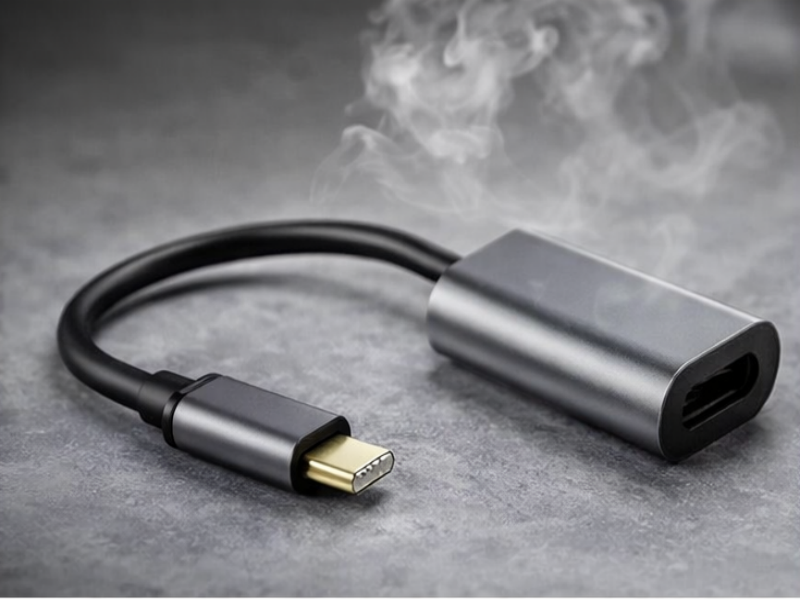
Overheating is another issue that can impact the performance of a USB-C to HDMI adapter. When an adapter overheats, it may lead to intermittent disconnections or cause the display to freeze. This can be due to poor ventilation, excessive use, or using the adapter with high-resolution output for extended periods.
Why Overheating Happens:
Cause | Description |
Poor Ventilation | Compact adapters with limited airflow can overheat if used continuously without breaks. |
Heavy Workload | Adapters supporting high resolutions or multiple monitors may overheat faster. Prolonged use can cause overheating. |
How to Prevent Overheating:
● Ensure Proper Ventilation: Place the adapter in a well-ventilated area to help dissipate heat. Avoid blocking the air vents or placing the adapter on soft surfaces that trap heat.
● Limit Use During High-Resolution Tasks: If you're using the adapter for gaming or video editing, give it regular breaks to prevent overheating from heavy use.
● Use a Powered Adapter: Some adapters come with built-in cooling features or additional power delivery (PD) to reduce the risk of overheating. These adapters are designed to operate more efficiently during extended use.
Conclusion
USB C to HDMI adapter issues often stem from incorrect settings, cable damage, or power problems. By following troubleshooting steps, users can resolve common issues like flickering or no signal. If problems persist, contacting customer support or replacing the adapter may be necessary. Yuanshan Electronic Technology (Shenzhen) Co., Ltd. provides reliable USB C to HDMI adapters, ensuring seamless display connections with high-quality performance and customer support.
FAQ
Q: Why is my USB C to HDMI adapter not working?
A: Common causes include loose connections, insufficient power supply, or driver issues. Ensure all cables are securely connected and check that your USB C port supports video output.
Q: How can I fix my USB C to HDMI adapter if the screen is black?
A: Try updating your display drivers or checking the display settings to ensure the correct input mode is selected. Also, test with different cables or HDMI ports.
Q: Does my USB C to HDMI adapter support 4K resolution?
A: Not all adapters support 4K resolution. Verify the specifications of your USB C to HDMI adapter and ensure it is compatible with your display’s resolution.



