English


Views: 315 Author: Site Editor Publish Time: 2026-02-02 Origin: Site
How Professional Docking Station Architectures Support Modern IT Workflows
Port Expansion and Display Scalability: From Single Screen to Dual HDMI Docking Station
Network Stability and Peripheral Management with Docking Station with HDMI and Ethernet
Workspace Optimization Using a Compact Docking Station for Home Office and Enterprise Setups
Choosing the Right Universal Docking Station for IT Environments
Laptop-centric computing has reshaped enterprise IT environments, placing new demands on connectivity, scalability, and workspace efficiency. For IT professionals managing diverse hardware ecosystems, the docking station has evolved into a foundational infrastructure component rather than a simple accessory. It bridges mobility and performance, enabling laptops to operate as full desktop workstations without compromising flexibility.
This article explores how laptop docking stations directly address the real-world challenges faced by IT pros—ranging from multi-display deployments and network reliability to security, power delivery, and long-term device management. The focus remains firmly on professional use cases, actionable evaluation criteria, and architectural advantages that support modern IT operations.
For IT professionals, efficiency is measured not only in computing power but also in how seamlessly devices integrate into complex work environments. A modern docking station serves as a centralized interface that consolidates data, video, power, and networking into a single, manageable connection point.
In enterprise settings, frequent laptop docking and undocking is part of daily workflow. Without a reliable docking solution, users face cable clutter, inconsistent peripheral recognition, and increased wear on laptop ports. A well-designed Professional docking station eliminates these friction points by standardizing connectivity across teams and locations.
From an IT management perspective, docking stations simplify deployment and support. When employees move between desks, meeting rooms, and remote offices, a consistent docking experience reduces troubleshooting time and training requirements. IT teams can define standardized workstation profiles where monitors, keyboards, external storage, and wired networks instantly reconnect upon docking.
Moreover, docking stations enhance hardware longevity. By shifting frequent peripheral connections away from fragile laptop ports to the dock itself, organizations reduce repair rates and extend device lifecycles. For IT pros balancing performance, cost control, and user satisfaction, the docking station becomes a strategic asset rather than an optional convenience.
A Professional docking station is engineered differently from consumer-grade hubs. Its internal architecture prioritizes signal stability, power regulation, and sustained performance under continuous workloads—factors critical in IT-driven environments.
At the core, professional docks integrate advanced controllers that manage simultaneous high-bandwidth data streams. This allows IT users to connect multiple displays, storage devices, and network interfaces without performance degradation. Unlike basic adapters, professional docking solutions are designed to operate reliably during long work sessions, system reboots, and sleep-wake cycles.
Power delivery architecture is another differentiator. Professional docks are built to provide consistent power to laptops while also supporting connected peripherals. This reduces reliance on multiple power adapters and simplifies desk layouts. For IT administrators, centralized power delivery also means fewer points of failure and easier troubleshooting.
Thermal design plays a critical role as well. Professional docking stations often incorporate passive or optimized thermal layouts that maintain stability even when driving high-resolution displays and data-intensive peripherals. This is particularly important in environments such as network operations centers, software development labs, and data analysis teams where systems run at high utilization for extended periods.
Ultimately, professional docking station architectures align with IT workflow realities—continuous operation, scalability, and predictability—making them essential infrastructure components rather than peripheral accessories.
Display scalability is one of the most immediate productivity gains offered by a docking station. IT professionals frequently work with dashboards, logs, virtual machines, and documentation simultaneously, making multi-monitor setups a necessity rather than a luxury.
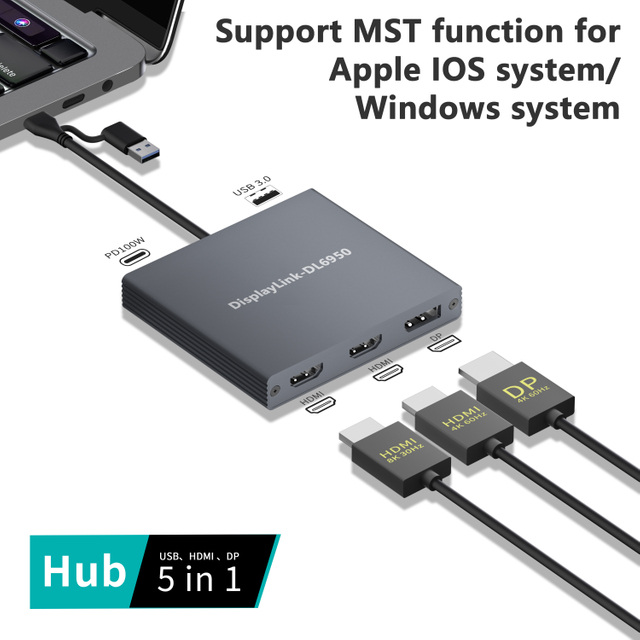
A Dual HDMI docking station enables laptops to drive two external displays without requiring dedicated graphics hardware upgrades. This capability transforms a portable device into a multi-screen workstation suitable for system monitoring, coding, cybersecurity analysis, and project management.
Below is a simplified comparison of display expansion scenarios supported by docking stations:
| Docking Configuration | External Displays Supported | Ideal IT Use Case |
|---|---|---|
| Basic Dock | 1 external monitor | Admin tasks, documentation |
| Advanced Dock | 2 external monitors | Development, monitoring |
| Dual HDMI Docking Station | 2 synchronized HDMI displays | Network ops, data analysis |
Beyond the number of displays, professional docking stations ensure consistent resolution, refresh rate stability, and reliable wake-from-sleep behavior—common pain points when using low-grade adapters. IT pros benefit from predictable display behavior across operating system updates and device changes.
For organizations standardizing workstation setups, docking stations with robust display support reduce configuration complexity. IT teams can deploy uniform multi-monitor environments across departments while maintaining flexibility for future hardware upgrades.
In enterprise IT environments, network reliability remains non-negotiable. While wireless connectivity has improved, wired Ethernet continues to offer superior stability, lower latency, and enhanced security. A Docking station with HDMI and Ethernet integrates high-speed wired networking directly into the workstation setup.
For IT professionals working with servers, remote desktops, or cloud infrastructure, consistent network performance is critical. Docking stations with integrated Ethernet bypass the variability of wireless connections, ensuring stable access during configuration tasks, large file transfers, and real-time monitoring.
Peripheral management is equally important. A single docking station can aggregate USB peripherals, displays, and network connections into one controlled interface. This reduces driver conflicts, simplifies troubleshooting, and ensures consistent device recognition across different laptops.
From an IT support standpoint, standardized docking stations make it easier to diagnose issues. When peripherals connect through a known dock configuration, support teams can isolate problems faster and reduce downtime. This is especially valuable in hybrid work environments where devices move between home and office locations.
By combining display output and wired networking, docking stations with HDMI and Ethernet become central control points that align performance, reliability, and manageability—key priorities for professional IT operations.
The rise of hybrid work has expanded the scope of IT responsibility beyond traditional offices. IT professionals now support users operating from diverse environments, making workspace optimization a critical consideration. A Compact docking station for home office setups addresses space constraints without sacrificing functionality.
Compact docking stations are designed to deliver essential port expansion in a smaller footprint, making them ideal for desks with limited space. Despite their size, they still support multiple displays, peripherals, and power delivery—allowing IT pros to replicate enterprise-grade setups in remote locations.
From an organizational perspective, compact docks simplify logistics. They are easier to ship, deploy, and replace, reducing operational overhead. IT teams can standardize on compact docking solutions for remote employees while maintaining compatibility with office-based workstations.
Ergonomics also benefit. By reducing cable clutter and centralizing connections, docking stations contribute to cleaner desk layouts and improved airflow around laptops. This indirectly supports device longevity and user comfort—both relevant metrics in IT equipment planning.
Whether deployed in corporate offices or home environments, compact docking stations help IT professionals maintain consistency, efficiency, and performance across distributed workforces.
Selecting a Universal docking station requires balancing compatibility, scalability, and long-term support considerations. IT professionals must evaluate docking solutions not just for current hardware but also for future device refresh cycles.
Universal docking stations are designed to work across multiple laptop models and operating systems, reducing fragmentation in mixed-device environments. This flexibility simplifies procurement and minimizes compatibility testing during hardware rollouts.
Key evaluation criteria include port diversity, power delivery capability, display support, and firmware update mechanisms. A truly universal docking station should adapt to evolving connectivity standards without requiring frequent replacement.
Wireless connectivity is another emerging consideration. While Wireless docking station solutions offer cable-free convenience, IT pros must assess trade-offs related to latency, security, and display performance. In controlled environments, wireless docks can support hot-desking and shared workspaces, but wired solutions often remain preferable for mission-critical tasks.
Ultimately, the right universal docking station aligns with organizational IT strategy—supporting mobility, standardization, and scalability while minimizing long-term operational costs.
For IT professionals, laptop docking stations are no longer optional accessories but essential infrastructure components. A well-chosen docking station enhances productivity, simplifies device management, and supports scalable, flexible work environments.
From Professional docking station architectures to Dual HDMI docking station display setups and Docking station with HDMI and Ethernet connectivity, these solutions address real operational challenges faced by modern IT teams. Whether optimizing enterprise offices or deploying Compact docking station for home office setups, docking stations deliver consistency and reliability across diverse workflows.
By understanding architectural differences, connectivity options, and deployment strategies, IT professionals can leverage docking stations as strategic tools that support both current needs and future growth.
Q1: Why is a docking station important for IT professionals?
A docking station centralizes connectivity, improves workflow efficiency, and simplifies device management in professional IT environments.
Q2: What is the advantage of a Dual HDMI docking station?
It enables multi-monitor setups that improve productivity for tasks such as system monitoring, development, and data analysis.
Q3: Are docking stations suitable for home office setups?
Yes, a compact docking station for home office use provides enterprise-level connectivity in limited spaces.
Q4: What makes a docking station “universal”?
A universal docking station supports multiple devices and operating systems, reducing compatibility issues in mixed IT environments.
Q5: Should IT teams consider wireless docking stations?
Wireless docking stations offer flexibility but must be evaluated carefully for performance, security, and reliability in professional use cases.