Imagine a world where one cable connects everything instantly. Sadly, most "plug and play" dreams end with black screens and drained batteries. Can every laptop docking station actually work with every laptop? This guide deciphers technical myths and helps you find a perfect, high-speed match.
Key Takeaways
● Protocol Over Plug: Physical fit does not guarantee a functional Laptop Docking Station connection.
● Check Port Icons: Look for lightning bolts or DisplayPort symbols to verify video and data support.
● Power Match: Ensure the dock’s wattage meets or exceeds your laptop’s specific charging requirements.
● Mac vs. PC: Use Thunderbolt or DisplayLink docks to overcome macOS dual-monitor limitations.
● Future-Proofing: Invest in high-bandwidth standards like Thunderbolt 4 for long-term hardware compatibility.
The Short Answer: Why "Universal" Compatibility is a Myth
The primary reason you cannot grab any laptop docking station off the shelf and expect success is that connectivity is governed by protocols, not just physical shapes. Even if the connector fits perfectly into the port, the internal "languages" they speak might be entirely different.
The Interface Bottleneck
The physical connector (the plug) is merely the gateway. Just because your laptop has a USB-C port doesn't mean it supports video output or high-speed data. Some ports are wired only for charging or basic data transfer, creating a bottleneck that prevents a sophisticated dock from functioning. It is a classic case of the hardware "pipe" being too small for the data "water" trying to flow through it.
Power Delivery (PD) Discrepancies
Power is a major pain point. A laptop docking station designed for a lightweight ultrabook might only provide 45W of power, while a workstation laptop requires 100W or more. If the dock cannot meet the laptop's specific Power Delivery requirements, the laptop might reject the charge entirely or, worse, discharge its battery while you are working.
The Role of Display Protocols
The way video data travels varies significantly. Some docks use "Alt Mode" to send raw video signals, while others require specific compression drivers. This is why you might see a dock support triple 4K monitors on one laptop, yet struggle to drive even a single 1080p screen on another. The laptop’s integrated graphics card and the port’s bandwidth dictate these limits.
Proprietary vs. Open Standards
In the past, many brands like Dell, HP, or Lenovo used "click-in" proprietary docks. These were physically keyed to only work with specific models. While the industry has shifted toward cable-based USB-C solutions, some features—like remote power buttons or MAC address pass-through—remain proprietary to specific brands.
Bandwidth Limitations
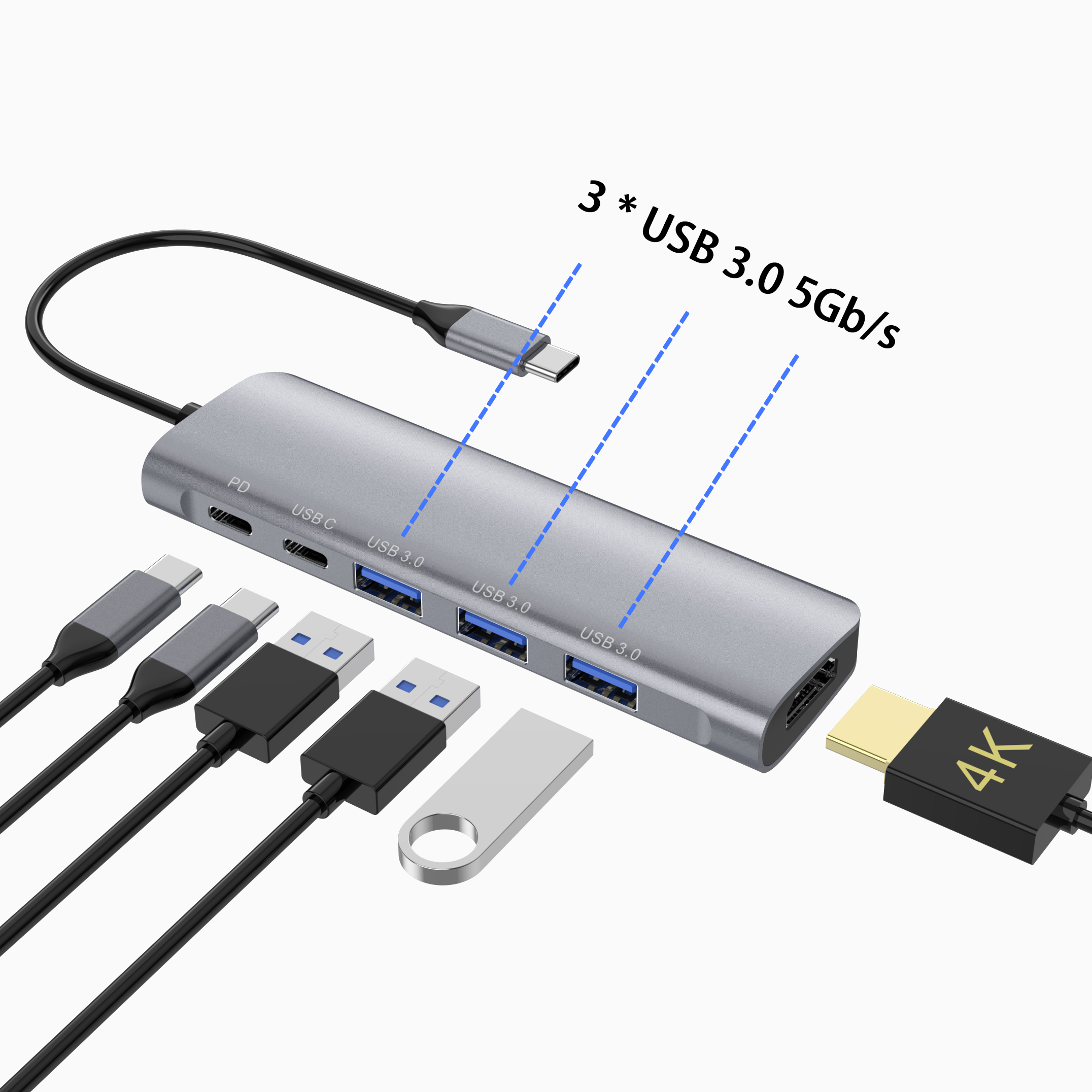
The version of your USB port acts as a speed limit. A USB 3.0 port offers 5Gbps, while a USB 4 or Thunderbolt 4 port offers 40Gbps. If you plug a high-end laptop docking station into a low-bandwidth port, the dock will either fail to work or significantly downgrade the performance of your connected monitors and drives.
Operating System Hurdles
Hardware is only half the battle; software is the other. Windows handles multi-monitor setups differently than macOS. Linux users often face driver challenges with specific docking chipsets. ChromeOS is generally simpler but lacks support for many advanced utility features found in professional-grade docks.
Passive vs. Active Docking Solutions
A passive dock is essentially a glorified adapter that relies on the laptop's internal hardware to do the heavy lifting. An active dock contains its own internal chipsets to manage data and video. If your laptop lacks the necessary internal components to drive a passive dock, you will need an active one to bridge the gap.
Comparison of Docking Technologies
Feature | Standard USB-C | Thunderbolt 4 | DisplayLink |
Physical Connector | USB-C | USB-C (w/ Lightning Bolt) | USB-A or USB-C |
Max Bandwidth | 5-10 Gbps | 40 Gbps | Dependent on USB port |
Charging Support | Optional (up to 100W) | Mandatory (up to 100W+) | Rare/Optional |
Video Method | DP Alt Mode | Native PCIe/DP | Software Compression |
Best For | General Productivity | Professional/Creative | Mixed Office Fleets |
Deciphering the USB-C Connector Confusion
The rise of USB-C was supposed to simplify our lives, but it created a "one plug, many possibilities" problem. It is the most common reason for laptop docking station incompatibility.
Not All USB-C Ports are Created Equal
USB-C describes the shape of the port, not its capabilities. You will encounter three main types:
1. Data Only: These ports only move files. They cannot charge your laptop or send video to a monitor through a dock.
2. DisplayPort Alt Mode: These can send video and data, making them compatible with most standard docks.
3. Full Featured: These handle data, video, and Power Delivery (charging).
Identifying the Symbols
Manufacturers usually place tiny icons next to the port to tell you what it does. A lightning bolt signifies Thunderbolt. A "D" shape (DisplayPort icon) means it supports video Alt Mode. If there is only a USB logo or no logo at all, it is likely a basic data port. Checking these icons is the quickest way to diagnose compatibility.
How a USB-C Laptop Docking Station Communicates
When you plug the dock in, a "handshake" occurs. The dock asks the laptop, "Can you accept 85W of power?" and "Can you send two lanes of DisplayPort data?" If the laptop says "No," the dock disables those features. This communication happens in milliseconds, but it determines your entire user experience.
Thunderbolt 3 & 4: The Gold Standard of Compatibility
If you want the most reliable experience, Thunderbolt is the answer. It uses the same USB-C shape but operates on a much more powerful protocol.
The Power of the Thunderbolt Protocol
Thunderbolt-certified laptop docking stations are essentially an extension of your laptop’s internal motherboard. Because they use PCIe lanes, they offer massive bandwidth (40Gbps). This allows them to handle multiple 4K displays, high-speed NVMe storage, and Ethernet without any lag. They are the gold standard for high-end Windows laptops and MacBooks.
Backward Compatibility Explained
Thunderbolt 4 is remarkably friendly. A Thunderbolt 4 dock will usually work with a Thunderbolt 3 laptop and even many standard USB-C laptops (though at reduced speeds). This backward compatibility makes it a safer investment if you plan on upgrading your laptop in the next few years.
Daisy-Chaining and High-Speed Data
Thunderbolt allows for daisy-chaining, where you can plug one device into another in a series. For professional creative workflows, this means you can connect a laptop docking station, then a professional monitor, then a RAID storage array—all using just one port on your laptop.
DisplayLink Technology: The "Workaround" for Non-Compatible Laptops
What if your laptop port doesn't support video output at all? This is where DisplayLink technology saves the day.
What is DisplayLink?
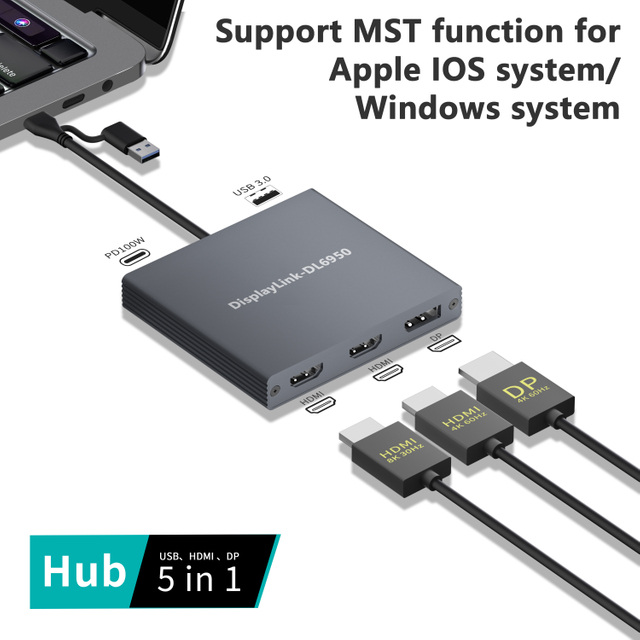
DisplayLink is a "magic" chipset inside some laptop docking stations. Instead of relying on the laptop's hardware to send video, it uses a software driver to compress the video data and send it over a standard USB data connection. This means you can get video output even from an old USB-A (rectangular) port.
Pros and Cons of DisplayLink
The benefit is truly universal compatibility. The downside is that because the video is compressed, it uses a bit of your laptop’s CPU power. You might notice a tiny bit of "lag" or "ghosting" if you are doing high-end gaming or intense video editing, but for office work, it is virtually indistinguishable from a native connection.
When to Choose a DisplayLink Dock
This is the best solution for companies with "mixed fleets"—where some employees have brand-new MacBooks and others have three-year-old Budget PCs. It ensures that everyone can walk into a conference room and use the same laptop docking station without technical issues.
Power Requirements and Charging Standards
One of the biggest frustrations is having a dock that connects everything but won't charge your computer.
Understanding Wattage Needs
Check the bottom of your laptop or your power brick. If your laptop needs 90W and your laptop docking station only provides 60W, your laptop might charge very slowly or not at all during heavy use. You must match or exceed the laptop's wattage requirement for the best results.
The Risks of Underpowered Docks
An underpowered dock can cause the laptop to "throttle" its performance to save energy. You might also see annoying Windows pop-ups warning you about a "Slow Charger." While it generally won't damage the hardware, it makes for a poor user experience.
Smart Power Allocation
High-quality docks feature "Smart Power." This technology dynamically shifts power between the laptop and the USB ports. If you plug a power-hungry phone into the dock, the dock might slightly reduce the laptop’s charge speed to ensure the phone gets the power it needs without crashing the dock.
Operating System Nuances: macOS vs. Windows vs. ChromeOS
Even if the hardware matches, the software might have a different opinion.
The "MST" vs. "SST" Dilemma
This is the number one complaint for Mac users. Windows supports Multi-Stream Transport (MST), which allows one cable to drive two different monitors. macOS does NOT support MST for USB-C. If you use a standard USB-C dock with a Mac, both external monitors will likely show the exact same image (Mirroring). Mac users usually need a Thunderbolt dock to get around this.
Driver Requirements
Some docks are "plug-and-play," meaning the drivers are already in the OS. Others, especially DisplayLink or high-end Ethernet docks, require you to download and install software before they work. This can be a hurdle if your company’s IT policy prevents you from installing software on your own.
Feature Limitations on ChromeOS
Chromebooks are great for docking, but they sometimes lack the "utility" software that comes with a laptop docking station. For example, you might not be able to update the dock's firmware or use advanced audio switching features that work perfectly on Windows.
Practical Checklist: How to Verify Compatibility Before Buying
Before you click "buy," follow this checklist to ensure you aren't stuck with a paperweight.
Auditing Your Laptop’s Specs
Don't guess. On Windows, search for your model name on the manufacturer's website and look for "Port Specifications." Look for terms like "Power Delivery" and "DisplayPort Alt Mode." On a Mac, click the Apple menu > About This Mac > System Report to see your Thunderbolt/USB capabilities.
Port Inventory
Count your devices. Do you need three USB-A ports for a mouse, keyboard, and printer? Do you need an SD card reader for photography? Make sure the laptop docking station has exactly what you need, plus one or two extra ports for future-proof growth.
Reading the Fine Print
Beware of marketing terms like "Universal USB-C Dock." This usually means it fits the port, but the fine print might say "Does not support charging" or "Supports only one monitor on macOS." Always read the "Compatibility List" at the bottom of the product page.
Conclusion
True universal compatibility remains a myth, but matching protocols makes a seamless setup possible. You must align power needs and video standards to boost productivity. yuanshan-tech provides high-performance docking solutions that simplify these technical hurdles. Their reliable products ensure your workspace stays future-proof and efficient. Choosing the right hardware today prevents wasted investments when you upgrade your laptop tomorrow.
FAQS
Q: Why doesn't every Laptop Docking Station work with every laptop?
A: Compatibility depends on specific protocols like Thunderbolt or USB-C Alt Mode, not just the physical plug shape.
Q: Can a USB-C Laptop Docking Station charge any device?
A: No, it only charges if both the dock and laptop support compatible Power Delivery wattage standards.
Q: How do I fix a Laptop Docking Station that won't show video?
A: Ensure your port supports video output or install DisplayLink drivers to bypass hardware communication limits.
Q: Is a Thunderbolt Laptop Docking Station worth the higher cost?
A: Yes, it offers superior bandwidth and reliability for high-performance workstations and multi-monitor setups.