Introduction
Have you ever struggled with connecting your USB-C device to an HDMI display? As technology advances, the demand for USB-C to HDMI adapters grows.
In this article, we will explore how a USB-C to HDMI adapter works and guide you through the connection process. You’ll learn everything you need for smooth, high-quality display setups.
What is a USB-C to HDMI Adapter and How Does it Work?
Overview of USB-C and HDMI Technologies
USB-C (Universal Serial Bus Type-C) is a versatile connector used in modern devices for data transfer, power delivery, and video output. It’s found in smartphones, laptops, tablets, and other devices. Unlike traditional USB connectors, USB-C is reversible and supports faster data transfer rates, making it a convenient option for users.
HDMI (High-Definition Multimedia Interface) is a standard for transmitting high-quality audio and video between devices like TVs, monitors, and projectors. It supports various resolutions, from HD to 4K and beyond, and is essential for connecting devices to larger screens.
Although both technologies are used for connecting devices to displays, they operate differently. USB-C can deliver video through DisplayPort Alternate Mode (DP Alt Mode), while HDMI is specifically designed for audio and video output. A USB-C to HDMI adapter allows a USB-C device to connect to HDMI displays by converting the signal into a compatible HDMI format.
How the USB-C to HDMI Adapter Bridges the Gap
A USB-C to HDMI adapter allows users to connect USB-C enabled devices to HDMI displays such as monitors, TVs, and projectors. The adapter’s role is to convert the video signal from a USB-C port, which typically uses DisplayPort Alt Mode for video output, into an HDMI-compatible signal for the display.
The process is straightforward:
1. Plug the USB-C end of the adapter into your device.
2. Connect the HDMI cable to the adapter and to the HDMI input on your display.
3. The device automatically detects the external display, allowing you to either mirror or extend your screen.
This simple connection process enables users to enjoy a larger display experience without the need for drivers or additional software.
Importance of Understanding Compatibility for Optimal Performance
To ensure optimal performance with a USB-C to HDMI adapter, it is essential to check that your device’s USB-C port supports DisplayPort Alt Mode (DP Alt Mode) for video output. Not all USB-C ports support video, and only those that do will work with HDMI displays.
Key Considerations for Compatibility:
● Device Compatibility: Make sure your device supports video output via USB-C. Devices like newer MacBook Pro models, some Windows laptops, and iPad Pro support DP Alt Mode, while others may not.
● Display Compatibility: The HDMI display you are connecting to must support the resolution you wish to use, such as 4K at 60Hz. Both the HDMI cable and the display must support this resolution for the best video quality.
● Adapter and Cable Quality: To achieve the desired performance, ensure the adapter and HDMI cable are of good quality, especially for high-definition content like 4K streaming.
What Do You Need to Use a USB-C to HDMI Adapter?
List of Required Components
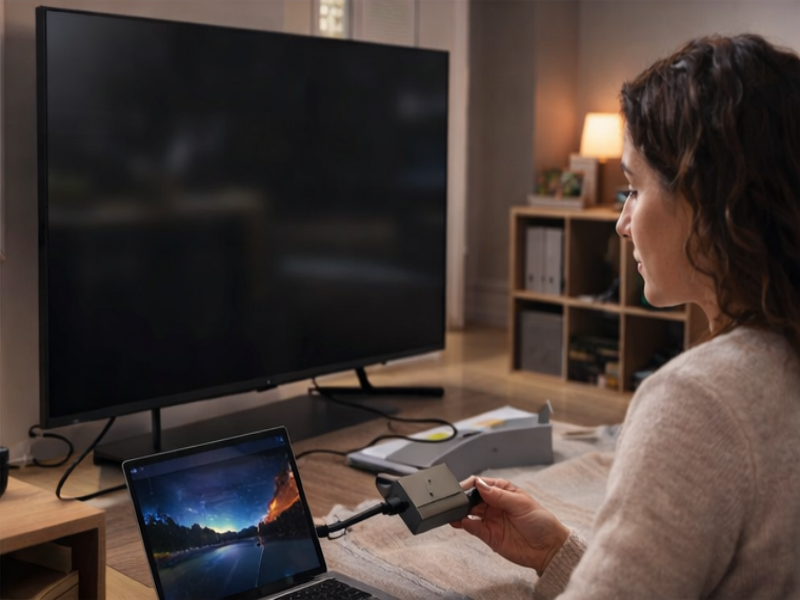
To use a USB-C to HDMI adapter, you’ll need the following components to ensure a smooth connection and optimal performance:
● Compatible USB-C Device: Your laptop, smartphone, or tablet must be equipped with a USB-C port that supports video output. Many modern devices, such as recent MacBook models, Windows laptops, and Android smartphones, are compatible with USB-C video output, but it’s essential to verify this feature.
● USB-C to HDMI Adapter or Direct USB-C to HDMI Cable: The adapter or cable serves as the bridge between your USB-C device and the HDMI-compatible display. A USB-C to HDMI adapter is a small, portable device that connects your USB-C device to an HDMI cable, which then connects to the display. Alternatively, a direct USB-C to HDMI cable combines both functions in one, offering a simpler, more streamlined connection.
● HDMI-Compatible Display: You need a display with an HDMI input, such as a TV, monitor, or projector. Most modern devices come with at least one HDMI input, but it’s important to ensure that your display is powered on and set to the correct HDMI input source.
● HDMI Cable (If Using an Adapter): If you're using a USB-C to HDMI adapter, you’ll need a separate HDMI cable to connect the adapter to the display. Ensure the cable is of high quality and supports the desired resolution, such as 4K at 60Hz, for optimal performance.
Importance of Checking Device Specifications for DP Alt Mode or Thunderbolt Support
Before using a USB-C to HDMI adapter, it’s critical to verify that your device’s USB-C port supports DisplayPort Alternate Mode (DP Alt Mode) or Thunderbolt support. Not all USB-C ports are designed to handle video output. Devices that lack DP Alt Mode or Thunderbolt will not be able to transmit video signals through the USB-C connection, which can lead to functionality issues with a USB-C to HDMI adapter.
To ensure compatibility:
Device Type | Supported USB-C Port Features | Compatible with USB-C to HDMI Adapter |
MacBook Pro | USB-C with Thunderbolt 3/4 | Yes |
Windows Laptops | USB-C with DP Alt Mode or Thunderbolt 3/4 | Yes |
iPad Pro | USB-C with DisplayPort Alt Mode | Yes |
Smartphones (Android) | USB-C with DP Alt Mode or Thunderbolt 3/4 | Yes |
Older Devices | USB-C without DP Alt Mode or Thunderbolt support | No |
Step-by-Step Guide: Connecting Your USB-C Device to an HDMI Display
Detailed Instructions for Laptops, Smartphones, and Tablets
Connecting your USB-C device to an HDMI display is a simple process that can enhance your viewing experience. Whether you are using a laptop, smartphone, or tablet, the steps are similar. Here’s a more detailed guide to ensure a smooth connection:
1. Plug the USB-C End of the Adapter into Your Device
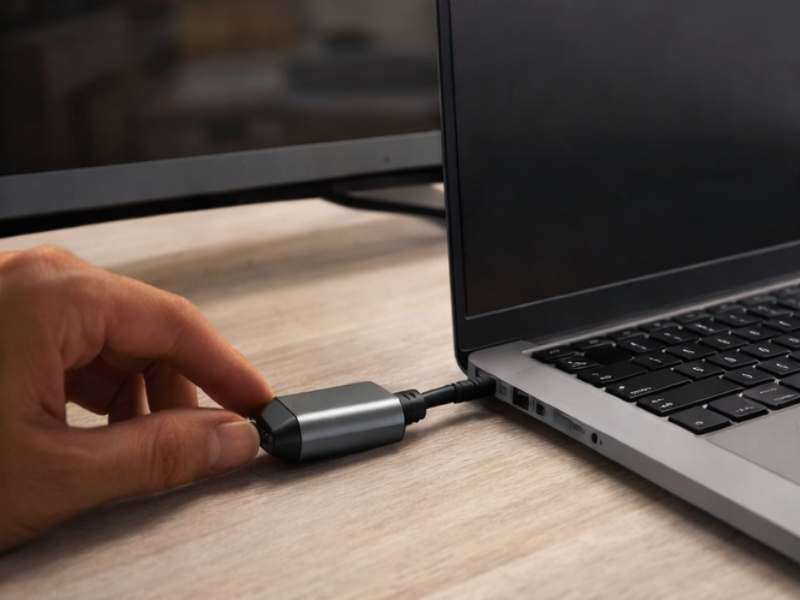
a. Locate the USB-C port on your device. Modern laptops, tablets, and smartphones typically have this port. Insert the USB-C end of the adapter into your device’s USB-C port. Since USB-C is reversible, you can insert the adapter either way. A secure connection is key to ensuring the device can send video output to the HDMI display without any interruptions.
2. Connect the HDMI Cable to the Adapter and the HDMI Input on the Display
a. If you’re using an adapter, take a standard HDMI cable. Insert one end into the HDMI port on the adapter. Then, plug the other end of the HDMI cable into the HDMI input on your display device—whether it’s a TV, projector, or monitor. Ensure that both ends are fully inserted, as loose connections can lead to display issues or signal loss.
3. Select the Correct HDMI Input on the Display
a. After connecting the USB-C device and HDMI display, you need to make sure the display is set to the correct HDMI input. Most displays have multiple HDMI ports, so it’s important to select the one that corresponds to the cable you plugged in (e.g., HDMI 1, HDMI 2). You can usually select the input via the display's remote control or menu settings.
Troubleshooting Tips for Common Issues
While the connection process is generally easy, sometimes you may encounter issues. Here are some troubleshooting tips to help resolve common problems:
● Check All Connections: Ensure that all components—the USB-C adapter, HDMI cable, and display—are properly connected. Sometimes, cables can become slightly unplugged, resulting in no display signal or a flickering screen.
● Restart Devices: If your screen isn’t showing up, try restarting both your device and your display. A simple reboot can help refresh the connection, especially if there’s a temporary glitch.
● Ensure Correct Display Mode: Different operating systems have different ways to manage external displays.
○ On Windows, press Win + P to open display options. You can select "Duplicate" (mirror your screen), "Extend" (use the external display as a second screen), or "Second screen only" (use only the external display).
○ For macOS, go to "System Preferences" > "Displays", and click on "Detect Displays" if the display is not automatically recognized. You can then choose between "Mirror Displays" or "Extend Display".
○ On Android devices, swipe down to access Quick Settings, where you may need to select “Screen Mirroring” or “Smart View” depending on the device.
● Check Compatibility: Make sure your USB-C port supports video output (DisplayPort Alt Mode or Thunderbolt). Some devices have USB-C ports that are only capable of charging or transferring data, not video output. If your device doesn’t support video over USB-C, you might need a different adapter or port.
● Try a Different HDMI Cable: Sometimes, the HDMI cable itself can be the culprit. If you experience issues with the connection, try using a different HDMI cable to see if that resolves the problem.
● Update Graphics Drivers: For Windows users, outdated graphics drivers can sometimes cause issues with external display connections. Ensure your graphics drivers are updated through Device Manager or the manufacturer's website for optimal compatibility.
● Power Cycle the Devices: If all else fails, power off both the USB-C device and the HDMI display. Wait for a few seconds, then power them back on and reconnect. This simple reset often fixes connectivity issues.
Common Problems and Troubleshooting with USB-C to HDMI Connections
No Signal or Poor Quality Display: What to Check and How to Fix It
One of the most common issues when using a USB-C to HDMI adapter is either no signal or poor quality display. If your screen is blank, flickering, or showing poor resolution, there are a few steps you can take to diagnose and resolve the problem.
● Check Cable Connections: Ensure that both the USB-C adapter and HDMI cable are securely connected. Loose connections are often the cause of signal issues, so double-check that everything is properly plugged in.
● Confirm Display Input Source: Verify that the display is set to the correct HDMI input. Many monitors and TVs have multiple HDMI ports, and it’s important to select the correct one using the remote or the input button on the display itself.
● Test the HDMI Cable: A faulty HDMI cable can cause poor signal quality. Try swapping out the HDMI cable with another known-working one to eliminate the possibility of a damaged cable.
● Adjust Display Settings: Sometimes, the issue may lie within the display settings on your device. On Windows, use the Win + P shortcut to toggle display options such as “Duplicate” or “Extend”. For macOS, go to "System Preferences" > "Displays" and select the correct output mode.
Compatibility Issues with Devices and Adapters
Incompatibility between your device and the USB-C to HDMI adapter can also lead to connection problems. Not all USB-C ports support video output, and certain devices may require a specific adapter.
● Check for DisplayPort Alt Mode: Some USB-C ports are designed for power and data transfer only, without supporting video output. Ensure your device’s USB-C port supports DisplayPort Alt Mode (DP Alt Mode), which is necessary for video output. Devices like newer MacBook Pros, some Windows laptops, and iPad Pro models typically support this mode.
● Adapter Compatibility: Verify that your adapter supports the resolution you need. Some adapters may only support lower resolutions (e.g., 1080p), while others support 4K or higher. Check the product specifications for details on supported resolutions and refresh rates.
● Device Operating System: Make sure your device’s operating system is up-to-date. Some older versions may not fully support external displays, causing connectivity issues. Ensure you have the latest updates installed to avoid software-related compatibility problems.
Troubleshooting Resolution and Audio Transmission Issues
When using a USB-C to HDMI adapter, you may encounter issues with either video resolution or audio transmission. Here’s how to address these common problems:
Issue | Potential Solution |
Display Resolution Issues | Adjust the resolution settings in your device’s display settings to match the capabilities of both the device and display. For example, ensure both support 4K at 60Hz if using a 4K display. |
Test with Another Display | Connect your USB-C device to a different HDMI display to identify if the problem is with the original display or the adapter. |
Audio Not Working (No Sound) | Ensure that HDMI is selected as the audio output in your device’s audio settings. On Windows, go to "Sound Settings" and select HDMI as the audio source. On macOS, make sure the audio output is set to the connected display. |
These steps should help you troubleshoot and fix common resolution and audio transmission issues when using a USB-C to HDMI adapter.
Testing with Alternative Cables or Devices to Isolate the Problem
When troubleshooting USB-C to HDMI connection issues, it’s important to isolate the cause of the problem. Testing with alternative cables or devices can help pinpoint the issue.
● Test Another USB-C Adapter: If you have access to a different USB-C to HDMI adapter, try using it to see if the issue persists. If the second adapter works, the original adapter might be faulty.
● Use a Different HDMI Cable: Swapping out the HDMI cable for a different one can help identify whether the issue is related to the cable itself.
● Test with Another Device: If the adapter works with one device but not another, there could be a compatibility issue with the specific device. Test the adapter with other devices that support USB-C video output to see if the problem is device-specific.
Conclusion
Using a USB-C to HDMI adapter improves the connection between modern devices and external displays, enhancing the overall user experience. These adapters are highly flexible, supporting various devices and display types. It’s essential to ensure compatibility and choose the right equipment for seamless connectivity. Yuanshan Electronic Technology (Shenzhen) Co.,Ltd. provides reliable adapters that offer excellent performance, supporting 4K resolutions and ensuring smooth video and audio output.
FAQ
Q: How do I know if my device supports USB-C to HDMI adapter?
A: Check your device specifications for DisplayPort Alternate Mode (DP Alt Mode) or Thunderbolt support to ensure compatibility with a USB-C to HDMI adapter.
Q: Can I use a USB-C to HDMI adapter for 4K resolution?
A: Yes, as long as the USB-C to HDMI adapter supports HDMI 2.0 and your display is 4K-compatible.
Q: What’s the difference between a USB-C to HDMI adapter and a USB-C to HDMI cable?
A: A USB-C to HDMI adapter requires a separate HDMI cable, whereas a USB-C to HDMI cable combines both the adapter and cable functions into one unit.
Q: Why is my display not showing with the USB-C to HDMI adapter?
A: Ensure all connections are secure, the correct input is selected on the display, and check your device's display settings for proper output configuration.



