Are you tired of constantly plugging and unplugging devices? A docking station can simplify your workspace. In today's fast-paced work environments, docking stations enhance laptop functionality and connectivity. In this post, you'll learn what a docking station is, its benefits, and how to choose the right one for your needs.
Understanding Docking Stations
What is a Docking Station?
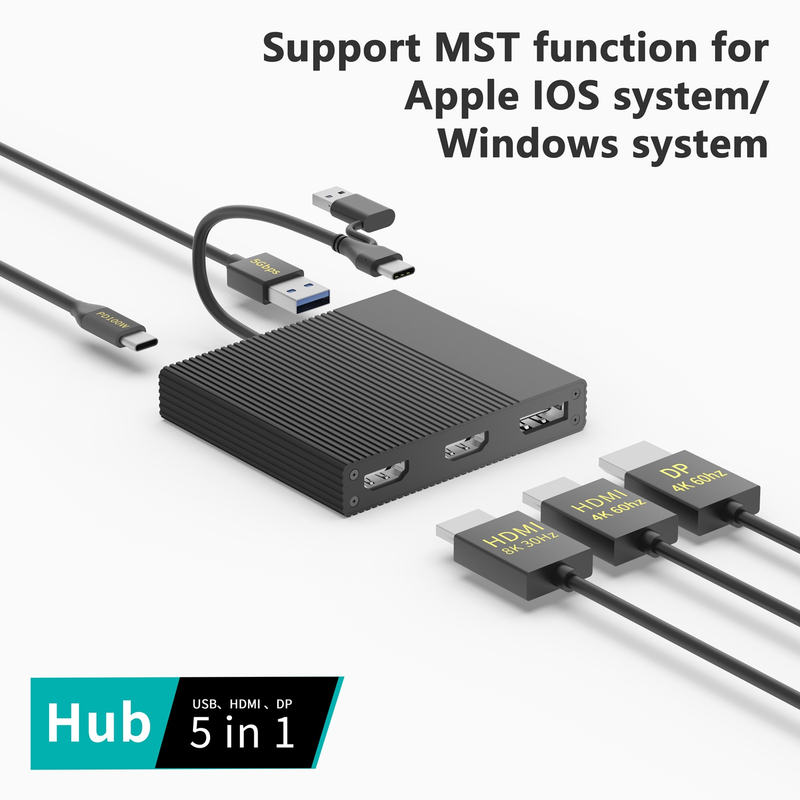
A docking station is a device that connects a laptop to multiple peripherals and external displays. It acts as a central hub, allowing you to expand your laptop's capabilities significantly. By simply docking your laptop, you can access additional ports and features, transforming it into a more powerful workstation.
Key Components of a Docking Station
1. Ports: Docking stations typically include various ports such as USB, HDMI, Ethernet, and audio jacks. These ports enable connections to monitors, keyboards, mice, and other devices.
2. Power Delivery: Many docking stations provide power to your laptop, eliminating the need for multiple chargers. This feature ensures your laptop remains charged while connected to the dock.
3. Controller Chips: These chips detect connected devices and manage power distribution, ensuring everything works seamlessly.
Why Do You Need a Docking Station?
Using a docking station offers several advantages that can enhance your overall computing experience. Here are some key benefits:
Expanded Connectivity Options
Docking stations provide a variety of ports that allow you to connect multiple devices simultaneously. This means you can plug in your monitor, printer, and external hard drive all at once. No more fumbling with cables every time you want to set up your workspace.
Improved Productivity
Imagine working on a project while referencing documents on another screen. Docking stations support multiple monitors, which can significantly boost your productivity. This setup allows for easier multitasking and reduced time spent switching between applications.
Clutter-Free Workspace
A docking station helps organize your workspace by consolidating all your connections into one hub. Instead of a tangle of cables, you have a neat and tidy area. This organization not only looks better but also makes it easier to find what you need.
Benefit | Description |
Ergonomic Comfort | Elevates your laptop screen to eye level, reducing neck strain. |
Built-in Security | Many models include security features like fingerprint scanners. |
Emergency Shutdown | Some docks can automatically shut down devices if they overheat, protecting your equipment. |
By investing in a docking station, you’re not just enhancing connectivity; you’re creating a more efficient and comfortable work environment. Whether you’re a student, a remote worker, or a professional, the benefits of using a docking station are clear. They simplify your setup, improve your workflow, and help maintain a clean workspace.
Types of Docking Stations
Office Docking Stations
Office docking stations are designed to enhance productivity in fixed work environments. These devices typically offer a range of ports, including USB, HDMI, and Ethernet, allowing users to connect multiple peripherals easily.
Features and Benefits
● Multiple Ports: These docks generally include several USB ports, video outputs, and audio jacks. This variety enables seamless connections to monitors, printers, and other devices.
● Power Delivery: Many office docks can charge your laptop while connected, reducing clutter from multiple chargers.
● Ergonomic Design: By elevating the laptop screen to eye level, these docks help improve posture and comfort during long work hours.
Feature | Benefit |
Multiple Connections | Connects various devices easily, enhancing productivity. |
Compact Design | Saves desk space by consolidating connections. |
User-Friendly | Simple plug-and-play functionality for quick setup. |
Ideal Use Cases
Office docking stations are perfect for home offices and corporate environments. They allow employees to transition from a mobile to a stationary setup quickly. In a corporate setting, these docks can facilitate hot desking, where multiple employees share the same workspace.
Vehicle Docking Stations
Vehicle docking stations are specialized devices designed for use in cars, trucks, and other vehicles. They provide a secure way to mount laptops or tablets while ensuring connectivity.
Explanation of Vehicle Docks and Cradles
These docks typically feature a locking mechanism to keep the device secure during transit. They often include additional connectivity options, such as RF passthrough, which allows the device to connect to the vehicle's radio antennas.
Industries Benefiting from Vehicle Docking Stations
● Transportation: Delivery drivers and logistics personnel use these docks for easy access to route information.
● Emergency Services: Police and ambulance services rely on vehicle docks for real-time data access while on the move.
● Field Services: Technicians in utilities and maintenance can use these docks to access service records and communicate efficiently.
Industry | Benefit |
Transportation | Streamlined access to navigation and delivery info. |
Emergency Services | Immediate access to critical data while driving. |
Field Services | Enhanced communication and data retrieval on-site. |
Universal vs. Proprietary Docking Stations
When choosing a docking station, it’s essential to understand the differences between universal and proprietary options.
Differences Between Universal and Manufacturer-Specific Docking Stations
● Universal Docking Stations: These docks are designed to work with a wide range of laptops, typically connecting via USB-C or Thunderbolt. They are versatile and can accommodate various brands and models.
● Proprietary Docking Stations: These are made specifically for certain laptop brands, like Lenovo or HP. They often have unique connectors that ensure optimal compatibility and performance.
Compatibility Considerations
Before purchasing a docking station, consider the compatibility with your laptop brand. Some laptops may require specific adapters or cables to connect to universal docks. Always check the specifications to ensure you choose the right dock for your device.
Type | Compatibility Considerations |
Universal | Works with many brands, but may need adapters. |
Proprietary | Designed for specific brands, ensuring optimal function. |
Understanding the types of docking stations available can help you choose the right one for your needs. Whether you’re setting up a home office or need a secure solution for your vehicle, there’s a docking station designed for you.
How Does a Docking Station Work?
The Connection Process
Connecting a laptop to a docking station is a straightforward process that significantly enhances functionality. First, you simply align your laptop with the dock and secure it in place. Most docking stations use various connection types, making them versatile for different devices.
Types of Connections
● USB-C: This is the most common connection type. It allows for fast data transfer and power delivery in one cable.
● Thunderbolt: Known for its high speed, Thunderbolt connections can support multiple devices and high-resolution displays simultaneously.
● HDMI: This connection is essential for video output, allowing you to connect your laptop to external monitors easily.
Connection Type | Speed | Features |
USB-C | Up to 10 Gbps | Data transfer, power delivery |
Thunderbolt | Up to 40 Gbps | Supports multiple displays, fast charging |
HDMI | N/A | High-quality video and audio output |
The dock uses controller chips to detect any connected peripherals automatically. These chips manage the communication between your laptop and the devices plugged into the dock. This ensures that everything works seamlessly without requiring manual setup each time.
Power Delivery and Charging
Docking stations do more than just connect devices; they also provide power to laptops and peripherals. This means you can keep your laptop charged while using it, eliminating the need for multiple chargers cluttering your workspace.
How Power Delivery Works
Most docking stations are equipped with power delivery capabilities, typically ranging from 85 to 100 watts. This rating indicates how much power the dock can supply to your laptop.
● 85 Watts: Suitable for most ultrabooks and standard laptops.
● 100 Watts: Ideal for high-performance laptops that require more power.
Independent Power Sources
Some docks come with independent power sources, allowing for greater flexibility. This feature means you can charge your devices even when the laptop is disconnected. It’s especially useful in environments where multiple devices need charging simultaneously.
Power Delivery Rating | Suitable Devices |
85 Watts | Ultrabooks, standard laptops |
100 Watts | Gaming laptops, high-performance devices |
Understanding how docking stations work can help you maximize their potential. By connecting your laptop effectively and utilizing power delivery features, you can create a more efficient and organized workspace.
Common Connectivity Options in Docking Stations
USB Ports
USB ports are essential features of any docking station, providing connectivity for various devices. There are two main types of USB ports you’ll typically find: USB-A and USB-C.
Types of USB Ports Available
● USB-A: This is the traditional rectangular port commonly used for connecting peripherals like keyboards, mice, and flash drives.
● USB-C: A newer, reversible connector that supports faster data transfer rates and power delivery. It’s becoming the standard for modern devices.
USB Type | Speed | Power Delivery | Common Uses |
USB-A | Up to 5 Gbps | No | Keyboards, mice, external drives |
USB-C | Up to 10 Gbps | Yes | Charging, data transfer, monitors |
Fast data transfer rates are crucial for productivity. USB-C ports can transfer data up to 10 Gbps, making them ideal for tasks involving large files, such as video editing or data backups. Additionally, USB-C ports are compatible with many wireless accessories, allowing users to connect devices like wireless keyboards and mice without hassle.
Video Output Options
When it comes to connecting external displays, docking stations typically offer multiple video output options. Two of the most common are HDMI and DisplayPort.
HDMI vs. DisplayPort: Which is Better?
● HDMI: Widely used for TVs and monitors, HDMI supports both video and audio signals. It’s perfect for home entertainment setups.
● DisplayPort: Known for higher performance, DisplayPort supports higher resolutions and refresh rates. It’s often favored in professional settings where multiple monitors are used.
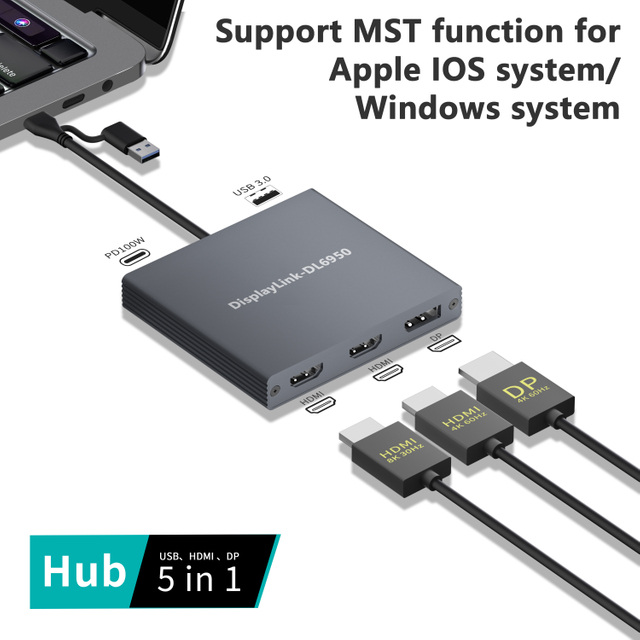
Many docking stations support multiple monitors and resolutions, allowing you to set up dual 4K displays for an expansive workspace. This feature is beneficial for multitasking, as it provides ample screen real estate for various applications.
Network Connectivity
Docking stations also enhance network connectivity, often featuring built-in Ethernet ports. This is particularly useful for users who require stable internet connections.
Benefits of Built-in Ethernet Ports
Having an Ethernet port in a docking station offers several advantages:
● Stable Connection: Wired connections are generally more reliable than Wi-Fi, reducing the chances of dropouts during important tasks.
● Faster Speeds: Ethernet typically provides faster data transfer rates compared to Wi-Fi, which is crucial for activities like streaming and online gaming.
Connection Type | Speed | Use Case |
Ethernet | Up to 1 Gbps | Streaming, gaming, large downloads |
Wi-Fi | Varies | General browsing, casual use |
By using an Ethernet connection, you can significantly reduce lag during activities like gaming or video conferencing. This ensures a smoother experience, especially when multiple devices are connected to the same network.
Audio and Peripheral Connections
In addition to video and data connections, docking stations often include audio jacks for connecting speakers or headphones. This feature enhances the overall multimedia experience.
Audio Jacks and Their Uses
Audio jacks allow you to easily connect external speakers or headphones, improving sound quality compared to built-in laptop speakers. Furthermore, docking stations typically support other peripherals, including external storage devices and additional input devices.
Connecting external devices like keyboards, mice, and storage through the docking station simplifies your workspace. Instead of plugging and unplugging multiple devices, you can connect everything at once and switch between setups effortlessly.
Connection Type | Use Case |
Audio Jack | Connecting headphones or speakers |
USB Ports | Connecting external drives, peripherals |
With these common connectivity options, docking stations play a vital role in creating an organized and efficient workspace. They enable users to connect multiple devices quickly, enhancing productivity and comfort.
Choosing the Right Docking Station
Factors to Consider
When selecting a docking station, several factors can significantly impact your overall experience. Understanding these elements ensures you make an informed decision that meets your needs.
Compatibility with Your Laptop Model and Operating System
First and foremost, check the compatibility of the docking station with your laptop model and operating system. Some docks are designed specifically for certain brands, such as Lenovo or HP, while others are universal. Always verify that your laptop can connect seamlessly to the dock without requiring additional adapters.
Required Ports and Connectivity Options
Next, consider the ports you need. Think about what devices you plan to connect. For example, if you often use external monitors, ensure the dock has the necessary HDMI or DisplayPort connections. Additionally, having multiple USB ports can be beneficial for connecting peripherals like mice and keyboards.
Port Type | Typical Use |
USB-A | Standard peripherals (mice, keyboards) |
USB-C | Fast data transfer, charging |
HDMI/DisplayPort | Connecting external monitors |
Ethernet | Stable internet connection |
Power Delivery Capabilities
Power delivery is another critical factor. Look for docking stations that can provide sufficient power to keep your laptop charged. Ratings between 85W and 100W are ideal for most laptops, ensuring you won’t run out of battery during important tasks.
Size and Design Considerations
The physical size and design of the docking station matter, too. If you have limited desk space, a compact design will be more suitable. Additionally, consider whether you prefer a vertical or horizontal orientation. A sleek design can enhance your workspace aesthetics while providing functionality.
Future-Proofing with Versatile Models
Lastly, think about future-proofing your investment. Opt for docking stations that offer a variety of ports and connectivity options. This versatility will allow you to adapt to new devices and technologies as they emerge, ensuring your dock remains useful for years to come.
Popular Docking Station Brands and Models
Several reputable brands offer high-quality docking stations, each with unique features and benefits.
Overview of Reputable Brands
● Anker: Known for its reliable and affordable options, Anker provides a range of docks suitable for various needs.
● Lenovo: Offers docking stations specifically designed for its laptops, ensuring optimal compatibility and performance.
● HP: Provides high-end docking solutions, particularly for business environments, with robust features and security options.
Highlighting Specific Models
Some popular models worth considering include:
● Anker PowerExpand Elite: This dock features multiple USB ports, HDMI, and a compact design, perfect for home offices.
● Lenovo ThinkPad Dock Gen 2: Ideal for Lenovo laptops, this dock supports dual 4K displays and offers robust power delivery.
● HP Thunderbolt Dock 120W G2: This dock is designed for HP devices, providing fast connectivity and extensive port options.
Brand | Model | Key Features |
Anker | PowerExpand Elite | Multiple ports, compact design |
Lenovo | ThinkPad Dock Gen 2 | Dual 4K support, high power delivery |
HP | Thunderbolt Dock 120W G2 | Fast connectivity, extensive port options |
User Reviews and Experiences
Always consider user reviews and experiences before making a purchase. Reading feedback can provide insights into the reliability and performance of the docking stations you’re interested in. Look for comments on ease of use, durability, and customer support to help guide your decision.
By taking these factors into account, you can confidently choose a docking station that fits your lifestyle and enhances your productivity.
Conclusion
This article highlights the importance of docking stations for laptops. It covers key factors to consider when choosing one, including compatibility, connectivity options, and power delivery capabilities. Selecting the right docking station enhances productivity and ensures a seamless workflow. Companies like YUANSHAN offer high-quality docking solutions with unique features that provide great value. Readers are encouraged to share their experiences with docking stations and engage in further discussions.
FAQ
Q: What is a docking station for a laptop?
A: A docking station is a device that expands the connectivity options of a laptop, allowing users to connect multiple peripherals easily.
Q: How does a docking station work?
A: A docking station connects to a laptop via USB-C or Thunderbolt, providing ports for HDMI, USB, and Ethernet connections.
Q: Why should I use a docking station?
A: Using a docking station enhances productivity by allowing easy access to multiple devices and providing power delivery to your laptop.
Q: What are the advantages of using a docking station?
A: Docking stations offer convenience, improved connectivity, and the ability to connect multiple monitors, enhancing your workspace.
Q: How much does a docking station typically cost?
A: The price of a docking station varies widely, ranging from $50 to $300, depending on the features and brand.
Q: Can I connect a docking station to any laptop?
A: Not all laptops are compatible with every docking station. It's essential to check compatibility based on your laptop model and ports.