IT fleet management often faces a harsh reality regarding daily operations. Malfunctioning connectivity hardware drives a massive volume of helpdesk tickets. This problem multiplies rapidly in busy hot-desking environments. Users sit down, plug in their machines, and expect instant productivity. Instead, they frequently face external monitor flickering, sudden USB disconnects, and mysterious power delivery failures. Many IT administrators quickly write these off as bad units. However, they rarely are simply defective items. These recurring issues usually stem from highly fragmented maintenance protocols. Poor initial specification matching also plays a huge role in these failures. Minimizing this daily downtime requires a dedicated two-pronged approach. First, we must standardize proactive software and physical hardware maintenance routines. Second, you must establish strict evaluation criteria when selecting your next fleet of devices. We will explore how treating these peripherals as managed endpoints changes everything. You will learn actionable steps to stabilize your connectivity hardware and drastically reduce daily support requests.
Key Takeaways
- Proactive Lifecycle Management: Routine firmware updates and OS-level power management configurations resolve the majority of random disconnect issues.
- Physical Stress Mitigation: Cable strain relief and proper thermal ventilation significantly extend hardware lifespan in shared environments.
- Specification Alignment: Choosing the right base specifications prevents power delivery bottlenecking and chipset incompatibility.
- Supplier Accountability: Partnering with a vetted supplier that provides enterprise-level firmware tools reduces long-term IT overhead.
The Hidden Costs of Connectivity Downtime in Hybrid Offices
Hardware failure causes immense frustration in environments experiencing high user turnover. Hot-desking setups expect completely seamless transitions every single morning. A user arrives, connects a single cable, and begins working immediately. When displays fail to wake up, productivity halts instantly. The IT desk receives an urgent call. Support staff must pause other projects to troubleshoot a seemingly basic desk setup. We often treat a laptop docking hub as a simple, passive accessory. This "plug-and-play" myth directly leads to high hardware failure rates.
Modern connectivity stations operate as highly active endpoints. They require robust processing power, careful thermal management, and precise driver alignment. High-resolution displays and heavy network data transfers push internal chipsets to their physical limits. Frequent users swap desks multiple times a week. Each physical swap tests the durability of host connectors. Unseen processing bottlenecks emerge rapidly. Users connect completely varying laptop models to the identical station. This constant friction drains valuable IT resources daily. Support teams spend hours troubleshooting simple peripheral drops across the building.
To combat this, administrators must completely rethink their deployment approach. A highly reliable hybrid offices laptop docking hub strategy demands a shift in perspective. You must treat the dock as an actively managed endpoint on your network. It is not an expendable consumable you just throw away when glitches arise. Recognizing the active processing nature of these devices changes how you deploy them. Intense heat generation requires proper physical airflow. Complex display routing demands regularly updated processing logic. They truly act as the central nervous system of any modern workstation.
Core Maintenance Routines to Stabilize Your Fleet
Firmware and Driver Standardization
Repeated device disconnects constantly plague many shared office environments. Users complain their secondary screens drop out randomly during meetings. External hard drives suddenly unmount without warning. These specific issues often tie directly to outdated DisplayLink packages or generic OEM drivers. Operating systems frequently apply generic, basic drivers upon first connection. They rarely grab the most optimized, manufacturer-specific firmware automatically. This specific software mismatch causes the root issue of repeated peripheral disconnects.
To resolve this instability, you must completely control the update process. We strongly recommend deploying updates via centralized endpoint management platforms. Systems like Microsoft Intune or SCCM handle this perfectly. Do not rely on end-user prompts for updates. Employees routinely click "remind me later" on critical update pop-ups. Push standardized driver packages silently in the background. This practice ensures every single workstation operates on identical, tested firmware versions. It eliminates the guesswork when a user reports a suddenly flickering display.
OS-Level Power Management
Aggressive power-saving features often conflict with continuous connectivity needs. Windows utilizes a deeply embedded feature called "USB Selective Suspend". This function puts inactive USB ports into a low-power state automatically. It intends to save laptop battery life during idle periods. However, it frequently causes peripheral connections to drop entirely. The operating system fails to wake the port fast enough when data transmission resumes. This leads to dropped calls on external webcams or frozen mouse inputs.
You must actively disable this feature across your enterprise fleet. Apply Group Policy Objects (GPOs) to alter these power plans globally. Setting corporate endpoints to favor absolute performance stabilizes active connections. It prevents the host machine from cutting power to the internal controller during brief idle periods. macOS environments require similar attention regarding sleep settings. Ensure network interfaces remain active even when the host machine screen turns off.
Physical Care and Thermal Management
The physical environment heavily dictates hardware longevity. Proper desk placement actively prevents premature component failure. You must follow strict physical guidelines when setting up shared workstations.
- Avoid stacked heat sources entirely. Never place the unit directly under a running laptop exhaust vent.
- Ensure clear, unobstructed airflow around the device chassis to dissipate internal chipset heat.
- Route cables carefully to prevent sharp tension on the host upstream port.
- Secure heavy, thick display cables to the desk using zip ties or mounting clips.
- Regularly inspect all physical connectors for bent internal pins or accumulated dust debris.
The host upstream cable represents the single most common point of physical failure. Users yank it daily from various angles. Proper cable strain relief prevents this daily wear from breaking internal solder joints. Proper thermal ventilation significantly extends the internal hardware lifespan. Overheated chipsets naturally throttle data bandwidth. This thermal throttling causes monitor flickering and slowed network speeds.
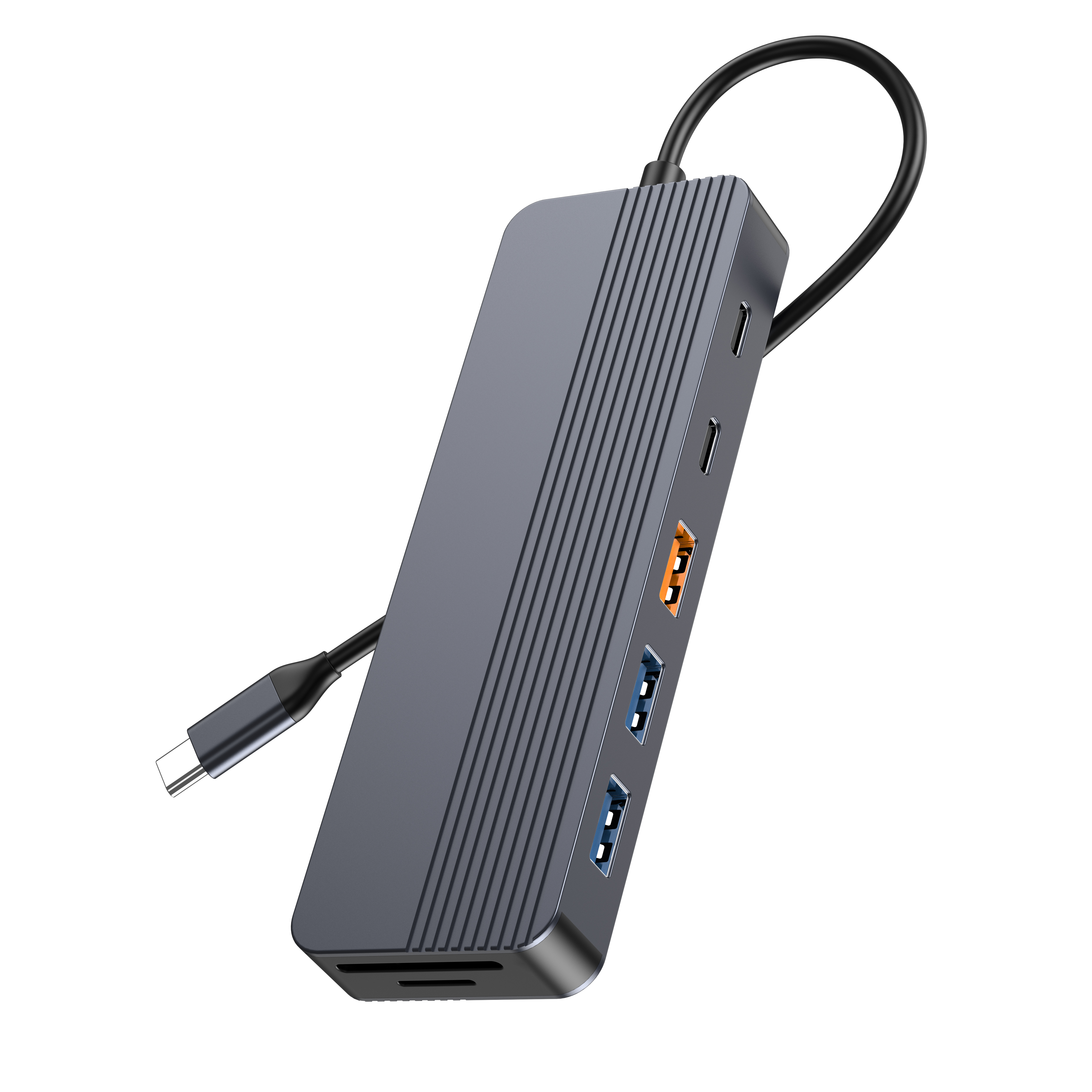
Evaluating Laptop Docking Hub Specifications to Prevent Failures
Power Delivery (PD) Overhead
Careful procurement decisions directly impact future maintenance burdens. Power Delivery (PD) limits require highly accurate calculation before purchasing. Buying a device exactly matching a laptop's minimum power requirement introduces major operational risks. It forces the internal charging circuitry to run at maximum physical capacity constantly. This constant maximum load generates immense thermal stress inside the casing. Heat slowly degrades internal capacitors and processor lifespans over time.
We highly recommend building in a substantial 15-20% PD buffer. If your standard fleet laptop requires 65 watts, deploy units capable of delivering at least 85 watts continuously. This calculated overhead allows the internal components to operate well below their thermal limits. It drastically reduces heat-related throttling events. It extends the operational life of the device significantly. You also future-proof the desk for next-generation laptops requiring slightly more baseline power.
Chipset and Protocol Compatibility
Matching protocols to your specific host fleet minimizes driver-related downtime. You must define clear laptop docking hub specifications before finalizing any purchase orders. The current market offers several competing underlying technologies. Understanding their core differences helps prevent frustrating chipset incompatibility.
Review the diagnostic evaluation matrix below detailing common protocols.
| Protocol Type | Maximum Bandwidth | Primary Office Use Case | Key Maintenance Consideration |
| Thunderbolt 4 | 40 Gbps | High-end media workstations, dual 4K or 8K displays. | Requires strict Intel driver updates and premium certified cables. |
| USB-C Alt Mode | 10-20 Gbps | Standard office productivity, single or dual HD displays. | Host laptop must explicitly support video output natively. |
| DisplayLink | Variable based on compression | Mixed OS environments, heavy legacy hardware support. | Relies heavily on software drivers; potential CPU overhead. |
Evaluate this matrix carefully against your current fleet. Thunderbolt 4 offers massive bandwidth. It handles complex video routing easily. However, it demands strict Intel driver management to remain stable. USB-C Alt Mode provides excellent native graphical performance. It requires specific hardware-level host support to function properly. DisplayLink technology creates universal compatibility across both Windows and macOS environments. It relies heavily on software drivers installed directly on the host machine. Selecting the wrong protocol creates constant daily friction. Users plug in and experience completely blank screens. Aligning your hardware choices exactly matches fleet capabilities. This alignment eliminates baseline compatibility failures from day one.
Standardizing vs. Custom Solutions for Fleet Stability
The Danger of Fragmented Fleets
Managing a mixed-brand environment creates an absolute IT nightmare. Different hardware brands utilize entirely different internal chipsets. One brand uses Realtek controllers. Another relies on Intel components. This fragmentation leads directly to massive driver conflicts across the network. When users move between desks, their laptops attempt to juggle multiple, conflicting network and display drivers simultaneously. This constant driver swapping causes extreme inconsistency in user experiences.
One desk works flawlessly for a user. The very next desk causes blue screens or permanently frozen displays. Support teams waste hours hunting down specific firmware for ten different random models across the building. Standardization eliminates these problematic variables entirely. Deploying a single, thoroughly tested model ensures uniform driver distribution. It makes troubleshooting highly predictable. You can replicate issues quickly in a controlled lab environment. Predictability remains the cornerstone of cutting daily maintenance downtime.
When to Consider a Custom Approach
Universal off-the-shelf options serve general office needs quite well. However, specialized operational environments often benefit from a completely different path. Exploring scenarios requiring a custom laptop docking hub can dramatically improve overall operational stability. These solutions lower failure rates significantly in niche deployments.
Some organizations require highly tailored port configurations. Perhaps you need multiple legacy serial ports alongside modern connections for industrial equipment. High-security environments might require specific MAC address passthrough features implemented at the hardware level. This ensures strict network authentication recognizes the physical laptop. It prevents unauthorized devices from spoofing connections. Other setups need proprietary mounting solutions. Medical carts require securely bolted hardware to survive constant hallway movement. In these highly specific cases, tailored solutions provide far superior reliability. They eliminate the need for chained adapters and messy cable converters. They integrate natively into your unique daily operational workflows.
Criteria for Choosing a Reliable Laptop Docking Hub Supplier
Choosing the right hardware vendor matters just as much as choosing the right technical specifications. A poor vendor relationship increases maintenance friction exponentially.
- Enterprise Warranty and RMA Processes: You must strictly evaluate how the supplier handles high-volume hardware failures. A standard consumer return process takes weeks to resolve. You ship the defective unit, wait for an inspection, and finally receive a replacement. This leaves a desk completely unusable for an extended period. Look for vendors offering true advance replacements. They ship a new unit immediately upon ticket creation. You return the defective unit later in the exact same box. This keeps desks functional.
- Enterprise Tooling: Managing fifty units differs entirely from managing five thousand endpoint units. Look for a laptop docking hub supplier offering dedicated, robust firmware update utilities. These specific tools must support completely silent enterprise deployment. Standard MSI or EXE installers allow you to push background updates via SCCM or Intune seamlessly. Without these automated tools, IT staff must manually touch every single desk to flash new firmware. This manual effort guarantees missed updates and subsequent failures.
- Lifecycle Transparency: Assess the supplier's ongoing commitment to long-term driver support. Operating systems update their core architectures constantly. Windows 11 rolls out massive feature drops regularly. Apple macOS updates introduce strict new security protocols for all external accessories. Your supplier must provide prompt driver updates across these major OS transitions. If they abandon support after two brief years, perfectly good hardware becomes useless electronic waste. Ask for their historical track record regarding driver lifecycle support before signing contracts.
A true enterprise partner understands the maintenance burden their hardware creates. They design support systems specifically to alleviate that burden. Vetting these capabilities proactively saves hundreds of future troubleshooting hours.
Conclusion
Minimizing unexpected connectivity downtime involves changing fundamental IT support habits. It requires fully acknowledging these peripheral devices function as highly active endpoints. Cutting daily downtime is ultimately forty percent maintenance protocol and sixty percent strict procurement discipline. Establishing standardized driver deployments handles the ongoing software maintenance side. Optimizing power settings handles frustrating intermittent drops. Selecting robust power specifications and vetting capable suppliers handles the crucial procurement side.
IT buyers should immediately audit their current helpdesk ticket logs. Analyze this historical data to identify distinct failure patterns. Determine whether your downtime is primarily software-driven or physically hardware-based. If cables break frequently, you clearly have a physical setup and strain issue. If monitors flicker after major OS updates, you have a severe driver management gap. Use those detailed findings to draft an updated, highly specific RFP for your next hardware refresh. Actionable data empowers you to build a highly stable, resilient hybrid workspace.
FAQ
Q: How often should firmware on a laptop docking hub be updated?
A: We recommend a quarterly review schedule. Align these regular updates with major OS feature releases. Always test new firmware in a controlled sandbox environment first. Once validated against your standard fleet image, push the update fleet-wide using silent deployment tools. This exact cadence prevents disruptive compatibility breaks during active work hours.
Q: Why do monitors connected to my docking hub keep flickering or dropping?
A: Monitor flickering typically stems from a trifecta of triage issues. Outdated display drivers often cause software-level signal drops. Substandard or heavily worn HDMI/DP cables introduce physical signal degradation. Finally, inadequate Power Delivery can cause the internal chipset to overheat and throttle, disrupting the video signal temporarily.
Q: What is the expected lifespan of an enterprise docking station?
A: You should set realistic expectations of three to five years. Host-port wear from daily unplugging represents a major end-of-life factor. Thermal degradation of internal components also takes a significant toll in high-use environments. Implementing cable strain relief and ensuring proper desk airflow helps you achieve the higher end of this lifespan.