Making the jump from browsing to buying requires careful technical scrutiny. You have researched various adapter categories. Now, you must finalize your purchase decision. However, buyers face a common problem during selection. Not all hubs deliver their advertised bandwidth or power simultaneously. A poor specification mix causes dropped connections, display lag, or unexpected battery drain. Your daily workflow demands absolute reliability. You cannot rely on vague marketing claims alone. This article provides an evidence-based evaluation framework. We will help you verify technical claims effectively. You will learn how to match specific specifications to your exact hardware requirements. Understanding port protocols ensures your peripherals work flawlessly. We will walk you through these crucial verification steps. Finally, we will guide you on how to vet manufacturers for bulk orders or customized deployments.
Key Takeaways
- Always check the exact bandwidth allocation (e.g., 5Gbps vs. 10Gbps) and power deduction (hubs typically reserve 10W–15W for self-operation).
- MacBook users must verify DisplayPort Alt Mode and MST (Multi-Stream Transport) limitations before expecting dual-monitor functionality.
- Thermal management (aluminum casing, quality chipsets) is as critical as port configuration for long-term reliability.
- When sourcing from a 4 in 1 USB C hub supplier, verify certifications (CE, FCC, RoHS) and chipset stability (e.g., Realtek, VIA) over purely aesthetic features.
Evaluating Core 4 in 1 USB C Hub Specifications
You must scrutinize individual port capabilities to ensure seamless peripheral operation. Marketing materials often highlight maximum theoretical limits. Real-world performance heavily depends on internal bandwidth allocation. Evaluating 4 in 1 USB C hub specifications requires breaking down power, data, and video standards.
Power Delivery (PD) Passthrough Realities
Power Delivery passthrough is a primary function for these devices. You must differentiate between "Supported Input" and "Actual Output." A manufacturer might advertise a 100W rating. This number represents the maximum power the device can accept from the wall charger. The device itself consumes power to run internal microprocessors. Typically, it deducts 10W to 15W for self-operation. Therefore, the actual output reaching your host laptop is usually 85W or 90W.
You also need to assess the PD protocol version. Modern devices utilize PD 3.0 standards. PD 3.0 supports Fast Role Swap (FRS). FRS prevents data drops when you unplug the power source. Older standards would reset the entire connection. This reset forces hard drives to unmount improperly. FRS ensures a seamless transition between wall power and battery power.
Bandwidth Bottlenecks and Data Transfer
Data transfer speeds depend entirely on the underlying USB standard. You must audit this standard before purchasing. The performance differences are significant.
- USB 2.0: Operates at 480Mbps. Suitable only for basic peripherals like mice or keyboards.
- USB 3.2 Gen 1: Delivers up to 5Gbps. Ideal for standard flash drives and HD webcams.
- USB 3.2 Gen 2: Pushes up to 10Gbps. Necessary for NVMe SSD external enclosures.
Bandwidth becomes a major bottleneck during simultaneous use. A single Type-C connection shares a finite data pipeline. Running an external SSD and a 4K display concurrently splits this pipeline. If the pipeline maxes out, you will experience stuttering video or slow file transfers. Always verify the total uplink bandwidth capacity.
Video Output Standards (HDMI/DP)
Video performance hinges on maximum resolution and refresh rate guarantees. Many entry-level models advertise 4K support. However, they cap the refresh rate at 30Hz. A 30Hz refresh rate causes noticeable cursor lag. It strains the eyes during prolonged document editing.
To achieve a smooth 4K@60Hz output, your setup needs two things. First, the internal video controller must support HDMI 2.0 or DisplayPort 1.4. Second, your host machine must support DisplayPort Alt Mode (DP 1.4) over its Type-C port. If your laptop only supports DP 1.2, your maximum output will drop back to 4K@30Hz regardless of the adapter's capabilities.
Navigating MacBook Displays 4 in 1 USB C Hub Compatibility
Apple laptops present unique challenges for external display connections. Their operating system handles video signals differently than Windows machines. You must understand these architectural limitations before connecting multiple monitors.
The MST vs. SST Limitation
The most common hurdle is the lack of native Multi-Stream Transport (MST) support in macOS. MST allows a single data stream to drive multiple independent displays. Because macOS lacks this feature, standard hubs fall back to Single-Stream Transport (SST). SST simply mirrors the first external display onto the second one. You will not get an extended desktop across two external screens.
If you search for a macbook displays 4 in 1 USB C hub, you must know the technical workarounds. To achieve dual extended displays on base M1, M2, or M3 chips, you require DisplayLink technology. DisplayLink uses software drivers to compress video data over standard USB lanes. It bypasses Apple's native hardware limitations. However, DisplayLink chips are rarely found in compact 4-in-1 form factors. Alternatively, you must use high-end Thunderbolt or specific USB4 controllers.
Matching Hub Specs to Apple Hardware
Pairing accessories with MacBooks requires strict adherence to specific guidelines. You should prioritize high-wattage Power Delivery to match Apple's robust battery charging demands. You must also ensure DP 1.4 compatibility. This ensures maximum single-display resolution without triggering thermal throttling.
Best Practices for MacBook Compatibility:
- Check your exact MacBook model year to confirm Thunderbolt 3 or Thunderbolt 4 support.
- Verify the adapter explicitly lists macOS support in its technical documentation.
- Install necessary firmware updates using a Windows machine if the manufacturer does not provide a Mac updating tool.
Thermal Design and Internal Component Quality
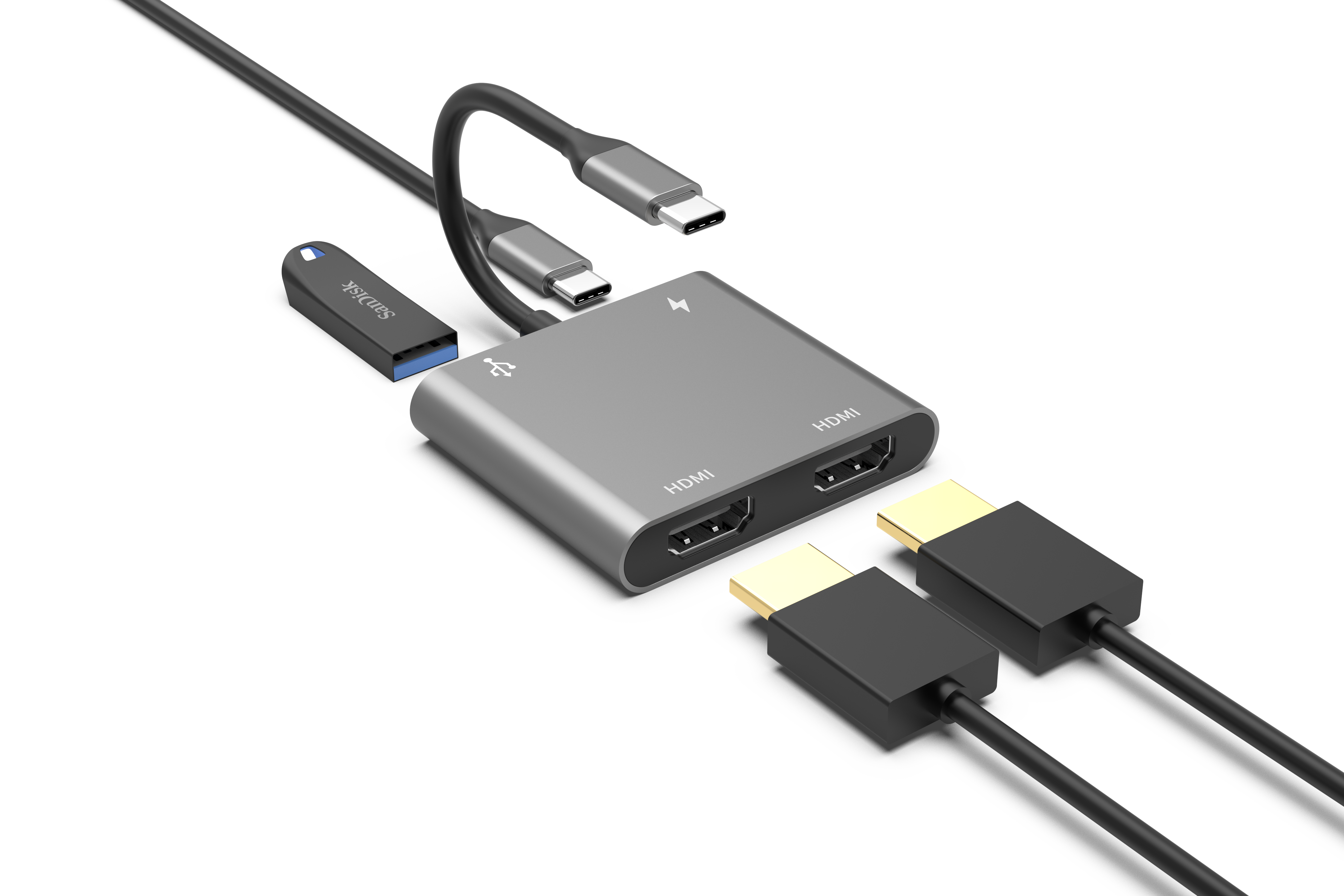
Heat is the enemy of electronic longevity. These compact devices pack significant processing power into tiny enclosures. A high-quality 4 in 1 USB C hub relies heavily on robust thermal management and premium silicon.
Heat Dissipation Requirements
We frame thermal management as a critical reliability metric. Processing 100W of power and converting 4K video signals generates intense heat. The laws of physics dictate this energy release. The casing material dictates how effectively this heat escapes.
Plastic housings act as thermal insulators. They trap heat inside, which rapidly degrades chip lifespan. It causes sudden peripheral dropouts under heavy loads. We strongly recommend aluminum alloy enclosures. Aluminum acts as an efficient heatsink. It pulls heat away from the internal circuit board. You should also verify if the manufacturer discloses operating temperature limits. High-quality devices typically remain under 45°C (113°F) even at maximum load.
Controller Chipsets
Internal components dictate performance stability. You must demystify the silicon hiding inside the casing. Reliable models use established controllers from industry leaders like VIA Labs or Realtek. These companies design silicon that prevents peripheral disconnects during heavy I/O tasks.
A cheaper chipset might struggle to manage a gigabit network transfer and an HDMI signal simultaneously. It drops packets or loses sync. Knowing the exact chipset brand provides immediate insight into the product's overall engineering quality.
Sourcing Logic: Vetting a 4 in 1 USB C Hub Supplier
Purchasing at scale requires rigorous supplier evaluation. You cannot afford field failures when deploying hundreds of units across an enterprise. You must establish strict vetting criteria before approving any manufacturer.
Compliance and Safety Certifications
You must highlight mandatory business-stage checks. Regulatory compliance is not optional. It prevents legal liability and expensive hardware damage.
When reviewing a 4 in 1 USB C hub supplier, demand proof of the following certifications:
- FCC: Ensures the device does not emit harmful electromagnetic interference (crucial for US markets).
- CE: Confirms adherence to health, safety, and environmental protection standards (mandatory for European markets).
- RoHS: Guarantees the product is free from hazardous materials like lead and mercury.
- USB-IF: Verifies the internal wiring meets exact electrical standards, preventing dangerous backflow currents that destroy laptop motherboards.
You must also evaluate their Quality Control (QC) testing protocols. Ask for their insertion life cycle testing reports. Good connectors withstand over 10,000 insertions. Ask for salt spray testing results. This test confirms the connector plating will not rust in humid environments.
Assessing Supplier Reliability
Supplier reliability extends beyond the factory floor. You need long-term support for your deployment. Check for transparent warranty terms. A standard commercial warranty should cover at least 12 months. Request their defect rate disclosures. The industry standard acceptable defect rate is strictly under 1%.
Finally, check their firmware update support. Operating systems change constantly. A manufacturer must provide timely firmware patches to maintain compatibility over the device's lifespan.
Specifying Requirements for a Custom 4 in 1 USB C Hub
Off-the-shelf solutions do not always meet specialized enterprise requirements. You might need to engineer a bespoke solution. Customizing the hardware ensures perfect alignment with your daily operational demands.
Tailoring I/O for Specific Deployments
You must define use-case mapping for OEM or ODM orders. Every port must serve a distinct purpose. For instance, an enterprise environment might not need an SD card reader. You can swap that data port for a Gigabit Ethernet (RJ45) port to ensure secure, hardwired network access. Alternatively, audiovisual teams might require an upgrade from standard HDMI 2.0 to HDMI 2.1. This supports higher frame rates for video editing.
You also need to highlight form-factor customizations when ordering a custom 4 in 1 USB C hub. Cable length modifications are incredibly popular. Standing desks or integrated monitor setups often require longer cables than the standard 15cm wire. You can also specify right-angle connectors. These connectors reduce physical strain on the laptop port in tight workspace configurations.
Business Considerations for Customization
Customization introduces new business variables. You must outline these constraints early in the negotiation process.
| Customization Type | Typical Minimum Order Quantity (MOQ) | Estimated Lead Time | Cost Implications |
| Logo Printing / Branding | 500 Units | 15 - 20 Days | Minimal (Low setup fee) |
| Cable Length Modification | 1,000 Units | 25 - 30 Days | Moderate (Material costs) |
| Port Reconfiguration (I/O) | 2,000 Units | 40 - 45 Days | High (New PCB layout required) |
| Custom Enclosure Mold | 3,000+ Units | 50 - 60 Days | Very High (Tooling costs applied) |
Tooling costs for custom molds range from a few thousand to several thousand dollars. You must also factor in lead times for prototype validation. You will need to test initial engineering samples against your specific hardware before authorizing mass production.
Conclusion
Selecting the right peripheral adapter requires cutting through marketing noise. You must prioritize verified Power Delivery passthrough to keep your devices charged safely. You must guarantee host-device compatibility, particularly if you deploy Apple hardware. Finally, you must prioritize thermal reliability over superficial aesthetics to ensure a long product lifespan.
Your immediate next step is to audit your host device's specific port protocols. Check your laptop manual. Verify if it supports Thunderbolt 3, Thunderbolt 4, or standard Type-C with DP Alt Mode. Once you map your host capabilities, you can request accurate supplier quotes or confidently finalize your purchase.
FAQ
Q: What is the difference between a 4-in-1 hub and a docking station?
A: A hub prioritizes portability and runs off your laptop's power or a small wall charger. It is compact and ideal for travel. A docking station is larger, sits permanently on a desk, and relies on its own heavy-duty dedicated power supply to drive multiple high-end peripherals.
Q: Why does my 4-in-1 hub get hot during use?
A: Heat generation is entirely normal. Processing high-resolution video signals and routing up to 100W of power creates internal electrical resistance. Aluminum enclosures absorb this heat and radiate it outward. This external warmth proves the thermal dissipation is working correctly to protect internal chips.
Q: Can a 4 in 1 USB C hub deliver full 100W to my laptop?
A: No, it cannot. Even if you use a 100W wall charger, the hub reserves approximately 10W to 15W of power to run its internal controller chips. Therefore, the maximum power reaching your laptop will typically cap at 85W or 90W.
Q: Will any USB-C hub work with my specific MacBook for external displays?
A: No. Your MacBook must support DisplayPort Alt Mode to output video. Furthermore, macOS lacks native MST support. Standard adapters will only mirror your screens. For extended dual displays on base M-series chips, you need specific DisplayLink technology.