Thunderbolt 5 provides up to 80 Gbps of bandwidth in each direction during normal operation. For display-heavy workloads, Bandwidth Boost can reallocate the connection to provide up to 120 Gbps from the host while retaining up to 40 Gbps in the opposite direction.
In raw units, 80 Gbps equals 10 GB/s, while 120 Gbps equals 15 GB/s. These figures describe link bandwidth, however—not guaranteed file-transfer speed for one SSD, USB port, or other connected device.
How the 80 Gbps and 120 Gbps Modes Work
Thunderbolt 5 normally operates as a balanced, bidirectional connection. It can transmit and receive up to 80 Gbps simultaneously, giving storage, displays, networking, and other peripherals access to substantially more bandwidth than Thunderbolt 4.
Bandwidth Boost changes how that capacity is distributed. When the system detects a high demand for display bandwidth, it can assign three lanes to outgoing traffic and one lane to incoming traffic. This produces a 120 Gbps transmit path and a 40 Gbps return path.
Operating mode
Host-to-device bandwidth
Device-to-host bandwidth
Primary use
Balanced mode
Up to 80 Gbps
Up to 80 Gbps
Mixed data, display, storage, and peripheral traffic
Bandwidth Boost
Up to 120 Gbps
Up to 40 Gbps
High-resolution or high-refresh-rate display traffic
Bandwidth Boost does not make every connected device operate at 120 Gbps. It is primarily a way to allocate more bandwidth to displays when the workload requires it. Intel’s Thunderbolt 5 technology brief explains the balanced 80/80 Gbps and boosted 120/40 Gbps configurations.
Why File Transfers Are Slower Than 80 Gbps
The 80 Gbps figure describes the maximum Thunderbolt link capacity. A file transfer must also pass through the host controller, PCIe connection, dock controller, storage controller, protocol layers, and the SSD itself.
Several factors can therefore reduce measured transfer speed:
PCIe bandwidth: Intel specifies 64 Gbps of PCIe data bandwidth for Thunderbolt 5. That equals a theoretical 8 GB/s before protocol overhead and device limitations.
Storage performance: An SSD capable of 5 GB/s cannot transfer data at 10 GB/s simply because it is connected to an 80 Gbps port.
Protocol overhead: Link management, packet framing, error handling, and storage protocols consume part of the available bandwidth.
Shared traffic: Displays, storage devices, Ethernet, and USB peripherals connected through the same dock may share the host link.
Port-specific limits: A 10 Gbps USB port remains a 10 Gbps interface even when the dock connects to the computer through Thunderbolt 5.
Host and cable support: The computer, dock, and cable must all support the required Thunderbolt mode. A slower link in the chain limits the entire connection.
For this reason, “80 Gbps Thunderbolt 5” should be understood as the capacity of the connection rather than the expected speed of every individual transfer.
How Much Faster Is Thunderbolt 5 Than Thunderbolt 4?
Thunderbolt 4 provides up to 40 Gbps of bidirectional bandwidth. Thunderbolt 5 doubles that to 80 Gbps and adds the 120 Gbps Bandwidth Boost mode for display-intensive workloads.
Intel also increased the required PCIe data bandwidth from 32 Gbps with Thunderbolt 4 to 64 Gbps with Thunderbolt 5. That additional capacity can benefit fast external storage, capture devices, external graphics, and other PCIe-based peripherals.
The improvement is most noticeable when several high-bandwidth functions operate together. A keyboard, mouse, or ordinary USB drive will not become twice as fast, but a workstation combining fast NVMe storage, high-resolution displays, networking, and capture hardware gains substantially more headroom.
What Thunderbolt 5 Speed Means for Docking Stations
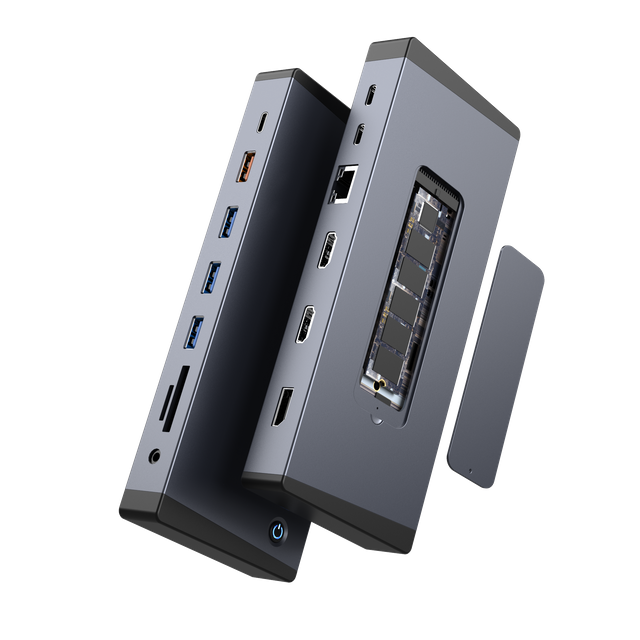
A Thunderbolt 5 dock distributes one high-bandwidth host connection among several downstream interfaces. Those interfaces retain their own speed limits, even though they share access to the faster Thunderbolt link.
These numbers describe different functions. The 80 Gbps figure is the host-link bandwidth, 64 Gbps is the M.2 interface ceiling, 10 Gbps is the limit of each listed USB-A 3.2 connection, and 2.5 Gbps is the Ethernet interface speed. The 140W specification describes charging power and does not increase data bandwidth.
What Matters When Comparing Thunderbolt 5 Docking Stations?
Look beyond the largest number on the specification sheet:
Confirm the host connection. Full performance requires a Thunderbolt 5 computer, not just a USB-C connector.
Check each downstream interface. USB, Ethernet, storage, and display ports may operate well below the 80 Gbps host-link ceiling.
Understand bandwidth sharing. Determine which ports share controllers or PCIe resources and how simultaneous workloads affect performance.
Review display conditions. Resolution, refresh rate, display compression, GPU capability, operating system, and the number of active monitors can change the supported configuration.
Verify the cable. Use an appropriate Thunderbolt cable for the required bandwidth and power level.
Separate charging input from laptop output. A dock’s power-supply rating is not necessarily the amount delivered to the computer.
Evaluate concurrent operation. For demanding deployments, test the intended combination of displays, storage, networking, and USB devices rather than validating each port separately.
Start with the displays, storage, networking, charging, and peripherals that the workstation must support, then compare those requirements with the dock’s individual interfaces and shared bandwidth. This approach helps identify a suitable configuration without relying on headline speed alone. To see how these capabilities are combined in one verified design, review the complete specifications for our 11-in-1 Thunderbolt 5 Docking Station.