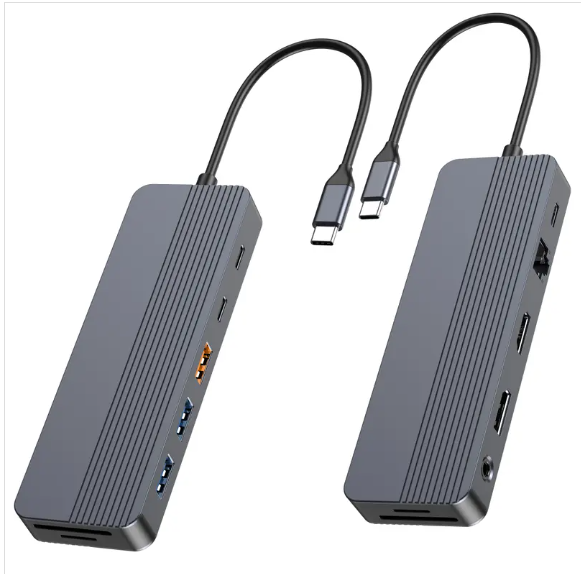
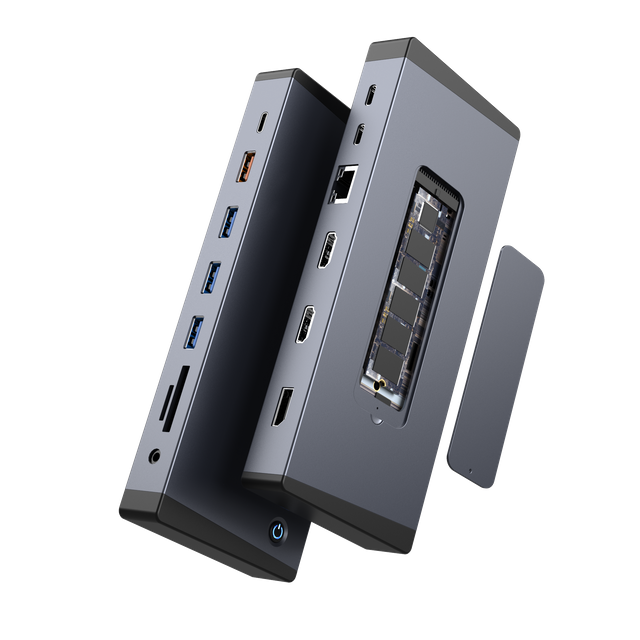
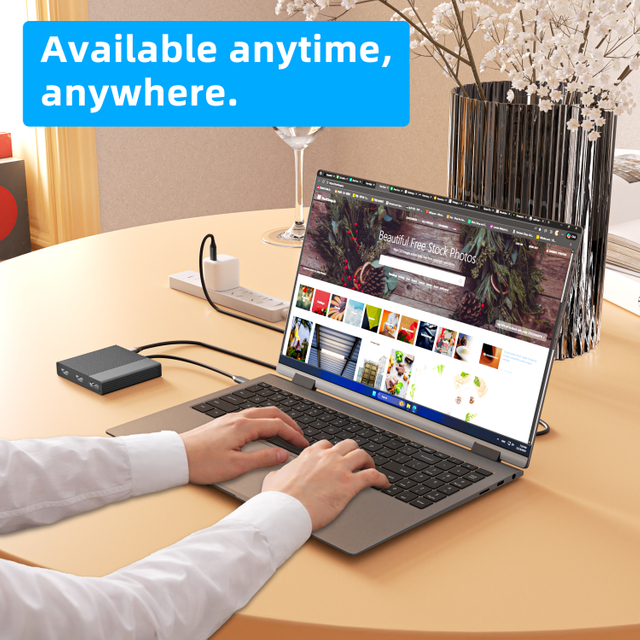
In this guide, you will learn how to connect two monitors, choose the right cables, and adjust display settings.
You will also learn how to fix common setup issues.
2. Step-by-Step Guide: How to Connect Dual Monitors to Laptop Docking Station
Step 1: Confirm your laptop supports external dual displays
Before you connect anything, check your laptop specifications. The laptop must support two external screens. Some laptops support one external monitor only. Others support two or more through USB-C, Thunderbolt, HDMI, or DisplayPort.
Check the user manual, product page, or system display settings. Look for terms like external display support, DisplayPort Alt Mode, Thunderbolt, or multiple monitors. If the laptop cannot output two video signals, even the best dock may not solve the issue.
Step 2: Check the video outputs on your docking station
Next, inspect the docking station. A docking station for two monitors should have at least two video outputs. Common options include HDMI, DisplayPort, USB-C video, or VGA.
For a modern workspace, HDMI and DisplayPort are more common. DisplayPort is often better for higher resolution screens. HDMI works well for standard office monitors. If you plan a dual monitor setup with HDMI and DisplayPort, make sure both ports can work at the same time.
Step 3: Match monitor inputs with the right cables
Now check your monitors. Each monitor has one or more video input ports. These may include HDMI, DisplayPort, USB-C, DVI, or VGA. Choose cables that match both the monitor and the laptop dock.
For example, one monitor may use HDMI. The second may use DisplayPort. That setup is common and stable. If both monitors use HDMI, your dock needs two HDMI outputs. Otherwise, you may need an active adapter.
Step 4: Connect the docking station to your laptop
Connect the docking station to your laptop. Most modern docks use USB-C or Thunderbolt. Some older docks use USB-A, but they may need display software.
If the dock needs external power, plug it in first. A powered dock can provide better stability. It can also charge the laptop and support more devices. This matters when the setup includes monitors, keyboards, storage, and network cables.
Step 5: Connect both monitors to the docking station
Connect the first monitor to the dock. Use HDMI, DisplayPort, or USB-C video. Then connect the second monitor to another video output. Push each cable firmly into place.
Avoid loose adapters. They often cause flickering or no signal errors. Use quality cables rated for your target resolution. A 4K monitor may need a better cable than a basic 1080p screen.
Step 6: Power on the monitors and select the correct input source
Turn on both monitors. Then open each monitor menu. Select the correct input source. Choose HDMI if the monitor uses HDMI. Choose DisplayPort if it uses DisplayPort.
Many monitor setup problems come from the wrong input source. The screen may show “No Signal” even when the cable works. Always check this before replacing cables.
Step 7: Configure your display mode for extended screens
Once the laptop detects both monitors, choose your display mode. For productivity, use extended display mode. It lets each screen work as a separate workspace. You can move windows across all screens.
Duplicate mode shows the same content on both monitors. It works for presentations, but it limits multitasking. For most office users, extended display is the better choice.
提示:Use extended display for workstations that handle reports, meetings, and dashboards.
3. Check Compatibility Before Setting Up Dual Monitors
Laptop ports: USB-C, Thunderbolt, HDMI, and DisplayPort
The laptop port decides what your setup can do. USB-C is useful, but not every USB-C port supports video. Some ports only support charging or data. For video output, the USB-C port usually needs DisplayPort Alt Mode.
Thunderbolt ports are stronger for demanding setups. They can handle data, video, and power through one cable. HDMI and DisplayPort are direct video options. They are easy to use, but each port usually supports one display signal.
Why graphics card support matters for two external monitors
The laptop graphics system controls how many screens it can run. A business laptop may support two external monitors. A basic laptop may support only one. Higher resolutions also need more graphics bandwidth.
If users connect two 4K monitors, the laptop and dock must support that load. Otherwise, one monitor may drop to a lower refresh rate. It may also fail to display.
How to verify whether your dock supports multiple displays
Check the dock specification sheet. Look for maximum display count, supported operating systems, and resolution limits. A dock may have two ports but still support only one external display in some modes.
For B2B teams, this step is critical. It prevents mismatched procurement. One wrong dock model can create support tickets across many desks.
Resolution and refresh rate limits to check in advance
Resolution affects image sharpness. Refresh rate affects motion smoothness. Common office setups use 1080p at 60Hz. Some teams use 1440p or 4K. Creative and engineering teams may need sharper displays.
Check whether the dock supports your target resolution on both monitors. Do not assume every port works at full performance at the same time.
Note:A dock can have many ports, yet still share limited video bandwidth.
4. Choosing the Right Connection Method for Two Monitors
Using HDMI and DisplayPort through one docking station
A mixed HDMI and DisplayPort setup is common. Many docks include one HDMI port and one DisplayPort. This works well for users who connect two monitors to laptop docking station systems.
This method is often stable. It also avoids extra adapters. The main requirement is simple. Each monitor must support the available input, or the cable must convert it correctly.
Connecting dual monitors with USB-C or Thunderbolt docking
A USB-C docking station dual monitor setup is clean and convenient. One cable connects the laptop to the dock. The dock then connects to displays, keyboard, mouse, network, and power.
Thunderbolt docking is better for high-bandwidth needs. It works well for higher resolutions, fast storage, and many peripherals. It also suits office hot-desk environments.
When adapters are useful for limited laptop ports
Adapters help when the dock and monitor ports do not match. For example, you may need DisplayPort to HDMI. You may also need USB-C to HDMI.
Use active adapters when needed. Passive adapters may not work in every direction. For business use, test the adapter before large deployment.
Why HDMI splitters are not ideal for extended displays
An HDMI splitter usually sends the same image to two screens. It does not create two independent desktops. That means it supports mirroring, not true extended display.
If users need separate workspaces, choose a proper laptop dock or dual-output adapter. This avoids confusion during setup.
Connection Method
Best For
Main Limitation
HDMI + DisplayPort dock
Stable office desks
Requires matching monitor inputs
USB-C dock
Simple laptop workstations
USB-C must support video
Thunderbolt dock
High-performance setups
Higher cost
Dual HDMI adapter
Portable users
May limit resolution
HDMI splitter
Presentations
Usually mirrors only
5. How to Configure Dual Monitor Display Settings
Windows display settings: extend, duplicate, and detect displays
After connecting both monitors, open Windows Display Settings. Right-click the desktop and choose Display settings. Windows should show numbered display boxes.
Click Identify to match each number to a physical screen. Then choose Extend these displays. This creates one large workspace across your laptop and monitors.
If one monitor does not appear, click Detect. You can also restart the laptop and reconnect the dock. After detection, adjust resolution and scaling for each screen.
macOS display settings: arrangement, scaling, and mirroring
On macOS, open System Settings. Then go to Displays. The system should show each connected monitor. Drag the display icons to match your desk layout.
Turn off mirroring if you want separate screens. Adjust scaling if text looks too small. For many users, default scaling works well. For 4K monitors, a balanced scaling setting may feel better.
How to set the primary monitor
The primary monitor shows the main taskbar, dock, or app focus. Choose the screen you use most often. In Windows, select the display and choose Make this my main display.
In macOS, move the menu bar to the preferred screen. This helps users keep key apps on the central monitor.
How to arrange screens to match your physical desk layout
Arrange the display boxes according to your desk. If the left monitor sits left, drag its box left. If one screen is higher, align it properly.
This step affects cursor movement. A wrong layout makes the mouse jump strangely. Correct arrangement makes the monitor setup feel natural.
6. Troubleshooting Common Dual Monitor Docking Station Issues
One monitor is not detected
If your laptop docking station not detecting second monitor, start with simple checks. Make sure the monitor has power. Then confirm the cable is seated firmly.
Next, check the monitor input source. Many displays stay on the wrong input. Then open display settings and click Detect. If that fails, restart the laptop and dock.
Update graphics drivers if the problem remains. Also check dock firmware. Firmware updates can improve monitor compatibility.
Both monitors show “No Signal”
A “No Signal” message usually means the monitor receives no video input. It may be a cable issue, source issue, or dock issue.
First, test one monitor at a time. Connect it to the dock using a known working cable. Then test the second monitor. This helps you find the weak link.
Also confirm the dock receives power. Some docks cannot run dual monitors without power. If the dock has a power adapter, use it.
Displays duplicate instead of extending
If both monitors show the same content, the system is using duplicate mode. Open display settings and choose Extend. Then apply the change.
Blurry text often means the wrong resolution is selected. Set each monitor to its native resolution. This is usually marked as Recommended in Windows.
Scaling can also cause issues. If one monitor looks too large, adjust scaling. Try common values like 100%, 125%, or 150%. Match similar monitors when possible.
For flickering, check cable quality. Also lower the refresh rate during testing. This helps confirm whether bandwidth is the problem.
7. How to Optimize a Docking Station for Multiple Monitors
Set each monitor to its native resolution
A clear display starts with native resolution. Use the recommended setting for each monitor. This keeps text sharp and images clean.
If two monitors have different sizes, scaling may differ. That is normal. Adjust each screen until movement feels comfortable.
Adjust monitor height, angle, and orientation
Place the main monitor directly in front of the user. Keep the second monitor close. The top of each screen should sit near eye level.
Some users prefer portrait mode. It works well for code, documents, and chat windows. Change orientation in display settings if needed.
Reduce cable clutter around the docking station
A laptop dock should make the desk cleaner. Use short cables when possible. Group power cables and video cables separately.
Cable clips, sleeves, and labels help office teams. They also make troubleshooting faster. A clean setup reduces accidental disconnections.
Use the right power setup for stable performance
Many docks need proper power. This is especially true when they charge the laptop. It also matters when they run multiple monitors and peripherals.
Use the correct power adapter. Avoid overloaded USB hubs. If screens flicker during heavy use, check power first.
8. Conclusion
A reliable dual-monitor setup starts with the right order.
Check laptop support, dock outputs, cables, and monitor inputs.
Then choose extended display and adjust resolution.