USB 5Gbps vs 10Gbps
The number on the box is only the beginning.
Actual USB performance depends on the complete chain: host, cable, hub, protocol, power, and the connected device.
Navigating the current landscape of USB specifications often feels like decoding a sophisticated cipher rather than buying computer accessories. Consumers and IT managers frequently encounter terms like USB 3.0, USB 3.1, and USB 3.2 interchangeably, creating a nomenclature chaos that obscures actual performance capabilities. For professional users and procurement teams, the distinction between a standard 5Gbps peripheral and a high-performance usb 10gbps hub is not merely a numbers game—it represents the difference between a seamless workflow and a frustrating bottleneck. Misunderstanding these specs can lead to purchasing expensive hardware that yields no tangible speed benefit due to system limitations.
This guide aims to cut through the marketing noise and provide a clear, technical framework for evaluating USB speed claims. We will move beyond the theoretical maximums to understand how host devices, cables, and peripherals interact to determine actual throughput. By dissecting the technical architecture and real-world constraints, you will learn how to identify when a speed upgrade translates to genuine ROI and when it is simply marketing fluff.
Key Takeaways
Quick Decision Summary
The Real Gap: 10Gbps offers double the theoretical bandwidth, but real-world throughput is limited by overhead (approx. 1GB/s max).
The Bottleneck Rule: A 10Gbps hub cannot make a SATA SSD (capped at 6Gbps) faster.
The Naming Trap: USB 3.2 does not automatically mean 10Gbps; look for Gen 2 or specific SuperSpeed 10Gbps logos.
The Use Case: 5Gbps is sufficient for peripherals and standard office data; 10Gbps is mandatory for NVMe drives and 4K video editing workflows.
| 5 Gbps USB 3.2 Gen 1 | 10 Gbps USB 3.2 Gen 2 | 20 Gbps USB 3.2 Gen 2x2 |
Decoding the Specs: USB 3.2 Gen 1 (5Gbps) vs. Gen 2 (10Gbps)
The USB Implementers Forum (USB-IF) has rebranded specifications multiple times, leading to a confusing environment where three different names often refer to the exact same speed. To make an informed decision, you must first map the marketing names to the underlying technical specifications.
The Naming Matrix
The most critical realization for buyers is that USB 3.0, USB 3.1 Gen 1, and USB 3.2 Gen 1 are identical in terms of speed. They all cap out at 5Gbps. If a product packaging boasts USB 3.2 without specifying the generation, there is a high probability it is merely a 5Gbps device. True performance upgrades begin with USB 3.2 Gen 2 (sometimes listed as USB 3.1 Gen 2), which is the standard for 10Gbps transmission.
| Old Name | New Technical Name | Marketing Name | Max Speed |
| USB 3.0 | USB 3.2 Gen 1 | SuperSpeed USB | 5Gbps |
| USB 3.1 Gen 2 | USB 3.2 Gen 2 | SuperSpeed USB 10Gbps | 10Gbps |
| N/A | USB 3.2 Gen 2x2 | SuperSpeed USB 20Gbps | 20Gbps |
Buyer Warning
Do not use “USB 3.2” alone as a purchasing criterion. Verify the generation and the rated data speed of the individual port.
While a USB 3.2 Gen 2x2 standard exists for 20Gbps, it remains rare in the hub market and is largely being superseded by USB4 and Thunderbolt protocols. For most high-speed external hubs today, the target standard is Gen 2 (10Gbps).
Lane Architecture and Signal Integrity
The jump from 5Gbps to 10Gbps involves more than just a faster clock speed; it requires a shift in how data travels. Standard 5Gbps connections operate on a single-lane architecture that is relatively forgiving of cable length and interference. In contrast, a usb 3.2 gen 2 hub utilizes higher frequency signaling which significantly increases the risk of signal degradation.
Because 10Gbps requires stricter signal integrity, the physical quality of the connection becomes paramount. Manufacturers must use higher-grade materials in the PCB and shielding to prevent crosstalk between the high-speed data lines and other signals, such as Wi-Fi or Bluetooth, which operate in similar frequency ranges. This engineering complexity explains why 10Gbps hubs are generally more expensive and physically robust than their 5Gbps counterparts.
Logo Identification
Since technical names are often buried in fine print, logos offer a faster identification method. Look for the Trident logo on the port or cable.
If the logo lacks a number, assume the default speed is 5Gbps.
Real World Transfer Speed: Why 10Gbps Doesn't Always Mean 1,250MB/s
A common source of frustration for users is buying a 10Gbps drive and hub, only to see file transfer speeds hovering around 800MB/s or lower. Understanding the gap between theoretical bandwidth and real world transfer speed manages these expectations.
Theoretical vs. Actual Throughput
Data transmission requires overhead—bits used for encoding, error correction, and protocol management rather than the actual file data.
| ~450 MB/s Typical upper-end real-world figure described for Gen 1 | ~1,050 MB/s Typical upper-end real-world figure described for Gen 2 |
Gen 1 (5Gbps): Uses 8b/10b encoding. This means for every 10 bits sent, only 8 are data. This 20% overhead reduces the theoretical maximum to 4Gbps (500MB/s). In reality, after protocol overhead, you rarely see above 450MB/s.
Gen 2 (10Gbps): Uses more efficient 128b/132b encoding. The overhead drops significantly (about 3%). The theoretical max is roughly 1,212MB/s. In practice, good hardware peaks around 1,050MB/s.
While 10Gbps is mathematically double the bandwidth of 5Gbps, the efficiency gains in encoding actually allow it to deliver slightly more than double the real-world throughput.
The Weakest Link Analysis
Speed is determined by the slowest component in the chain: the host computer, the cable, the hub, and the end device. A 10Gbps hub serves as a pipeline, but it cannot accelerate a slow drive.
USB Performance Chain
| Host | → | Cable | → | Hub | → | Device |
The slowest link sets the effective ceiling for the entire connection.
The Drive Limit
If you connect a SATA-based SSD or a mechanical Hard Disk Drive (HDD) to a 10Gbps port, you will see no performance benefit. SATA III is physically capped at 6Gbps (approx. 550MB/s real-world). To saturate a 10Gbps connection, you must use NVMe (Non-Volatile Memory Express) SSDs. These drives use the PCIe bus and can easily exceed 1,000MB/s, making them the only storage media that justifies the upgrade.
The Host Limit
The computer's USB-C port acts as the traffic controller. It must support the necessary data protocols. If the host port only supports USB 3.2 Gen 1, the 10Gbps hub will simply downshift to 5Gbps. Furthermore, on some laptops, USB-C ports share bandwidth with video output. If you drive a high-resolution monitor through the same bus, the system may prioritize video signal, leaving less bandwidth for data.
Signal Integrity & Fallback Mechanisms
USB devices utilize a process called Link Training. When you plug a device in, the host and device negotiate the highest mutually supported speed. If the cable is low quality, damaged, or too long, the link training may fail at 10Gbps frequencies. Rather than disconnecting, the system silently falls back to 5Gbps or even USB 2.0 speeds to maintain a stable connection. Users often blame the hub for slow speeds when a dirty connector or a sub-par cable is actually triggering this safety fallback.
Troubleshooting Shortcut
Unexpectedly low transfer speed does not automatically mean the hub is defective. Check the negotiated host speed, cable capability, connected drive, and concurrent display workload before isolating the hub itself.
Critical Evaluation Guidelines for a USB 10Gbps Hub
Not all hubs are created equal. When evaluating a hub for high-speed deployment, three physical factors differentiate professional-grade hardware from consumer toys.
Bandwidth Sharing (The Hub Tax)
A USB hub does not create new bandwidth; it splits the existing pipe from the host. If you connect a 10Gbps NVMe drive and a 4K webcam to the same 10Gbps hub, they must share that 1,050MB/s ceiling. For data-heavy workflows, this is acceptable as long as you aren't reading/writing to multiple fast drives simultaneously.
10Gbps Host Link ≠ 10Gbps for Every Connected Device
Every active device competes for resources available through the upstream connection. Evaluate simultaneous workloads, not only individual port labels.
However, the Hub Tax becomes critical when video is involved. On non-Thunderbolt USB-C systems, running a 4K 60Hz monitor requires significant bandwidth. To accommodate this video stream, many hubs force the USB data lanes to drop to USB 2.0 speeds because there aren't enough high-speed wires left in the cable to carry both 4K60 video and 10Gbps data. Only hubs utilizing advanced DisplayPort Alt Mode configurations or compression (DSC) can maintain 10Gbps data alongside high-refresh video.
Display Capability and USB Data Capability Must Be Checked Together
A port count alone cannot tell you how the system behaves under simultaneous video and storage workloads. Host capability, Alt Mode implementation, lane allocation, display resolution, refresh rate, and hub routing all matter.
Heat Dissipation & Stability
Speed generates heat. A 10Gbps chipset processes data at a frequency twice that of a 5Gbps chip, resulting in significantly higher thermal output.
Housing Material: Avoid plastic casings for 10Gbps hubs. Aluminum is mandatory as it acts as a giant heatsink to dissipate thermal energy.
Throttling: If the hub cannot shed heat fast enough during a large file transfer (e.g., backing up 500GB of footage), the internal controller will throttle the speed down to prevent damage. This results in transfer graphs that start high and plummet halfway through.
Power Requirements
High-speed data transmission requires stable voltage. NVMe drives are notoriously power-hungry. A passive (bus-powered) 10Gbps hub might struggle to power a host of peripherals plus a fast SSD solely from the laptop's port. High-quality 10Gbps hubs often feature Pass-Through charging or dedicated power inputs to ensure that voltage drops don't cause the drive to disconnect mid-transfer.
Evaluation Checklist
Before specifying a 10Gbps hub
✓ Confirm the host port supports the target USB generation.
✓ Confirm the specific downstream port is actually rated for 10Gbps.
✓ Match storage performance to the bandwidth available.
✓ Evaluate video and data performance under simultaneous use.
✓ Check cable, thermal design, and power requirements.
Decision Framework: When to Upgrade to 10Gbps
Upgrading isn't always the right answer. Use this 10gbps usb-c hub guide to determine which scenario fits your user profile.
| Scenario A Stay with 5Gbps Best For: General office peripherals and conventional external storage. | Scenario B Upgrade to 10Gbps Best For: NVMe storage, large files, creative and data-heavy workflows. | Scenario C Mixed Strategy Best For: Longer refresh cycles and evolving endpoint requirements. |
Scenario A: The General Office User (Stay with 5Gbps)
This user typically connects a keyboard, mouse, webcam, and perhaps a standard external hard drive for Time Machine backups. The peripherals (mouse/keyboard) operate at USB 2.0 speeds. The webcam typically uses compressed video (USB 2.0 or 3.0). The hard drive is likely mechanical or SATA SSD. In this ecosystem, a 10Gbps hub offers zero performance improvement. The cost savings of a 5Gbps hub allow for budget allocation elsewhere.
Scenario B: The Creative/Data Pro (Upgrade to 10Gbps)
This profile includes video editors, photographers, and data scientists. They work with raw 4K footage, large ProRes files, or massive datasets. They rely on external NVMe SSD enclosures. For this user, the difference between 450MB/s and 1,050MB/s is palpable—it cuts transfer times in half. A 10Gbps hub is not a luxury here; it is an infrastructure requirement. Using a 5Gbps hub would introduce unnecessary time friction into their daily operations.
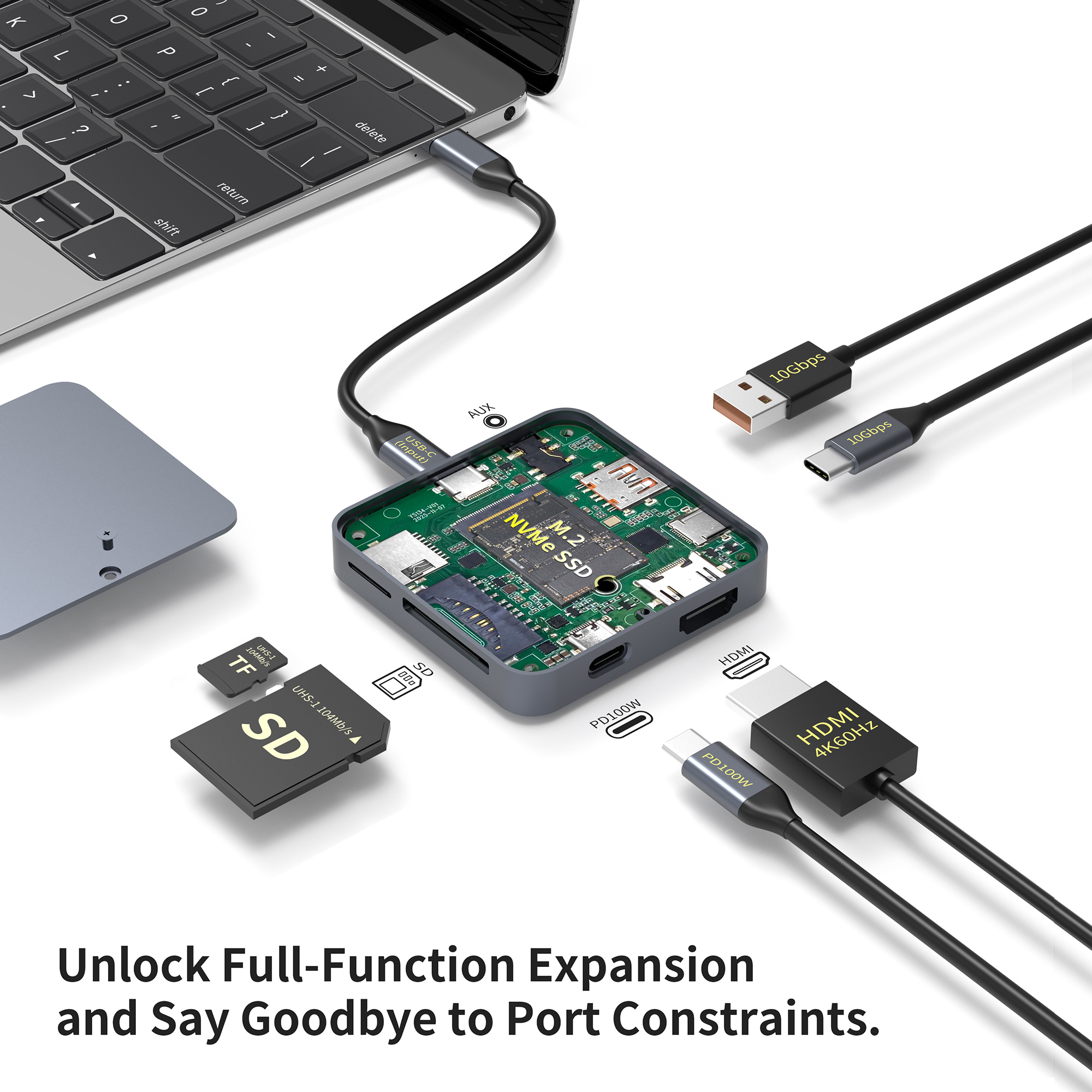 | Product in Context 9-in-1 USB-C Hub with M.2 NVMe SSD Slot A relevant configuration for workflows where 10Gbps connectivity and NVMe storage matter, rather than simply adding more low-speed peripheral ports. USB-C 3.2 Gen 2: up to 10Gbps
USB-A 3.2 Gen 2: up to 10Gbps
Storage: integrated M.2 NVMe slot
Display: 4K@60Hz HDMI
Power: up to 100W PD |
Scenario C: Future Proofing (The Mixed Strategy)
For organizations planning a 3-5 year hardware cycle, Total Cost of Ownership (TCO) leans toward 10Gbps. The price gap between Gen 1 and Gen 2 hubs is narrowing. As NVMe drives become the standard for portable storage (replacing thumb drives), equipping desks with 10Gbps hubs today prevents obsolescence tomorrow. It avoids the need to repurchase hardware when the team eventually upgrades their storage peripherals.
Implementation Risks & Cable Compliance
Even with the correct hub and drive, the cable connecting them is often the point of failure. The physical limitations of high-frequency signaling introduce strict requirements for cabling.
The Cable Trap and E-Marker Chips
Visually, a USB-C charging cable looks identical to a 10Gbps data cable. However, the charging cable may only be wired for USB 2.0 data speeds (480Mbps). To achieve 10Gbps, the cable must be Full-Featured. Crucially, these cables often contain an E-Marker (Electronic Marker) chip. This chip communicates the cable's capabilities (current rating and data speed) to the host. If the chip is missing or reports a lower spec, the host will refuse to send data at 10Gbps to protect the signal integrity.
Three Places to Check Before Blaming the Hub
| 01 — Host Link Verify the computer port and negotiated protocol. | 02 — Data Cable Confirm the cable is designed for the intended data rate, not charging only. | 03 — End Device Confirm the drive or peripheral can actually exceed 5Gbps-class performance. |
Cable Length Limits
Physics dictates that higher frequencies attenuate (weaken) faster over distance.
Passive Cables: For 10Gbps, passive copper cables are generally reliable only up to 1 meter (3.3 feet). Beyond this length, signal loss becomes too great.
Active Cables: To go longer than 1 meter, you need Active cables with signal boosters built into the connectors. These are significantly more expensive but necessary for long cable runs to a docking station.
Compatibility Warnings
A dangerous trend in the market is the Frankenstein adapter—specifically, adapters with a female USB-C port and a male USB-A plug. These often violate USB-IF specifications. They lack the necessary circuitry to control power direction properly. Using non-compliant adapters to connect a modern 10Gbps hub to an older computer port can risk hardware damage or, at best, erratic behavior where devices disconnect randomly.
Compatibility Is a System-Level Question
Before deployment, evaluate the host port, USB protocol, data cable, power path, display mode, attached storage, and adapter topology as one system rather than approving components independently.
Conclusion
The transition from 5Gbps to 10Gbps is a legitimate functional upgrade, but only when the entire hardware chain supports it. Speed claims are valid only if the Host, Cable, Hub, and Device are all rated for the standard. A break in any single link forces the entire chain down to the speed of the slowest component.
For modern workflows involving NVMe storage and large media files, a USB 10Gbps hub is a mandatory tool that doubles data throughput and reduces waiting time. However, for standard office setups relying on mice, keyboards, and legacy storage, the reliable 5Gbps standard remains the logical, cost-effective workhorse. By evaluating the specific needs of your devices rather than chasing the highest number on the box, you ensure that every dollar spent on connectivity delivers tangible performance results.
Procurement Takeaway
Specify the workflow first. Specify the port speed second.
For product selection or OEM/ODM planning, define host capability, simultaneous devices, storage type, video requirements, charging requirements, and expected deployment lifecycle before finalizing the hub architecture.
Related Guides
Continue with the fundamentals of USB hub architecture, power, and device selection.
What is a USB-C Hub? Review how a USB-C hub expands one host connection into data, display, charging, and peripheral interfaces.
FAQ
Q: Can I use a 10Gbps hub in a 5Gbps computer port?
A: Yes, the connection is fully backward compatible. The hub will function normally, but data transfer speeds will be capped at the computer's maximum rate (5Gbps). You will not get 10Gbps performance, but you can still use the extra ports for peripherals.
Q: Why am I getting 40MB/s on my 10Gbps hub?
A: This extremely low speed (approx. 480Mbps) usually indicates the system has fallen back to USB 2.0. This happens if you use a standard charging cable instead of a data cable, or if the connectors are dirty, causing the Link Training to fail and default to the safest, slowest speed.
Q: Does a 10Gbps hub support 4K monitors?
A: It depends. Support for monitors is governed by DP Alt Mode, not just data speed. A hub can support 10Gbps data but lack video output capabilities. Conversely, a hub might support 4K video but reduce data speeds to USB 2.0 to accommodate the video signal. Check the specs for both resolutions and concurrent data rates.
Q: Is USB 3.2 Gen 2 the same as Thunderbolt 3?
A: No. They share the same USB-C physical connector, but they are different protocols. Thunderbolt 3 supports 40Gbps and daisy-chaining. A USB 3.2 Gen 2 device (10Gbps) will usually work in a Thunderbolt 3 port, but a Thunderbolt 3 specific device will often not work in a standard USB 3.2 hub.



