In the modern hybrid workplace, the docking station bridges the gap between laptop portability and desktop-level productivity. Yet, many buyers overlook a critical maintenance aspect. We are talking about the firmware update. Much like your smartphone, a docking station runs on internal software. It requires periodic refinement to maintain seamless connectivity, improve port performance, and patch security vulnerabilities. This guide walks you through why these updates are vital. It also covers how to perform a successful installation and protect your long-term investment.
Understanding the Necessity of Internal Software Updates
Many users frequently confuse a firmware upgrade with a standard driver installation. Drivers primarily manage communication between your operating system and the hardware. Firmware, however, acts as the embedded brain directly inside the docking station circuitry. When manufacturers push these updates, they are not merely addressing minor aesthetic glitches. They are optimizing the core protocols that manage power delivery and data throughput.
In the current tech landscape, laptops constantly evolve with newer Windows or macOS iterations. Your dock compatibility depends entirely on whether the internal software can correctly interpret these modern operating system instructions. Ignoring these updates often leads to persistent issues like flickering monitors, erratic USB signals, or sluggish charging. Eventually, this negligence can force an unnecessary and expensive hardware replacement.

Preparing for the Update: Best Practices Before You Begin
Before initiating any technical process, you must verify your current software version. A quick check of the manufacturer support site will reveal if a newer version is available for your specific model. Never perform an update blindly. It is crucial to review the release notes first. These documents provide absolute clarity on whether the patch targets a bug relevant to your unique hardware configuration.
Furthermore, safety must remain your top priority. Ensure your dock is connected to a stable and dedicated power source. A power failure during a flash write cycle could potentially brick the device. As a standard engineering practice, save all active work and close background applications. This allows system resources to be fully dedicated to the update utility without interruption.
Performing a Successful Field Upgrade and Hardware Selection
Executing a reliable field upgrade requires a blend of patience and precision. Always obtain the software directly from the official support portal. Third-party driver manager applications often lack the necessary hardware-specific commands. Additionally, ensure you are using the original USB-C or Thunderbolt cable provided with your device. Generic third-party cables frequently lack the data bandwidth required for a stable transfer.
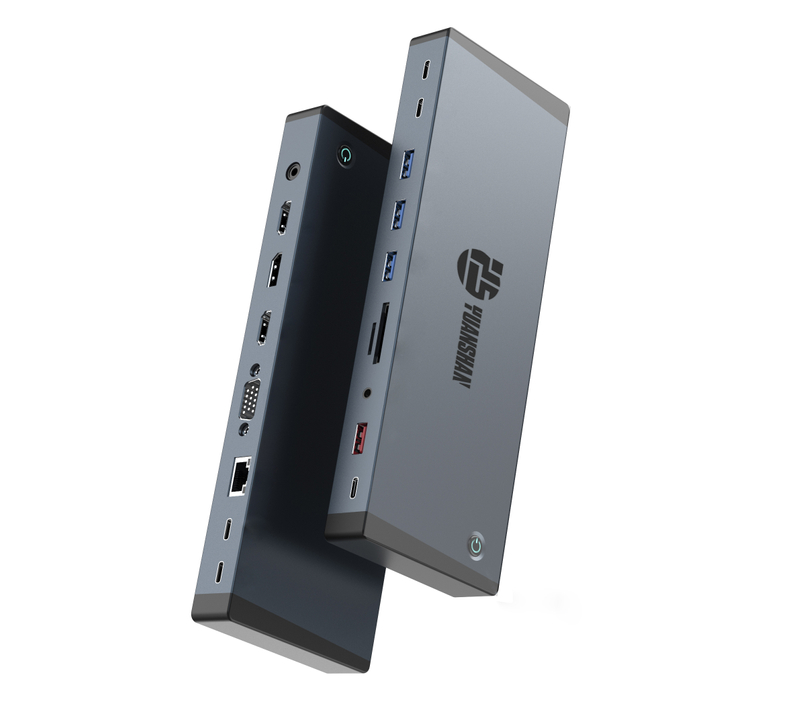
Specifically, modern high-performance hardware demands rigorous firmware management due to complex internal architectures. Consider a premium 18-in-1 Thunderbolt 5 Docking Station. These devices integrate an 8K 60Hz Triple Display MST Hub, 140W PD 3.1 Charging, an M.2 NVMe SSD Slot, and 2.5Gbps Ethernet. Updating the code on such high-end hardware ensures the MST hub allocates display bandwidth correctly and the PD 3.1 protocol negotiates safe charging limits.
| Feature Matrix | Standard Docking Station | Premium Thunderbolt 5 Dock |
| Display Output | Single 4K or Dual 1080p | 8K 60Hz Triple Display MST Hub |
| Power Delivery | 60W to 85W Standard PD | 140W PD 3.1 Charging Protocol |
| Storage & Network | 1Gbps Ethernet, No Storage | M.2 NVMe SSD Slot, 2.5Gbps Ethernet |
| Firmware Complexity | Basic USB Hub Controllers | Advanced PCIe Routing & Power Negotiation |
The Critical Importance of the Post-Update Power Cycle
Once the progress bar hits 100 percent, many users make the common mistake of immediately resuming their workflow. Manufacturers almost universally recommend a hard power cycle to finalize the installation. To perform this, simply disconnect the power cable from the back of the dock and wait for at least 30 to 60 seconds.
This brief hiatus is a fundamental engineering trick. It allows the internal capacitors to discharge completely, effectively clearing the volatile memory of the previous state. Once you reconnect the power, the dock will initialize using the newly installed code. You can then verify the success of the operation by checking the Details tab in your computer Device Manager.
Troubleshooting and Warranty Considerations
If your peripherals fail to initialize after an update, there is no need to panic. Simply re-run the power cycle procedure. If problems persist, investigate the manufacturer support page for specific error codes or rollback features that allow you to restore the device to its factory state.
It is important to recognize that maintaining these update logs is your best defense when filing a warranty claim. Most manufacturers cover firmware-related failures under their limited warranty, provided the user followed official installation instructions. Conversely, utilizing unauthorized third-party tools to force an update often voids your protection immediately. Staying within official parameters is essential for protecting your investment.
Strategic Maintenance and Industry Trends
In the broader industry context, docking stations are transitioning from passive hubs into intelligent edge devices. Recent market analyses highlight a massive shift toward remote management capabilities. IT administrators now demand enterprise-grade peripherals that support centralized security patching. This trend is heavily driven by the increasing threat of peripheral-based cyber attacks, making firmware integrity a top priority for corporate networks.
Looking ahead, as high-end hardware becomes increasingly integrated with host operating systems, the ability to manage software efficiently will become a core competency for both IT professionals and power users. Strategic management involves differentiating between critical security patches and optional performance enhancements. For enterprise environments, testing an update on a single machine before a wider rollout remains the gold standard for preventing systemic downtime.
Q1: How often should I check for a docking station firmware update?
It is generally recommended to check every three to six months. However, you should check immediately if you notice operational anomalies, such as monitors failing to wake or intermittent USB disconnects. If you recently performed a major OS upgrade, it is also a wise time to check for a new version to ensure compatibility.
Q2: Will a failed firmware update break my dock permanently?
Not necessarily. While a failed update is a serious event, many modern professional-grade docks include recovery modes or dual-bank flash memory that can revert to a safe state. To minimize risk, always ensure a reliable power source and avoid moving the cables during the process.
Q3: Where can I find the correct firmware for my device?
Always download updates exclusively from the official support website provided by the manufacturer. Avoid third-party updater tools or unofficial repositories. These can provide incorrect files that might damage your hardware or expose your system to security risks.
Q4: Do I need to update my dock if it is already working fine?
Not always. If your station is functioning perfectly and the documentation only lists fixes for issues you are not experiencing, you may choose to wait. However, if an update is labeled as a security patch, it is highly recommended to install it immediately to protect your network.
Q5: Can I update my docking station firmware via a Mac?
This depends on the manufacturer software support. Some premium docks offer dedicated macOS utilities, while others require a Windows machine to perform the initial update. Always consult your product technical specifications to determine if a Windows PC is necessary for the field upgrade process.
Q6: Why is my dock not recognized during a firmware update?
This usually happens due to inadequate data bandwidth or missing administrator privileges. Ensure you are using the original Thunderbolt or USB-C cable that came with the device. Additionally, right-click the update utility and select Run as Administrator to grant the software access to restricted system sectors.
Q7: Does a firmware update improve charging speeds?
Yes, in many cases it can. Firmware controls the Power Delivery negotiation protocols between the dock and your laptop. An update can optimize these protocols, resolving slow charging issues and ensuring your device safely draws the maximum supported wattage, such as the 140W limit in PD 3.1 standards.
Choosing hardware manufacturers that provide transparent documentation and consistent, long-term support cycles is a strategic move that simplifies this entire maintenance lifecycle. Whether you are upgrading a corporate fleet or optimizing a home office, having reliable equipment is non-negotiable. Explore high-performance solutions, including advanced Thunderbolt 5 setups, tailored to your professional needs at Yuanshan-Tech to future-proof your desktop connectivity today.