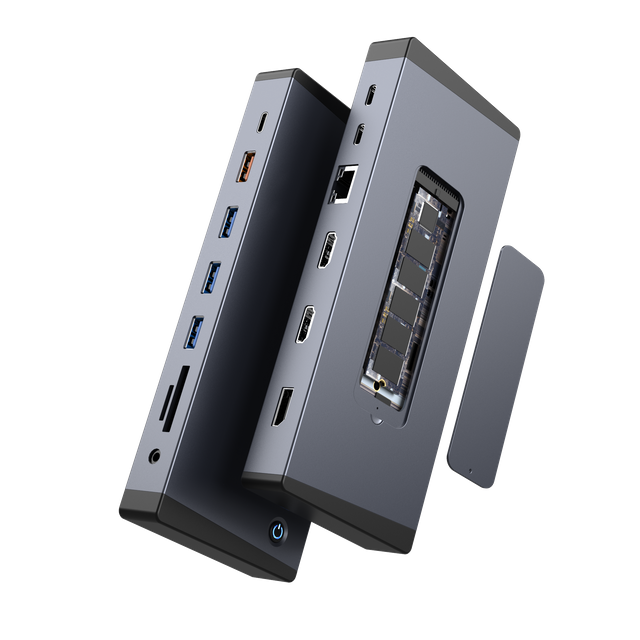
USB-C docking stations are the most common choice today. They connect through one USB-C cable and can support data, video, charging, and peripheral devices.
A USB-C laptop docking station is ideal for modern laptops. It helps users connect monitors, USB drives, keyboards, mice, Ethernet, and chargers. Many models also support Power Delivery, so the laptop charges through the same cable.
However, not every USB-C port works the same way. Some USB-C ports only support data transfer. Others support video output and charging. This is why checking docking station compatibility is essential.
USB-C docking stations are a good fit for office workers, students, remote teams, and home offices. They offer a clean setup without too much technical complexity.
Thunderbolt docking stations
Thunderbolt docking stations are built for higher performance. They use a USB-C shaped connector, but they offer stronger data and display capabilities when the laptop supports Thunderbolt.
A Thunderbolt laptop docking station is useful for creative professionals, engineers, analysts, and power users. It can support fast storage, high-resolution monitors, and demanding workflows.
Thunderbolt docking stations also make sense for users who move large files daily. They are often used for video editing, CAD work, photography, and multi-monitor setups.
They usually cost more than basic USB-C docks. Still, the performance difference can be worth it for professional teams.
USB4 docking stations
USB4 docking stations are designed for newer laptops. They can offer high-speed data transfer, strong display support, and better compatibility across modern USB-C ecosystems.
USB4 is useful for users who want a more future-ready workstation. It can serve office users, creators, and hybrid teams. It may also work with some Thunderbolt devices, depending on the host laptop and dock design.
Still, buyers should not assume every USB4 setup performs the same. The laptop, cable, dock, and operating system all affect final performance.
DisplayLink docking stations
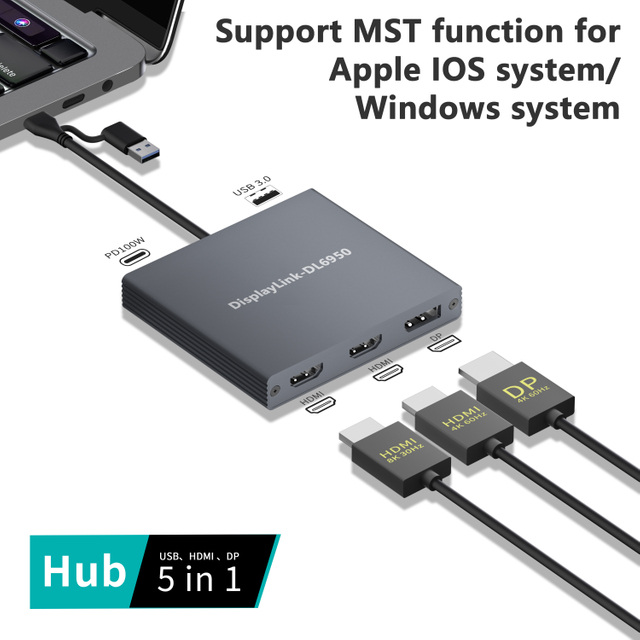
DisplayLink docking stations use software to support external displays. They are useful when a laptop has limited native display output.
For example, some laptops cannot extend to multiple monitors through standard USB-C video output. A DisplayLink dock can help in those cases, but it usually requires driver installation.
This type is common in shared offices, hot desks, and mixed-device environments. IT teams should test software policies before deployment.
Universal docking stations
Universal docking stations are made to work across many laptop brands and operating systems. They are useful for companies with mixed laptop fleets.
A universal dock may connect through USB-C, USB-A, Thunderbolt, or DisplayLink. Its biggest advantage is flexibility. Employees can use one docking standard across several devices.
Still, universal does not mean unlimited. Compatibility depends on the laptop port, driver support, display requirements, and power needs.
Proprietary docking stations
Proprietary docking stations are designed for specific laptop models or device families. They may provide smoother integration and stable power delivery for approved devices.
They can be useful in controlled business environments. IT teams may prefer them when all employees use similar laptops.
The downside is limited flexibility. If the company changes laptop brands, the dock may become less useful.
Portable multiport docking stations
Portable docking stations are compact and easy to carry. They are also called multiport adapters in many cases.
They usually include basic docking ports, such as HDMI, USB-A, USB-C, SD card slots, and sometimes Ethernet. They are ideal for travel, hybrid work, classrooms, and meeting rooms.
Portable docking stations are not always as powerful as desktop models. Still, they offer enough connections for many everyday users.
3. Docking Stations by Connection Standard
USB-A docking stations for older laptops
USB-A docking stations still serve older laptops. They can add USB ports, Ethernet, audio, and sometimes display output.
However, they have clear limits. Most USB-A ports cannot charge laptops. They may also struggle with high-resolution video.
For modern B2B setups, USB-A docks are usually a fallback option. They are best for legacy equipment, shared workstations, or basic office tasks.
USB-C docking stations for modern everyday setups
USB-C docking stations are now the mainstream choice. They fit many modern laptops and reduce desk cable clutter.
They work well for email, spreadsheets, video calls, document editing, and web-based work. A good USB-C dock can support charging, monitor output, Ethernet, and common peripherals.
For most offices, this is the safest starting point.
Thunderbolt 3 and Thunderbolt 4 docking stations
Thunderbolt 3 and Thunderbolt 4 docking stations suit high-performance needs. They are stronger than basic USB-C docks when supported by the laptop.
They can support fast external drives, advanced displays, and demanding workflows. Teams using design software, video tools, or engineering files may benefit most.
Still, they require Thunderbolt-capable laptops and proper cables.
USB4 docking stations for future-ready workstations
USB4 docking stations are attractive for newer device fleets. They offer strong potential for speed, display output, and device flexibility.
They are a smart option for companies refreshing laptops. However, buyers should review port specifications carefully.
A USB-C shaped port does not always mean full USB4 performance.
Tip:For IT buyers, port labels are not enough.
4. Docking Stations by Display Capability
Single-monitor docking stations
Single-monitor docking stations are ideal for simple desk setups. They usually include one HDMI, DisplayPort, or USB-C video output.
They work well for email, CRM systems, browser tasks, and basic office use. They are also easier to deploy and troubleshoot.
Before buying, check the supported resolution and refresh rate. A basic dock may support one 1080p display. A stronger one may support 4K output.
Dual-monitor docking stations
A dual monitor docking station is useful for productivity. It helps users compare documents, manage spreadsheets, code, or handle video meetings.
This type is popular for office teams and remote workers. It gives users more screen space without a desktop computer.
However, dual display support depends on the laptop and dock. Some systems support mirrored screens only. Others support extended desktop mode.
Triple-monitor docking stations
Triple-monitor docking stations are designed for heavier multitasking. They suit financial teams, engineers, designers, and control-room users.
They may include HDMI, DisplayPort, VGA, or USB-C video outputs. Some models combine several port types for mixed monitor setups.
Triple display support needs careful checking. The laptop graphics system must support the required output mode.
4K, 8K, and high-refresh-rate docking stations
High-resolution docking stations support sharper displays. They are useful for design, video, data visualization, and premium office setups.
Still, the final result depends on more than the dock. The laptop, cable, monitor, operating system, and refresh rate all matter.
For example, a dock may list 4K support. But it may only support 4K at a lower refresh rate.
Note:Display specs should match real monitor requirements.
5. Docking Stations by Work Scenario
Desktop docking stations for fixed workstations
Desktop docking stations stay on the desk. They connect monitors, keyboard, mouse, Ethernet, storage, audio, and power.
They are best for permanent workstations, home offices, and corporate desks. Employees can plug in one cable and start working.
This setup reduces cable clutter. It also protects laptop ports from daily plugging and unplugging.
Portable docking stations for travel and hybrid work
Portable docking stations are designed for movement. They are smaller, lighter, and easier to carry.
They are useful for employees who move between home, office, coworking spaces, and client sites. They usually include essential docking ports, not every possible connection.
A strong portable dock should support HDMI, USB-A, USB-C, and Power Delivery. Ethernet is also useful for hotels, offices, and secure networks.
Docking stations for creative professionals
Creative professionals need more than basic port expansion. They may need fast storage, SD card readers, high-resolution displays, and stable charging.
Photographers often need card readers. Video editors may need Thunderbolt speed. Designers may need accurate external displays.
For these users, laptop docks should support speed and stability. A low-cost dock may become a bottleneck.
Docking stations for business and office environments
Business docking stations must support reliability and scale. They should work across meeting rooms, hot desks, training rooms, and executive offices.
Important features include Ethernet, Power Delivery, dual display support, and simple setup. IT teams also care about driver needs and long-term compatibility.
For shared desks, universal docking stations can reduce device mismatch. For fixed teams, desktop docks may offer better stability.
6. Key Features That Separate Docking Station Types
Power Delivery docking stations
Power Delivery allows a dock to charge a laptop. This reduces the need for separate laptop chargers.
A PD dock can send power, video, and data through one cable. This makes the desk cleaner and easier to use.
However, wattage matters. A lightweight laptop may need less power. A workstation laptop may need more.
Docking stations with Ethernet
Ethernet is important for stable networks. It helps with video calls, cloud apps, large downloads, and office security.
Wi-Fi is convenient, but wired connections are often more stable. For B2B users, Ethernet can also support internal systems and secure access.
Docking stations with storage and card-reader support
Some docking stations include SD, microSD, or storage support. These features help creators, engineers, and field teams.
Card readers reduce the need for extra adapters. External drive support helps with backup and file transfer.
For daily office work, these ports may be optional. For content teams, they can save real time.
Plug-and-play vs driver-based docking stations
Plug-and-play docks are easy to use. Users connect the dock, and most devices work right away.
Driver-based docks can unlock more features. DisplayLink docks are a common example. They can help with multi-monitor setups, but they need software support.
For business use, driver policies should be checked before purchase.
Dock feature
Best for
Main thing to check
Power Delivery
Clean desk setup
Laptop charging wattage
Ethernet
Offices and meetings
Network speed support
Dual display
Productivity users
Extended display support
Card readers
Creators and field teams
SD or microSD format
DisplayLink
Mixed laptop fleets
Driver installation rules
Note:A feature list is useful only after compatibility checks.
7. Conclusion
The most powerful docking station is not always the largest one.
It should match your laptop port, monitors, power needs, and daily devices.
For business teams, compatibility testing helps avoid costly setup problems.