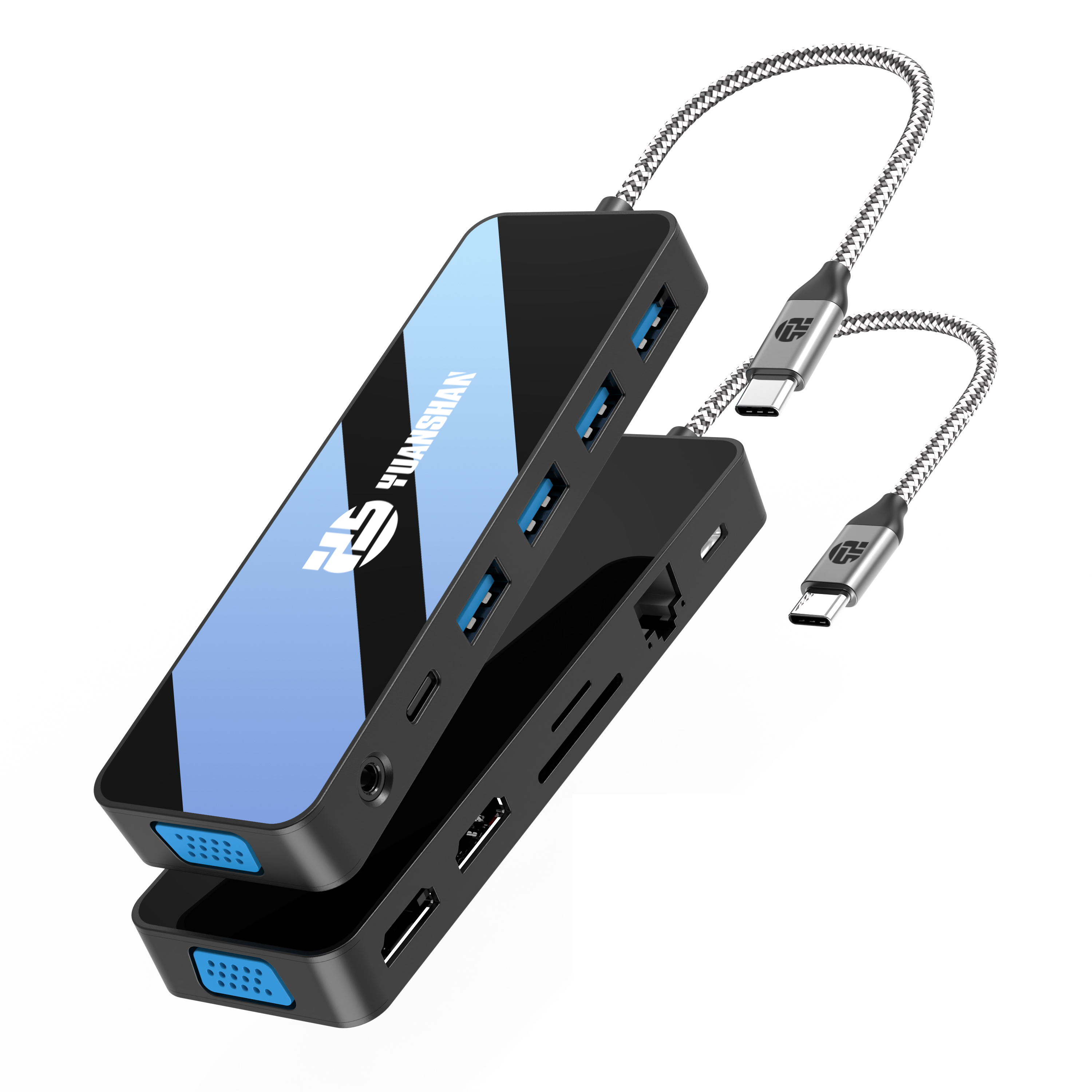
You plug a brilliant new 4K monitor, a lightning-fast external solid-state drive, a high-definition webcam, and a wireless mouse into a sleek new hub. Suddenly, those blazing-fast external drive transfer speeds crawl to an agonizing halt. Your pristine external monitor starts flickering intermittently. Why does this happen?
The answer lies in the core mechanics of how data is routed and restricted. A hub is not a magic multiplier capable of generating infinite data capacity out of thin air. Instead, it acts as a single, finite pipeline. This pipeline must meticulously divide its available room among every connected device. Understanding exactly what limits this capacity is absolutely crucial. Modern professionals, digital creators, and gamers need this knowledge to optimize their workspace and avoid infuriating connectivity bottlenecks. In this comprehensive guide, we break down the precise ways data is shared. We examine the critical role your computer host port plays. Finally, we provide practical steps to prevent hardware slowdowns in your daily workflow.
Key Takeaways
The Host Dictates the Limit: Your hub can only distribute as much capacity as your computer host port provides. This typically ranges from 5Gbps on older machines up to 40Gbps on modern connections.
Displays Dominate the Pipeline: High-resolution monitors require a massive amount of data. They often consume more than half of a standard accessory total available capacity before any other devices are even plugged in.
The Reality of Shared Connections: All ports on a hub rely on a single uplink back to the computer. Consequently, data transfer speeds drop proportionally as more devices are actively used at the exact same time.
Beware of Overwhelming the Port: When the total data demand from your peripherals exceeds the physical limit, you experience a bottleneck. This leads to random device disconnects, input lag, and video flickering.
Protocol Matters: Upgrading your hardware protocol is often the most effective and reliable solution for users managing heavy file transfers alongside high-resolution displays.
To truly grasp how device connectivity functions under the hood, it helps to visualize data flow using a highway analogy. Think of the cable connecting the hub to your laptop as the main multi-lane expressway. The individual ports on the hub function as on-ramps. If too many cars attempt to merge onto the expressway simultaneously, traffic inevitably grinds to a halt. The highway cannot physically expand to accommodate the extra vehicles. It merely forces them to travel at a significantly reduced speed.
One of the most pervasive misconceptions in modern technology involves confusing the physical connector with the data protocol. USB-C simply defines the physical shape of the connector. It is an oval, reversible plug that is incredibly convenient. However, the actual speed limit of that connection is determined entirely by the underlying protocol running through it. A Type-C shape guarantees absolutely nothing about speed on its own.
Furthermore, users must recognize the distinct difference between theoretical maximums and practical real-world speeds. A device advertised with a 10Gbps capacity will rarely deliver exactly 10Gbps of usable data to your files. This discrepancy arises from protocol overhead, error correction encoding, and the internal management required to keep the connection stable and secure.
The Host Connection: Your Ultimate Speed Limit
A hub does not generate bandwidth. It merely routes it. Consequently, your setup is only as fast as the specific host port it is plugged into on your laptop or desktop. If you purchase a premium 40Gbps Thunderbolt 4 dock but plug it into a standard 5Gbps port on an older machine, the entire system will immediately throttle down to that 5Gbps ceiling. The laptop internal controller acts as the ultimate bottleneck for your data transfer capabilities.
Understanding the various USB standards operating behind the scenes is critical for managing your expectations. For instance, the older USB 3.2 Gen 1 provides a strict 5Gbps limit. This is sufficient for basic peripherals but easily overwhelmed by a single high-speed NVMe drive. Stepping up to a 10Gbps limit offers a much better sweet spot for mid-range connectivity. On the higher end, USB4 and Thunderbolt represent the gold standard, delivering a massive 40Gbps limit engineered specifically for multi-monitor setups.
To optimize your setup, you must identify your host port true capabilities. Check your laptop manufacturer official specifications sheet. Look for specific protocol names rather than just verifying the presence of a Type-C port. Small logos printed next to the physical port can also be a giveaway. A lightning bolt indicates Thunderbolt, while a SuperSpeed logo followed by a 10 denotes a 10Gbps connection.
| Protocol Standard | Maximum Data Speed | Ideal Workspace Application |
| USB 3.2 Gen 1 | 5 Gbps | Basic mouse, keyboard, 1080p display, slow file transfers. |
| USB 3.2 Gen 2 | 10 Gbps | Single 4K display at 60Hz, fast external solid-state storage. |
| USB 3.2 Gen 2x2 | 20 Gbps | High-speed dual NVMe storage, moderate multi-display setups. |
| USB4 / Thunderbolt 4 | 40 Gbps | Dual 4K displays, daisy-chaining, professional video editing workflows. |
![USB-C Hub Bandwidth Limits]()
How Displays Consume Bandwidth
When evaluating connectivity bottlenecks, external monitors are almost always the primary culprits. Standard hubs handle video output through a specialized technology known as DisplayPort Alternate Mode. This feature allows the internal controller to dynamically reconfigure some of the high-speed data lanes inside the cable. It transmits raw, uncompressed video signals directly from the computer graphics processor to the monitor.
The amount of capacity required for this video transmission is staggering. To calculate your Display Data Rate needs, you must consider both the resolution and the refresh rate of the monitor. While a standard 1080p monitor running at 60Hz uses relatively little capacity, upgrading to a crisp 4K monitor at 60Hz requires anywhere between 12.5Gbps and 18Gbps of data throughput. This depends heavily on color depth and active compression technologies.
This massive requirement introduces the half-bandwidth rule for data. When alternate mode is activated to drive a high-resolution display, the internal controller must permanently dedicate half of its high-speed data lanes exclusively to video transmission. If you are using a 10Gbps hub, connecting a 4K monitor will instantly slash the remaining room available for your data ports down to 5Gbps or less. This harsh technical reality is exactly why file transfers often slow to a crawl the moment an external monitor powers on.
The Shared Link Bottleneck: How Data is Divided Across Ports
Beyond video transmission, data allocation among standard peripherals introduces another layer of complexity. If you purchase an accessory featuring three USB-A ports and one data port, those four connections do not each receive a dedicated, independent pipeline. Instead, they must all share a single uplink back to the host computer.
The hub relies on an internal controller chip to manage this chaotic traffic. In simple terms, the controller does not guarantee equal speeds to every device. It does not operate on a strict first-come, first-serve basis. It uses a combination of priority queuing and active polling to determine which device gets data priority. Because video feeds and audio interfaces require a constant stream to prevent screen flickering, the controller usually grants them the highest priority. Active data transfers from hard drives come second. Low-power polling devices like mice and keyboards take whatever minimal room remains.
Consider a practical engineering scenario. You plug two high-speed NVMe drives into the same hub and attempt to transfer massive 4K video files to your laptop simultaneously. Even if each drive is physically capable of reading at extremely high speeds, the shared uplink acts as a strict bottleneck. The internal controller will split the available pipeline between the two drives. This causes transfer speeds to immediately drop by approximately half for each drive compared to plugging them into separate dedicated ports directly on the laptop chassis.
Internal Hub Components and Protocol Overhead
A modern hub is not just a passive piece of plastic and wire. It is essentially a miniature computer in its own right. The efficiency of your data transfers relies heavily on the quality of the internal controller chipset. Premium models feature advanced controllers that route data packets efficiently, minimizing latency and preventing data loss. In contrast, entry-level models often use basic controllers that struggle to manage heavy traffic, leading to dropped packets and erratic transfer speeds.
Looking at current industry trends surrounding workspace connectivity, a clear paradigm shift is occurring. As hybrid work and complex desktop setups become the global norm, hardware analysts note a massive industry push toward highly efficient smart controller chips. Manufacturers are increasingly abandoning basic legacy architectures. They are pivoting toward intelligent traffic-shaping controllers and robust thermal management systems. These modern designs are engineered specifically to handle the sustained heavy loads of multi-monitor workstations without faltering.
For example, consider a professional-grade 13-in-1 docking station. A device of this caliber must simultaneously manage dual 4K HDMI outputs, a VGA port, Gigabit Ethernet, multiple USB 3.0 data ports, SD card readers, and 100W Power Delivery charging. Handling this massive influx of varied signals requires an advanced internal chipset capable of dynamic bandwidth allocation. Without a smart controller, the entire system would collapse under its own data weight.
Even with a premium controller, users must account for protocol overhead. A noticeable percentage of your total connection capacity is lost to this invisible structural data. Overhead consists of the digital packaging, routing instructions, and error-checking algorithms required to ensure your files move from the drive to your computer without corruption. Additionally, passing high-wattage electrical power through a compact aluminum shell creates significant heat. If the internal controller chip gets too hot, it will initiate thermal throttling. It intentionally slows down data processing speeds to lower its temperature and prevent catastrophic hardware failure.
When the combined demand from your monitor, storage drives, and peripherals exceeds the physical throughput limit of your connection, the system enters a frustrating state. Recognizing the early symptoms of this saturation can save you hours of unnecessary troubleshooting and prevent you from mistakenly returning perfectly functional hardware.
The most prominent symptoms to watch for include severe display degradation. External monitors may drop out entirely, flicker intermittently, or automatically downgrade their refresh rate from a smooth 60Hz to a choppy 30Hz to conserve data. You might also experience peripheral lag. If you notice your wireless mouse stuttering across the screen or keystrokes failing to register, it is often because heavy file transfers are monopolizing the uplink. This delays the tiny polling signals from your input devices.
Furthermore, storage disconnects are a classic red flag. External hard drives may randomly unmount and reconnect. They might display read and write speeds that are drastically lower than their advertised capabilities. Finally, media freezing during crucial moments often indicates that audio and video packets are being dropped due to an overwhelmed pipeline.
How to Prevent Bottlenecks: Buyer and User Tips
Preventing connectivity bottlenecks requires a strategic combination of smart hardware purchasing and intelligent device management. By understanding how data flows, you can easily optimize your workspace for maximum stability.
First, distribute the load strategically. Do not force all your devices through a single hub if your laptop has multiple ports available. Plug high-demand devices directly into the laptop dedicated ports. Reserve the hub for lower-demand peripherals like your mouse, mechanical keyboard, printer, and webcam. This simple physical adjustment immediately relieves the immense pressure on the shared connection.
If your workflow strictly requires single-cable convenience, upgrading your hardware is the most reliable permanent solution. Investing in a premium USB 3.2 Gen2 hub provides a wider 10Gbps pipeline. This comfortably supports a moderate display alongside fast storage. For intense power users, transitioning to a Thunderbolt 4 dock provides a massive 40Gbps ceiling, virtually eliminating saturation issues for consumer setups.
If you are constrained by your current hardware, adjusting software settings can provide immediate noticeable relief. Dropping your monitor resolution from 4K to 1440p, or reducing the refresh rate from 60Hz to 30Hz, drastically reduces the required video data rate. This software tweak can instantly free up several gigabits of space, restoring lost speed to your external hard drives. Additionally, look for specifications mentioning a Multiple Transaction Translator architecture. This provides dedicated translation lanes for older devices to prevent them from slowing down your modern gear.
Conclusion
Ultimately, the data capacity of any connectivity accessory is strictly finite. By understanding the hard limitations of your host port, the heavy toll exacted by high-resolution displays, and the inescapable realities of shared link architectures, you can intelligently manage your digital devices. Evaluate your current workspace setup today to identify if you are experiencing the telltale signs of saturation. Distribute your device load smartly. If you need a robust, high-capacity solution designed with advanced thermal management and smart controller chips, consider upgrading your workstation. Explore professional-grade docking stations from Yuanshan Tech to ensure a seamless, frustration-free workflow that keeps pace with your daily demands.
Frequently Asked Questions
Does charging my laptop through a hub use up data bandwidth?
No. Power Delivery uses dedicated electrical pins inside the cable that are entirely separate from the data lanes. However, the excessive heat generated by passing high-wattage power can sometimes cause the internal components to thermally throttle. When this happens, the controller slows down data processing speeds to prevent overheating, which can mimic a bandwidth bottleneck.
Why is my 4K monitor only running at 30Hz through my hub?
This is a classic textbook sign of a bandwidth limitation. If your accessory or your laptop host port only supports the older USB 3.0 standard, there simply is not enough capacity available to push a 4K resolution at a smooth 60Hz while also keeping the data ports active. The system automatically downgrades the refresh rate to 30Hz to keep the video connection stable without crashing the other connected devices.
Is Thunderbolt the same as USB-C?
No, they are fundamentally different. USB-C is merely the physical shape of the connector. Thunderbolt is a premium proprietary data protocol developed by Intel that utilizes the Type-C connector shape. Thunderbolt offers a massive 40Gbps of capacity, which virtually eliminates saturation issues for the vast majority of consumer and professional workflows.
Can I plug a hub into another hub to get more ports?
While this is physically possible, a practice commonly known as daisy-chaining, it is highly discouraged for standard models. Daisy-chaining severely exacerbates the bottleneck effect. It forces an even larger number of devices to fight over the original host port limited capacity. This inevitably leads to frequent disconnects, severe performance drops, and potential power delivery failures.
Does connecting to a hub reduce my internet speed?
If your hub features a Gigabit Ethernet port, the internet speed is subject to the same bandwidth limitations as your other peripherals. When heavy file transfers or dual 4K monitors saturate the connection, the internal controller may deprioritize network traffic. This results in slower download speeds or increased latency during video calls.
Why does my wireless mouse lag only when I transfer large files?
Wireless mouse receivers rely on constant, low-latency polling signals. When you initiate a massive file transfer, the data from your hard drive floods the shared uplink. If the hub controller lacks intelligent traffic shaping, the tiny polling signals from your mouse get stuck in the data traffic jam, causing noticeable cursor stutter and input lag.