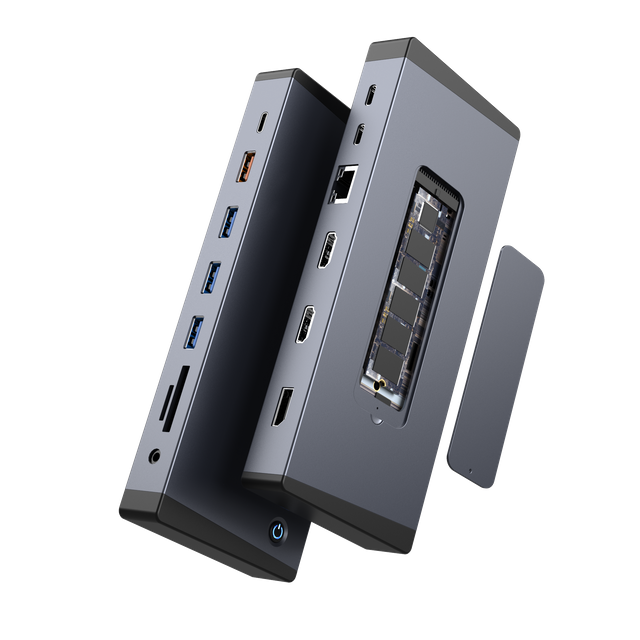
Entry-level docking stations usually cost the least. They are often compact and easy to carry. Many users buy them to add USB-A, HDMI, Ethernet, or SD card slots.
These budget docking stations work well for simple needs. You can connect a keyboard, mouse, USB drive, or one monitor. They are also useful for travel and hot-desking.
However, low-cost docks often have limits. They may not include strong power delivery. Some may need your laptop charger for full function. Others may support 4K only at lower refresh rates.
If you search for the best docking stations under 100, many products will fall into this group. They can be good value, but only when your setup is simple.
Mid-Range Docking Stations: Best Value for Most Users
Mid-range docking stations often offer the best balance. They usually cost more than small USB-C hubs. Yet they add more reliable ports, better charging, and stronger monitor support.
This price tier suits most home office users. It can support a laptop, keyboard, mouse, Ethernet, external storage, and one or two screens. Many USB-C docks in this group also include power delivery.
A mid-range USB-C docking station price may look higher at first. But it can replace several small adapters. It can also reduce cable clutter on the desk.
For many buyers, this tier is the safest choice. It avoids the weak points of very cheap docks. It also avoids the high cost of premium Thunderbolt docks.
Premium Docking Stations: Higher Cost for Full Workstation Setups
Premium docking stations cost more because they do more. They often support more ports, higher charging power, better display output, and stronger thermal design.
These docks fit users who connect many devices daily. They are useful for designers, analysts, engineers, developers, and hybrid workers. They also suit shared office desks.
A premium dock may support dual 4K monitors, faster USB-C data, stable Ethernet, and stronger laptop charging. It may also include a separate power adapter.
The higher price is not only about features. It also reflects durability. Better cases, stronger connectors, and better heat control can extend service life.
Portable Docking Stations vs Desktop Docking Stations
Portable docks usually cost less. They are smaller, lighter, and easier to carry. They work well for business travel and simple laptop expansion.
Desktop docking stations cost more. They are larger and often need external power. They support more stable charging and cleaner cable management.
Portable models help mobile teams. Desktop docks help fixed workstations. The right choice depends on how often users move.
USB-C Docking Stations vs Thunderbolt Docking Stations
USB-C docks are usually more affordable. They cover normal office tasks, video calls, basic displays, and standard file transfer.
Thunderbolt docking station cost is usually higher. Thunderbolt supports higher bandwidth and stronger workstation performance. It is better for large files, fast storage, and high-resolution monitors.
But not every laptop supports Thunderbolt. Buying one without checking compatibility can waste money.
Single-Monitor vs Dual-Monitor Docking Stations
Display support has a major effect on price. Single-monitor docks are usually cheaper. They meet basic office and study needs.
A dual monitor docking station price is often higher. It needs stronger video support and better bandwidth. Triple-display docks cost even more.
For business users, dual screens can improve workflow. But the laptop, dock, and monitors must all support the desired resolution.
Note:Monitor resolution and refresh rate can change real dock performance.
3. Key Factors That Affect Docking Station Prices
Number and Type of Ports
More ports usually mean a higher price. But port quality matters more than port count. A dock with useful ports is better than one with many weak ports.
Common ports include USB-A, USB-C, HDMI, DisplayPort, Ethernet, SD card readers, and audio jacks. Some docking stations also include downstream USB-C ports for extra devices.
B2B buyers should map user needs first. Office staff may need HDMI, Ethernet, and USB-A. Creative teams may need SD cards and faster USB-C.
Power Delivery and Laptop Charging Capacity
Power delivery affects cost because it adds real utility. A dock with 65W charging can handle many light laptops. A 100W dock can support more demanding models.
Some docks only pass power through. They need the laptop’s charger. Others include a dedicated adapter. Those usually cost more.
For business docking station cost, this detail matters. If each user needs an extra charger, the real price rises.
Data Transfer Speed and Bandwidth
Data speed also affects dock pricing. Standard USB speeds are fine for keyboards and mice. They may feel slow for external SSDs or large media files.
USB 3.2, USB4, and Thunderbolt docks support faster transfer. They cost more because the internal chips are more advanced.
For teams moving videos, CAD files, or large backups, speed can save time. For basic office work, it may not matter.
Build Quality, Heat Control, and Durability
Cheap docking stations often use lighter materials. That can be fine for travel or light use. But daily use can stress ports and connectors.
Higher-cost docking stations may use stronger housings and better heat control. This helps when many devices stay connected for hours.
Heat matters because docks process power, data, and video. Poor thermal design may cause drops, flicker, or slower transfer.
4. What Features Are Worth Paying More For?
Multi-Monitor Support for Productivity
Multi-monitor support is worth paying for when users depend on screen space. It helps finance teams, support teams, designers, and developers.
A dock may claim dual monitor support. Still, you must check resolution and refresh rate. Some docks support dual screens only at lower resolution.
For B2B buyers, display support should match the actual monitor plan. Paying more makes sense when it protects user productivity.
Fast Charging for a Cleaner Desk Setup
Fast charging can make a desk cleaner. One cable can connect the laptop and charge it. This reduces clutter and setup time.
A higher-wattage dock also helps users avoid battery drain. It is useful for long meetings and full-day workloads.
When a dock includes its own power adapter, the upfront price rises. But it may reduce the need for extra chargers.
Ethernet, SD Card Readers, and Audio Ports
Ethernet is valuable for stable internet. It helps video calls, cloud work, and secure office networks.
SD card readers matter for photographers, designers, and marketing teams. Audio ports help users who connect speakers, microphones, or headsets.
These features may not matter to every user. But they can be worth paying for when they replace separate adapters.
Stronger Compatibility and Driver Support
Compatibility affects value. A dock must match the laptop port, operating system, and display needs. It should also support future updates.
Some docks need drivers. Others work through native USB-C or Thunderbolt features. For IT teams, driver management can affect rollout time.
Good support also matters. Firmware updates, clear documentation, and warranty terms can reduce long-term trouble.
5. Hidden Costs When Buying Cheap Docking Stations
Extra Power Adapters or Cables
A low price can hide missing accessories. Some cheap docks do not include power adapters. Others need certified cables for full performance.
This can raise the final laptop docking station cost. A $40 dock may need a $30 charger and a better cable.
Before buying, check what is included. Do not assume the product box has everything.
Adapters for HDMI, DisplayPort, or USB-C
Monitor connections can create extra costs. A dock may include HDMI, but your monitor may use DisplayPort. Another dock may use USB-C video, but your display may not.
Adapters can solve the problem. But they add cost and complexity. They may also reduce reliability.
For office deployment, matching dock ports to existing monitors is essential.
Lower Performance That Costs Time
Cheap docks may work, but they may slow users down. Files may transfer slower. Displays may flicker. Devices may disconnect during calls.
Those issues are costly in business settings. They create support tickets and lost time.
A slightly higher docking station price may be better if it improves daily stability.
Shorter Lifespan and Replacement Costs
Low-cost docks may wear out faster. Connectors can loosen. Plastic cases can crack. Heat can reduce performance.
If users replace docks often, the savings disappear. This is why cost should include expected lifespan.
For teams, replacement planning matters. A dock used daily should be stronger than a travel backup.
6. How to Choose Docking Stations Based on Budget
Best Budget Choice for Basic Laptop Expansion
Choose budget docking stations when needs are light. They suit one monitor, one keyboard, one mouse, and occasional storage use.
They are also good for travel bags. A small USB-C dock can help users connect in meeting rooms or hotels.
Avoid budget docks for demanding setups. They may struggle with dual monitors, high charging power, or heavy data transfer.
Best Mid-Range Choice for Home Office Users
Mid-range docking stations are usually best for home office users. They often support charging, Ethernet, HDMI, USB-A, and SD cards.
They also fit hybrid work. Users can plug in one cable and start working quickly.
For many companies, this category gives strong value. It reduces setup friction without paying for advanced features.
Best Premium Choice for Professionals
Premium docking stations suit users who rely on full workstations. They need strong charging, fast data, stable displays, and many ports.
They also fit teams using large monitors or fast external drives. In those cases, dock pricing should be viewed as productivity investment.
A premium model may cost more upfront. But it can reduce downtime, clutter, and support issues.
When You Should Not Pay for a Premium Dock
You do not need a premium dock for simple work. If you use one monitor and basic USB devices, a mid-range dock may be enough.
You also should avoid Thunderbolt docks if your laptop cannot support Thunderbolt. The extra cost will not create extra performance.
Buy for actual needs, not the longest spec sheet.
7. Cost vs Value: Are Expensive Docking Stations Worth It?
When a Higher Price Means Better Long-Term Value
Expensive docking stations can be worth it when they solve daily problems. They can charge laptops, support more screens, improve transfer speed, and keep desks tidy.
They are also useful when users connect many devices. A reliable dock reduces unplugging and adapter swapping.
For B2B teams, long-term value includes support time. A stable dock can reduce IT workload.
When a Cheaper Docking Station Is Enough
A cheaper dock is enough for simple work. It can handle basic laptop expansion and occasional use.
Students, travelers, and light office users may not need premium features. For them, cheap docking stations for laptops can be practical.
The key is expectation. A budget dock should not be expected to perform like a workstation dock.
How to Calculate Real Value Before Buying
Use a simple checklist before purchase:
●How many devices will connect daily?
●How many monitors are needed?
●What charging wattage does the laptop need?
●Does the dock include a power adapter?
●Are cables or adapters required?
●Does it support the operating system?
●How long is the warranty?
This helps compare real cost, not only price. It also makes business docking station cost easier to control.
Tip:Create one standard dock profile for each employee role.
8. Conclusion
Docking stations vary by ports, power, speed, and display support.
Basic docks suit light use. Premium docks support heavier workflows.