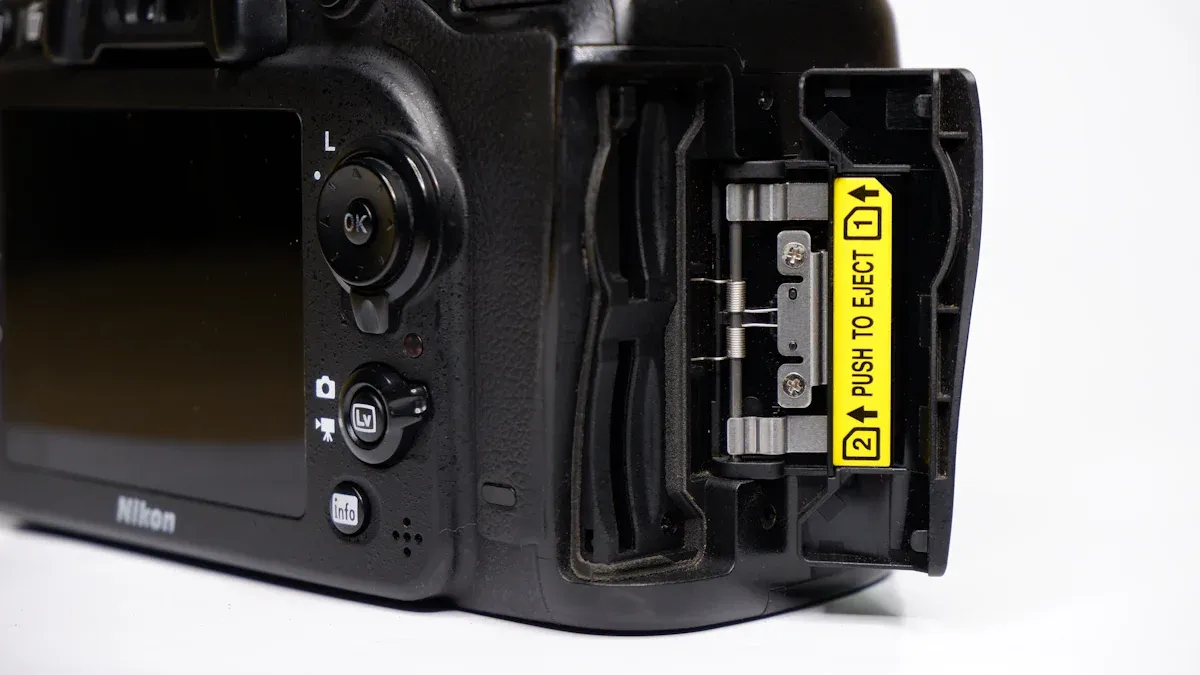
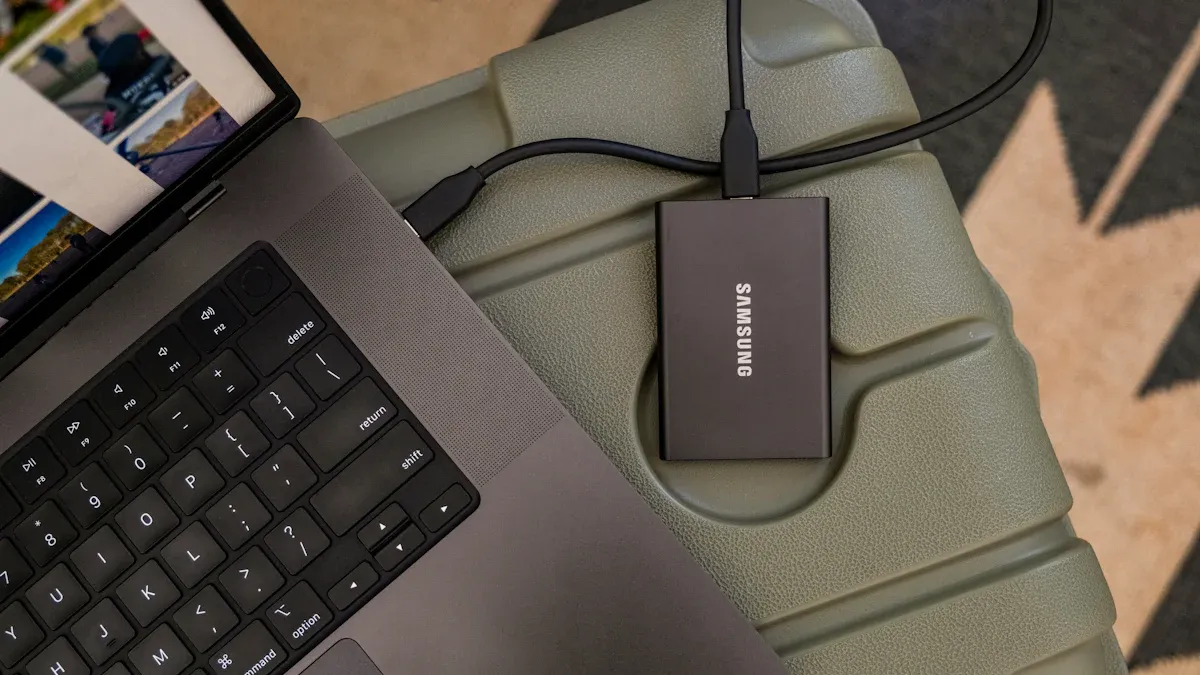
A sd card reader lets you access files stored on an SD card quickly. You insert the card into the slot, then open your computer's file manager to see your photos, videos, or documents. You can copy files from the card to your desktop, or move them back to the card.
Insert the SD card into the reader.
Open your computer’s file manager to view the card.
Drag and drop files between the card and your computer.
This process helps you manage your data with ease.
Key Takeaways
Put the SD card into the reader slowly to stop damage. This helps make a good connection for moving data.
Open the file manager on your computer to see files on the SD card. You can move files between the card and your computer by dragging them.
Pick a reader that works with the card types you have. Different readers work with different formats, so check if they match.
Keep your SD card and reader clean and dry. Store cards in a case and do not let them get too hot or cold.
Always remove the SD card the right way before taking it out. This stops you from losing data and keeps your files safe.
Device Definition
You use an sd card reader to access data stored on memory cards. This device acts as a bridge between your card and your computer or other gadgets. When you insert a card, the reader connects it to your system so you can view, copy, or move files. Many readers come in small sizes, making them easy to carry. Some computers have built-in readers, while others need external ones.
Tip: Always insert your card gently to avoid damaging the connectors inside the reader.
Supported Card Types
You will find that most readers support a wide range of memory cards. Here are the most common types:
UHS-II SDXC
UHS-I SDXC
microSD
CompactFlash
SD
SDHC
MMC
RS-MMC
microSDHC
microSDXC
miniSD
Each type has different sizes and storage capacities. For example, microSD cards are very small and fit into phones and cameras. SDXC cards can hold much more data, making them useful for storing high-resolution photos and videos.
Characteristic | Description |
Physical Size | Standard SD card: 24 x 32 x 2.1 mm; microSD: 11 x 15 x 1 mm. MicroSD can be used with adapters. |
Capacity | SD: up to 2GB; SDHC: >2GB to 32GB; SDXC: >32GB to 2TB; SDUC: >2TB to 128TB. Compatibility varies. |
Speed | Speed classes include C (Class), U (UHS Speed Class), and V (Video Speed Class) for minimum speeds. |
Application Class | A1 and A2 indicate random read/write speeds, important for applications needing quick data access. |
Connection Interfaces
You connect a reader to your device using different interfaces. USB is the most popular, especially USB3.2 and USB3.1 Gen2, which can transfer data at speeds up to 10Gb/s. Real-world speeds usually range from 700MB/s to 900MB/s, depending on your system and card type. Some readers use older USB or even Thunderbolt connections.
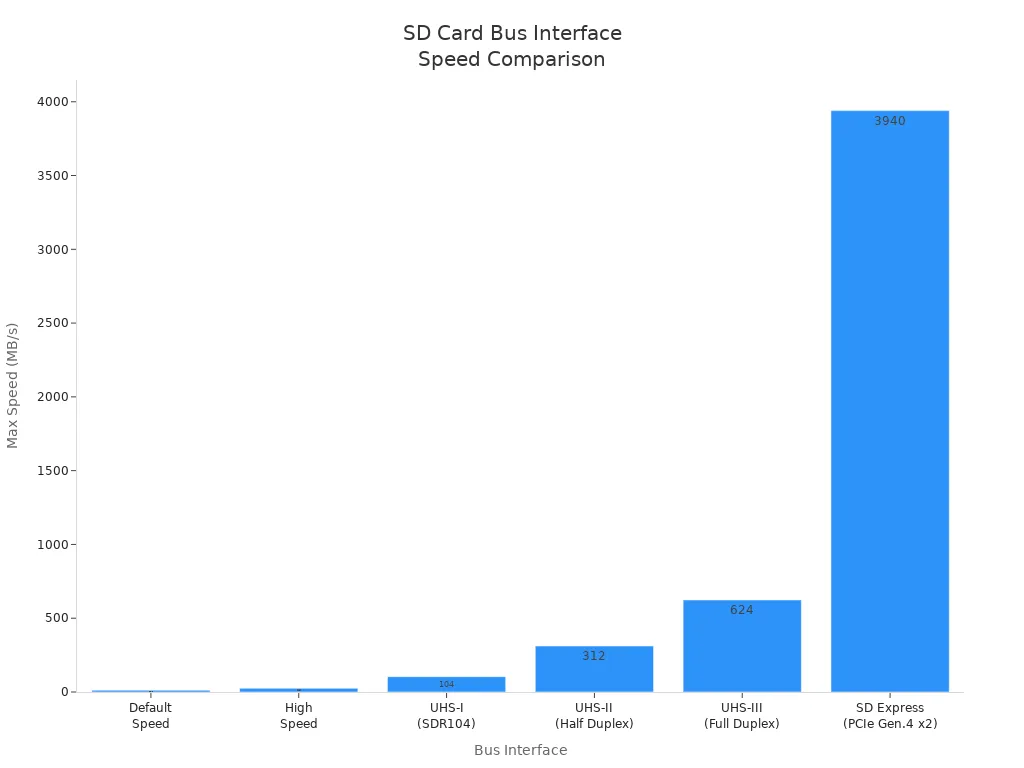
Bus Interface | Card Type | Bus Speed | Spec Version |
Default Speed | SD, SDHC, SDXC and SDUC | 12.5MB/s | 1.01 |
High Speed | SD, SDHC, SDXC and SDUC | 25MB/s | 1.10 |
UHS-I | SDHC, SDXC and SDUC | 50MB/s (SDR50), 104MB/s (SDR104) | 3.01 |
UHS-II | SDHC, SDXC and SDUC | 156MB/s (Full Duplex), 312MB/s (Half Duplex) | 4.00 |
UHS-III | SDHC, SDXC and SDUC | 312MB/s (Full Duplex), 624MB/s (Full Duplex) | 6.00 |
SD Express | SDHC, SDXC and SDUC | 985MB/s (PCIe Gen.3 x 1 Lane), 3940MB/s (PCIe Gen.4 x 2 Lane) | 8.00*1 |
You see that newer interfaces like SD Express offer much faster speeds. This means you can transfer large files quickly if your reader and card support these standards.
SD Card Reader Components
Slot and Connectors
The slot is where you put your SD card. Metal connectors inside touch the gold contacts on the card. These connectors let signals move between the card and reader. Always insert your card slowly to avoid damage. Most readers use spring-loaded slots for easy use. Some readers have more than one slot for different card sizes. You can use SD, microSD, or other formats.
Note: Things like humidity, heat, and shock can change how your SD card reader works. Many readers work in up to 95% humidity. They can handle very hot or cold temperatures, from -13ºF to 185ºF. Readers can also resist shocks up to 500G.
Environmental Factor | Tolerance Details |
Humidity | Works in 95% humidity while in use. |
Water Proof | Can stay in water for 72 hours at 1m deep; IEC 529 IPX7. |
Temperature Proof | Works from -13ºF (-25ºC) to 185ºF (85ºC) for 100 cycles. |
Shock and Vibration Proof | Handles shocks up to 500G. |
Magnet Proof | Handles up to 5000 Gauss of static magnetic field. |
Controller Chip
The controller chip is the brain of the SD card reader. It controls how data moves between the card and computer. When you put in a card, the chip sends commands and gets data back. Some chips are faster and can work with more than one card. Some chips use DMA to move data quickly without slowing your computer.
Feature | Description |
Command Transmission | Sends commands from your computer to the SD card. |
Multi-Card Management | Can work with more than one SD card slot. |
Data Transfer Enhancements | Supports faster speeds and better ways to move data. |
ADMA Support | Uses advanced DMA for quick data movement. |
Hardware and Software
You need hardware and software for your SD card reader to work. Hardware means the slot, connectors, and controller chip. Software means drivers that help your computer talk to the reader. If your reader needs a driver, you see it in your device manager. You may need to update drivers if your reader stops working.
Device drivers help the SD card reader talk to your computer’s system. If your SD card reader does not work, you may need new drivers.
Drivers help your SD card reader work right.
You may need updates if there are problems.
Some readers need special drivers.
Always check for driver updates if your SD card reader does not work. This keeps your data safe and your reader working well.
How Does a Card Reader Work
Card Detection
When you insert an SD card into a reader, you start a process that lets your device access the card’s data. You need to follow a few steps to make sure the card fits and works correctly:
Check the orientation of the SD card. The metal contacts should face down toward the reader. The notched corner must match the slot shape.
Handle the card with care. Avoid touching the metal contacts to prevent damage.
Insert the card gently and evenly. If you feel resistance, check the orientation again.
Push the card until it clicks or feels secure.
Look at your computer or device. It should detect the card automatically, often showing a notification.
The detection of an SD card happens through a mechanical switch inside the reader’s socket. This switch opens and closes as you insert or remove the card. Your system uses this switch to know when a card is present.
The reader uses this detection step to start the connection between your SD card and your device. If the card is not seated properly, the reader cannot begin the process.
Data Reading and Transfer
After the reader detects the card, it begins to read and transfer data. The controller chip inside the reader sends commands to the SD card. Your device powers the card and sets up the hardware connections. The reader uses special pins to talk to the card and move files.
Here is a simple breakdown of how the reader handles data transfer:
The reader powers the SD card using a voltage regulator.
The reader connects to the card using data lines. These lines let the reader send and receive information.
The reader uses software to run commands. For example, it can open an FTP server to help with file transfers.
You can read and write files from the SD card to your device. The reader moves data quickly and checks for errors during the process.
The reader uses error checking to make sure the files transfer correctly. If there is a problem, the reader can alert you or try again. You can copy photos, videos, or documents with confidence.
Communication with Device
The reader communicates with your device using a set of rules called protocols. These protocols help the reader and your computer understand each other. The reader uses a synchronous serial connection based on the SD card standard. This means the reader and device send signals back and forth in a set order.
Factors | Details |
Type | Synchronous serial peripheral connection based on the SD card standard |
Data lines | CLK, CMD, DAT[3:0] |
Communication mode | Half-duplex |
Number of devices | Typically 1 host, 1 device (some advanced host controllers support up to 7 devices) |
Speed | Up to 25 MB/s, Up to 104 Mbps (SDIO 3.0) |
Distance | Short (within device or peripheral) |
Applications | Wi-Fi modules, GPS, Bluetooth peripherals |
Advantages | Compact, low power |
Disadvantages | Lower speeds than PCIe/USB |
The reader uses these data lines to send commands and receive information. The controller chip manages the communication and makes sure the data moves smoothly. The reader works with your device’s software, like drivers, to finish the process. You can see your files in your file manager and start writing or moving them as needed.
If you want to know how does a card reader work, you can think of it as a team effort. The reader’s hardware detects the card, the controller chip reads and transfers data, and the software helps your device talk to the reader. You get fast and safe access to your files every time you use your sd card reader.
SD Card Reader Uses
Everyday Scenarios
You use a reader for many things each day. You might move photos from your camera to your computer. A reader helps you transfer big files, like RAW images or 4K videos, fast and safely. Many people use a reader to back up important documents or get back lost files. You can switch between devices easily because most readers work with many card formats. If your phone or tablet cannot connect to your computer, a reader lets you get your files without using the device’s battery or cables.
Move photos and videos from cameras to computers.
Back up school projects or work documents.
Recover files from damaged or corrupted cards.
Share files between phones, tablets, and laptops.
Use high-speed readers to transfer large data quickly.
Professionals use readers to avoid waiting when moving big files. You save time and keep your work neat.
Practical Tips
You can keep your reader working well by following simple steps. Handle your memory cards gently. Hold them by the edges and do not touch the metal parts. Store your cards in a case and keep them in a cool, dry place. Clean your cards with a soft, dry cloth if they get dirty. Never use force when putting in or taking out a card.
Keep cards away from heat, water, and strong magnets. These things can hurt your card and reader.
Leave some space on your card. This helps the card work better and makes writing faster.
Always eject your card the right way before you take it out.
Download your data before you change files. This stops errors and keeps your files safe.
Reformat your card after moving data to another device. This helps stop problems and checks for errors.
If your reader does not see your card, check for updates on your computer. Try restarting your device or use an external reader. You can run a troubleshooter or check for disk errors with built-in tools.
Common Issue | What You Can Do |
Power surges or unstable power | Do not move files during storms or when power is not steady. |
Static electricity damage | Use cards in places with little static. |
Cross-device usage conflicts | Format your card before you use it in a new device. |
Fragmentation from deletions | Reformat your card often. |
Tip: Taking care of your sd card reader and using smart habits helps it last longer and keeps your files safe.
Types of SD Card Readers
Built-In vs. External
You can pick built-in or external SD card readers. Built-in readers are inside your laptop or desktop. You find them on the side or front of your device. External readers plug in with a USB port. You can use them with computers, tablets, or some phones.
Built-in readers connect to USB headers on the motherboard. They work like external readers. If your built-in reader uses USB 2.0, an external USB 3.x reader is much faster.
How well your reader works depends on what SD card types it supports. If your built-in reader does not support UHS-II, an external USB reader that does will be faster.
External readers let you upgrade to faster models. You can pick one that works with more card types. Built-in readers are easy to use. You do not need extra cables or devices.
Differences in Operation
Built-in readers stay inside your device. You do not need to plug them in each time. External readers need to be connected when you want to use them. You can carry an external reader in your pocket or bag.
Here is a table showing features of SD card readers:
Feature | Description |
Price Range | Most top products cost less than $2.00. Good for bulk buyers. |
Multi-Format Support | Many sellers offer 2–4 card slots for SD, microSD, and more. |
USB-C Adoption | More devices use USB-C ports. This makes USB-C readers popular. |
Multi-Device Compatibility | Readers that work with many card types help lots of users. |
Bulk Pricing | Wholesale prices are good for B2B buyers on sites like Alibaba. |
Trail Camera Demand | Dual connectors like Lightning/USB-C are great for outdoor fans. |
Both types of readers work well. Magnets do not hurt them. They are strong and last for years. They may be slower than your device’s memory. Readers can only read and write a certain number of times. Be gentle so you do not break them.
Advantages | Disadvantages |
Reliable: Not hurt by magnets and built strong. | Speed: Slower than internal memory. |
Portability: Small and easy to carry. | Lifespan: Can wear out after many uses. |
Capacity: Many sizes for different needs. | Physical Damages: Can break or get lost. |
Compatibility: Works with lots of devices and is cheap. |
|
You can use either type for fast data transfer. Both help you manage files easily. They check for errors to keep your files safe.
You use a reader by following these steps:
Insert your SD card into the reader.
Connect the reader to your computer.
Access your files.
Transfer your data.
Safely eject the card.
A reader gives you fast, reliable access to your files. Choose a reader that fits your needs. Look for speed, durability, and compatibility. Remember, not all cards work the same way. The reader market keeps growing as more people use digital devices.
FAQ
How do you safely remove an SD card from a reader?
You should click “Eject” on your computer before pulling out the card. This step helps prevent data loss. Wait for the message that says it is safe to remove the card.
Why does my computer not recognize the SD card reader?
You may need to update your drivers. Try plugging the reader into another USB port. Restart your computer if the card still does not show up.
Can you use a reader with a smartphone or tablet?
Many external readers work with phones and tablets. You need a compatible connector, such as USB-C or Lightning. Check your device’s manual for supported accessories.
What should you do if files transfer slowly?
Try using a high-speed SD card and a reader that supports fast data rates. Close other programs to help your computer focus on the transfer.
Is it safe to leave an SD card in the reader for a long time?
You can leave the card in the reader, but remove it if you notice heat or moisture. Store cards in a cool, dry place to protect your data.