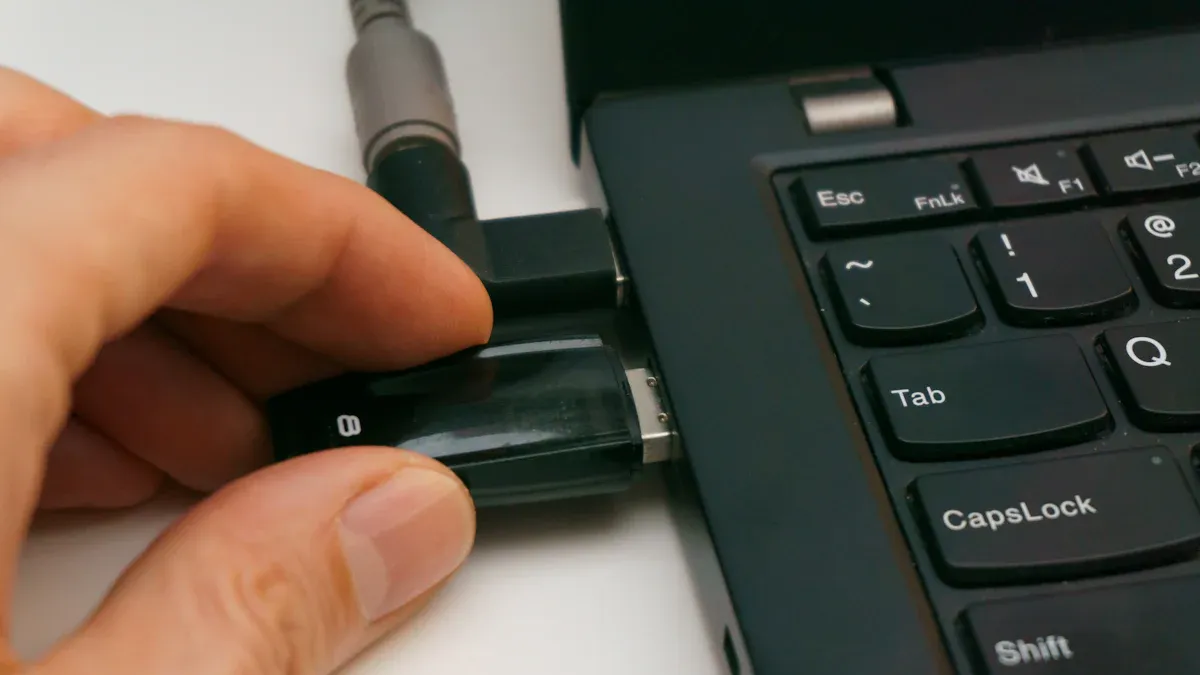
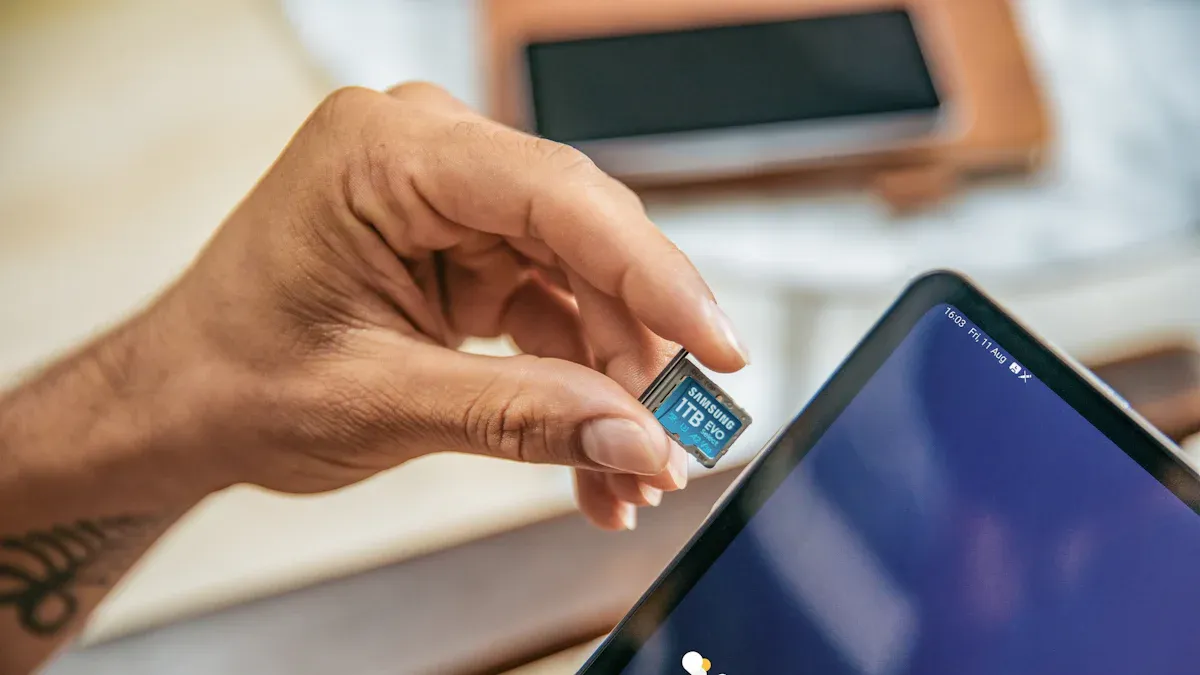
To use sd cards, insert the sd card into your device’s designated slot. You can also use an external sd cards reader if your device doesn’t have a built-in slot. Many laptops and desktops come equipped with a slot for sd cards, while some tablets and phones may require an adapter or a special sd cards reader. Simply plug the sd cards reader into your computer or phone. Once connected, you’ll be able to access and view your files stored on the sd cards.
Tip: Always handle your sd cards with care. This helps prevent damage and keeps your data secure.
Key Takeaways
Put your SD card in the right slot or use an outside reader to open files easily. - Always remove your SD card safely so you do not lose data and your files stay safe.
Format your SD card with the correct file system for your device so it works well.
Use file manager apps on Android to sort and handle files on your SD card easily.
Back up your files often to stop data loss and keep your information safe.
Windows: Read SD Cards
Insert SD Card via Reader
Start by locating the SD card slot on your Windows laptop or desktop. If your computer does not have a built-in slot, use an external SD card reader. Insert your SD card gently into the slot. Make sure the card fits snugly and does not feel loose. Windows will usually detect the SD card automatically.
Tip: If your SD card does not appear, try removing it and reinserting it. Sometimes dust or a loose connection can cause problems.
Access Files in File Explorer
Once you insert the SD card, open File Explorer. You will see your SD card listed under "This PC" or "Devices and drives." Click the SD card icon to view your files. You can open documents, photos, and videos directly from the SD card.
Transfer and Manage Files
You can move files between your SD card and your computer. Drag and drop files to copy them. Right-click to delete files you no longer need. Organize your folders to keep your data easy to find. SD cards make it simple to store and share files.
Format SD Card
Formatting erases all data on your SD card. To format, right-click the SD card in File Explorer and select "Format." Choose a file system:
File System | Pros | Cons |
FAT32 | Works with most devices | Cannot store files larger than 4 GB |
ExFAT | Handles large files | May not work on older devices |
Mac OS Extended (Journaled) | Good for Apple devices | Windows cannot write to it |
Pick the best option for your needs. Most users choose FAT32 or ExFAT for sd cards.
Safely Eject SD Card
Before removing your SD card, click the "Safely Remove Hardware" icon in the system tray. Select your SD card and wait for Windows to say it is safe to remove. This step helps prevent data loss.
Troubleshooting SD Card Issues
If Windows does not recognize your SD card, try these steps:
Step | What to Do |
1 | Check if the SD card is locked |
2 | Make sure the card is fully inserted |
3 | Clean the card and slot |
4 | Test the card in another device |
5 | Enable the card in Device Manager |
6 | Update the card driver |
7 | Assign a drive letter |
8 | Run CHKDSK to fix errors |
9 | Remove write protection |
10 | Format the card if needed |
Note: Formatting will erase all files. Back up important data before you format your sd cards.
Mac: Access SD Cards
Connect SD Card Reader
You can use the built-in SD card slot on your Mac if your model has one. Many newer Macs do not include this slot. If your Mac does not have a slot, you need an external SD card reader. Plug the reader into a USB port. Insert your SD card into the reader. Your Mac will detect the card and show it as a new drive on your desktop.
Tip: Always insert your SD card gently. This helps prevent damage to the card and the reader.
Open Files in Finder
Finder is the main tool for browsing files on a Mac. You will see your SD card listed in the sidebar under "Locations." Click the SD card name to view its contents. You can open photos, videos, and documents directly from the card.
Move and Delete Files
Managing files on your SD card is easy with Finder. You can drag files from the SD card to your Mac to copy them. You can also move files from your Mac to the SD card. To delete files, select them and press the "Delete" key. For transferring photos, Image Capture works well. Many users find Image Capture more reliable than other methods.
Use Finder to copy, move, or delete files.
Use Image Capture for transferring photos.
Always transfer files before formatting the card in your camera.
Format SD Card with Disk Utility
Formatting prepares your SD card for new files. Open Disk Utility from the Applications > Utilities folder. Select your SD card from the list. Click "Erase" and choose a file system. The best file system depends on your card type and size.
SD Card Type | Capacity | Recommended File System |
SDHC/microSDHC | 4 GB to 32 GB | FAT32 |
SDXC/microSDXC | 64 GB or higher | exFAT |
Choose FAT32 for smaller cards and exFAT for larger cards. Click "Erase" to format the card.
Eject SD Card Safely
Before removing your SD card, always eject it safely. In Finder, right-click the SD card icon and select "Eject." Wait until the icon disappears from the desktop. You can then remove the card from the reader.
Note: Ejecting your SD card safely helps prevent data loss and keeps your sd cards working well.
Android & iPhone: Use SD Cards
Insert SD Card in Android
Most Android phones let you use an SD card. Open the SIM tray or SD card slot. Put the SD card in carefully. Make sure it fits tight. If your phone does not see the card, check for a bad connection. Look for damage on the card or slot. Old software or a loose spring can cause problems. You might need to restart your phone. You can also clean the slot gently.
Tip: Always read your device manual first. It tells you which SD card formats your phone uses. Android phones usually work with FAT32, EXT4, EXT3, and exFAT.
Use File Manager Apps
File manager apps help you find and organize files on your SD card. Many apps have easy tools for managing files:
Feature | Description |
File Browsing | Look through files stored on SD cards. |
Copying and Moving | Move files between your phone and SD card. |
Deleting and Renaming | Delete or rename files to stay organized. |
Formatting | Format SD cards for better performance. |
Health Monitoring | Check how well your SD card is working. |
Secure Deletion | Erase files forever to keep your data safe. |
Advanced Filtering Options | Use filters to find files fast. |
Format and Unmount SD Card
You can format your SD card to erase everything and fix problems. Here are the steps:
Go to 'Settings' and tap 'Storage'.
Pick your SD card.
Tap 'Format' or 'Format as internal'.
Confirm your choice.
Unmount your SD card before you take it out. Use the 'Eject' button in Storage. If you format a card set as internal storage, you lose all apps and media on it.
Note: Save your data before you format or unmount your SD card.
iPhone: Use SD Card Adapter
iPhones do not have SD card slots. You need an SD card adapter for the Lightning port. Your iPhone model and iOS version matter for compatibility. Some adapters do not work with all devices. Older iPhones or iPads may not support some adapters. A powered USB hub and Apple Camera Adapter can help connect SD card readers to iPads.
Phone connection adapters do not work.
Lightning connector iPhones and iPads do not work with Files app.
Most SD card adapters need iOS 15 or newer.
Access Photos in Files App
You can see and move photos from your SD card using the Files app on iPhones with iOS 15 or newer. Put the SD card in with an adapter. Open the Files app and pick your SD card. You can copy photos to your phone or share them. If you cannot see files, check for errors or connection problems.
Common problems are detection issues, unsupported file systems, and app errors. Always use adapters that match your device.
SD cards help you add more space and move files between devices. Using the right tools and steps keeps your data safe.
Troubleshooting SD Cards
Sometimes sd cards have problems. The card might not show up. You could see errors when moving files. Formatting might not work right. Most problems are easy to fix. This section explains why sd cards have issues. It also shows how to solve them on different devices.
SD Card Not Recognized
Your device may not find the SD card. There are many reasons for this. Here is a table with common causes and what they mean:
Cause | Description |
Loose connection | The SD card may not be pushed in all the way. |
Compatibility issues | The card might not work with your device or needs special settings. |
Write protection | Some SD cards have a switch that stops changes. |
Outdated card reader drivers | Old drivers can make the SD card reader not work. |
Hardware issues | Damage or bad spots can cause problems reading or writing. |
File system corruption | Removing the card wrong, losing power, or viruses can break the card’s file system. |
You might see these things happen:
The SD card does not show up in File Explorer or Finder.
Your device asks you to format the card.
Error messages pop up about the drive.
Try these steps to fix it:
Open Device Manager. Check the SD card reader. Update or reinstall the driver.
Use Disk Management. Give the SD card a drive letter.
Test the SD card in another device. If it works, reformat it on your main device.
Look for damage or dirt on the card and slot.
Tip: If your device does not have an SD card slot, use an external reader or adapter. This can fix connection problems.
File Transfer Issues
Moving files to or from your SD card may not work. There are many reasons for this. Try these steps to fix file transfer problems:
Start your computer in Safe Mode. See if the problem goes away.
Do a clean boot. This removes software conflicts.
Scan for viruses. Check for malware.
Try another SD card. See if the card or device is the problem.
Other things to check:
Make sure your SD card is not full or write-protected.
Files bigger than 4GB do not work on FAT32 cards.
Rename files if they have special symbols like colons (:). These can block transfers.
Note: If you still cannot move files, try a different SD card reader or adapter. Some readers work better with certain devices.
Formatting Errors
Formatting gets your SD card ready for new files. Sometimes errors happen. Here is a table with common formatting errors and how to fix them:
Common Formatting Errors | Solutions |
Memory Card Not Detected | Check connections. Clean the card and slot. Try another device. Update software. |
File Loss or Corruption | Eject the card safely. Use recovery software. Do not save new files on the card. |
Storage Space Errors | Format the card. Check for fake cards. Buy from trusted brands. |
Slow Read/Write Speeds | Test in another device. Try a faster SD card. |
SD Card Freezing or Unresponsive | Look for damage. Clean the card. Format if needed. Replace if broken. |
Always save your files before formatting. If you see errors, try formatting the card in another device or use a different file system.
Data Recovery Tips
If you lose files or your SD card breaks, you can try to get your data back. Here are some ways to recover files:
Method | Description |
Create a Byte-to-Byte Copy | Make a full copy of your SD card before trying to recover files. This keeps your data safe. |
Use the ACR Function | Advanced Camera Recovery helps find and fix lost photos and videos. |
Scan with Disk Drill | Disk Drill looks for missing files on your SD card. You can save them to another device. |
Many programs can help you recover files. Here are some popular choices:
Software Name | Supported Platforms | File Systems Supported | Preview During Scan | Free Version | Key Features |
Disk Drill | Windows, macOS | NTFS, FAT32, exFAT, EXT4, HFS+, APFS | Yes | Yes (500 MB on Windows) | Lost partition search, backup |
R-Studio | Windows, macOS, Linux | NTFS/ReFS, FAT/exFAT, Ext2/3/4, HFS+/APFS | Yes | Yes (files <256 KB) | RAID recovery, forensic tools |
PhotoRec | Windows, macOS, Linux | FAT, NTFS, exFAT, Ext2/3/4, HFS | No | Yes, open-source | Bundled with TestDisk |
Recuva | Windows | FAT, exFAT, NTFS | Yes | Yes (unlimited) | Secure file deletion |
Data Rescue 6 | Windows, macOS | FAT, FAT32, exFAT, ext2/ext3, HFS+, APFS, NTFS | Yes | Demo (up to 1GB) | RAID recovery, clone drives |
Wondershare Recoverit | Windows, macOS | NTFS, FAT32, exFAT, APFS, HFS+, encrypted APFS | Yes | Yes (100 MB) | Bootable USB, photo/video repair |
DiskGenius | Windows | NTFS, FAT32, exFAT, EXT2/3/4 | Yes | Yes (files <64 KB) | Partition management, disk cloning |
Stellar Data Recovery | Windows, macOS | NTFS, exFAT, FAT, HFS, ext2/3/4 | Yes | Yes (1 GB) | Photo/video repair, S.M.A.R.T. data |
TestDisk | Windows, macOS, Linux | FAT, exFAT, NTFS, Ext2/3/4 | No | Yes, open-source | Partition recovery, boot repair |
Tip: Stop using your SD card right away if you lose files. This helps you get your files back.
If you follow these steps, you can fix most sd card problems and keep your data safe.
You can read sd cards on Windows, Mac, Android, and iPhone by using built-in slots or external readers. Always use adapters when your device needs one. To prevent data loss, follow these steps when ejecting your card:
Use the ‘Safely Remove Hardware’ feature.
Turn off cameras or phones before removing the card.
Make sure no data transfer is happening.
Regular backups help protect your files. Monthly backups work for most people, but daily backups suit businesses. If you face issues, check the write lock, inspect for damage, and test your card reader.
FAQ
Can you use any SD card with your device?
Check your device manual for supported SD card types and sizes. Many phones and cameras use microSD or SDHC cards. Some devices only work with certain file systems like FAT32 or exFAT.
What should you do if your SD card feels hot?
Remove the SD card right away. Let it cool before using it again. Heat can damage your card and cause data loss. If the problem continues, replace the card.
How do you keep your files safe on an SD card?
Back up your files often. Use the "Safely Remove Hardware" feature before taking out the card. Store your SD card in a case to protect it from dust and water.
Why does your SD card ask to be formatted?
Your device may not recognize the file system. Formatting prepares the card for new files. Always save your data before formatting, because this process erases everything.