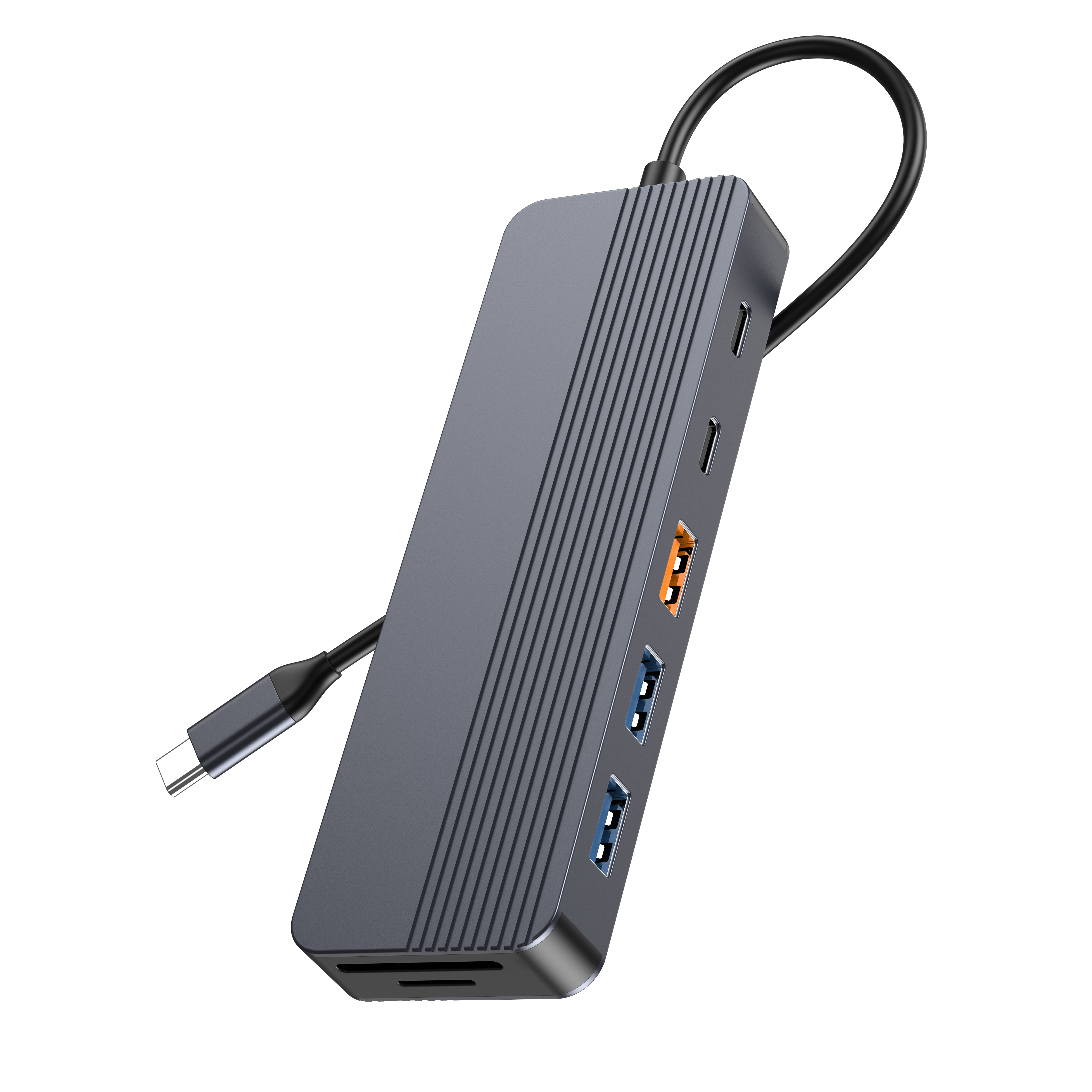
Modern laptops maximize portability at the severe expense of physical connectivity. Manufacturers continually strip away essential ports to achieve thinner profiles. In a professional workstation environment, relying on a mismatched adapter creates immediate daily friction. Users experience monitor flickering, peripheral latency, and inadequate power delivery when their hardware fails to align.
Sizing a hub goes far beyond simply counting the available ports on the chassis. It requires you to calculate aggregate bandwidth limits. You must also evaluate power passthrough capabilities and verify strict protocol compatibility. A poor choice throttles productivity and introduces hardware instability into high-stakes workflows.
This article provides a strict evaluation framework. We aim to help IT buyers and professionals specify the correct hardware. You will learn how to size the right setup without overpaying for unnecessary features. Following these guidelines ensures you prevent workflow bottlenecks and maintain peak system performance.
Key Takeaways
- Always calculate your total power budget: Deduct 10W–15W from a 100W PD hub to account for the hub's internal power consumption.
- Display resolution and refresh rates are dictated by bandwidth lanes (DP Alt Mode); dual 4K@60Hz requires specific multiport USB C hub specifications that budget models rarely meet.
- Mac and Windows handle dual external displays differently; verify Multi-Stream Transport (MST) support before purchasing.
- When provisioning for enterprise or specific industrial setups, vetting a multiport USB C hub supplier on thermal management and compliance is just as critical as port selection.
1. Defining Power and Bandwidth Needs for Laptop Workstations
Every peripheral you connect draws resources from a single host port. You must calculate both power and data requirements before looking at specific models. Failing to establish these baselines guarantees performance bottlenecks.
The Power Delivery (PD) Math
Professionals often misunderstand USB-C Power Delivery. You must differentiate between "PD Input" and "PD Output." Most hubs consume power internally to run their own processing chips and connected peripherals. If your laptop requires 65W to charge under a heavy load, buying a 65W charger and routing it through a hub will fail to deliver 65W.
The hub intercepts this power first. It typically reserves 10W to 15W for internal operations. To deliver a full 65W to your machine, you must use a 100W PD charger connected to a 100W PD-rated hub. This configuration leaves ample headroom. It powers the hub, feeds the laptop, and supports external devices like portable hard drives.
Data Bandwidth Realities
A standard USB-C port shares a finite amount of bandwidth. A typical Gen 2 port offers 10Gbps of total throughput. When you connect multiple high-demand devices, they compete for this single data lane.
Imagine running a 4K external NVMe drive, a 1080p webcam, and a Gigabit Ethernet connection simultaneously. A 5Gbps hub will bottleneck instantly. Video feeds will stutter. File transfers will slow to a crawl. You require a minimum of 10Gbps aggregate bandwidth to prevent these traffic jams. Evaluating this shared bandwidth limit remains crucial for professional setups.
Categorizing Workloads
Different users demand vastly different resources. Categorizing your team's workflow helps prevent over-provisioning.
Workload Resource Comparison Chart
| Workload Type | Display Needs | Data & Network Needs | Power Requirement |
| Light Workstation | Single 1080p or 4K monitor | Basic peripherals (mouse/keyboard), standard Wi-Fi | 60W - 65W Passthrough |
| Heavy Workstation | Dual 4K monitors | NVMe SSD transfers, Gigabit Ethernet | 85W - 100W Passthrough |
![Multiport USB-C Hub on a laptop workstation]()
2. Decoding Multiport USB C Hub Specifications
Navigating the marketing jargon surrounding hubs requires technical literacy. Manufacturers frequently hide subpar components behind impressive port counts. You must scrutinize the actual protocols driving each port.
Display Protocols (HDMI vs. DisplayPort)
Video output remains the most common point of failure in workstation setups. Many budget hubs advertise "4K support." However, they utilize older HDMI 1.4 technology. HDMI 1.4 restricts 4K resolutions to a 30Hz refresh rate. A 30Hz display causes visible mouse lag and severe eye strain during long working sessions. It is often a dealbreaker for professionals.
You must ensure your chosen model utilizes HDMI 2.0 or HDMI 2.1 protocols. These standards support 4K at 60Hz or higher. DisplayPort 1.4 provides even better bandwidth management for dual-monitor configurations. Always verify these precise multiport USB C hub specifications before deploying hardware to your team.
USB Standards
Many manufacturers pad their port counts by relying on legacy technology. A "7-in-1" hub might feature three USB-A ports, but two of them could be outdated USB 2.0. USB 2.0 maxes out at a sluggish 480Mbps.
While USB 2.0 suffices for basic wireless mouse dongles, it fails miserably for external storage. You need USB 3.2 Gen 1 (5Gbps) or Gen 2 (10Gbps) for modern flash drives and NVMe enclosures. Always check the exact specification of every individual downstream port.
Ethernet Reliability
Wireless networks introduce packet loss and latency spikes. In enterprise environments, relying on Wi-Fi for critical tasks is risky. A dedicated Gigabit RJ45 port guarantees stability. It ensures uninterrupted VoIP calls and maintains maximum speeds for large cloud data transfers. Avoid hubs featuring 10/100 Ethernet, as they choke modern network speeds.
Thermal Design Power (TDP)
Processing video signals, routing Gigabit Ethernet, and passing 100W of power generates intense heat. If a hub lacks proper thermal management, its internal chips will overheat. The device will then thermally throttle, dropping network speeds or disconnecting monitors to cool down.
Materials matter. An aluminum alloy chassis acts as a passive heatsink. It dissipates internal heat away from the logic board much better than a plastic shell. High-quality thermal design ensures reliable performance when you populate every port simultaneously.
3. Implementation Risks: Compatibility Blind Spots and Bottlenecks
Even a premium hub will fail if it conflicts with host system limitations. Operating systems and poorly shielded cables introduce unexpected challenges.
The Mac vs. PC Dual-Monitor Trap
macOS and Windows handle external displays entirely differently. Windows natively supports Multi-Stream Transport (MST). MST allows a single standard USB-C port to drive two independent external monitors. You can extend your desktop across both screens easily.
macOS natively lacks MST support over a standard USB-C connection. If you plug two monitors into a basic hub connected to a MacBook, macOS will mirror the image on both external screens. You will not get independent extended displays. To achieve dual extended displays on a Mac, you must use specialized Thunderbolt hubs or models utilizing DisplayLink driver technology. IT buyers frequently miss this critical distinction.
Peripheral Dropouts
Bus-powered hubs draw all their energy directly from the laptop. They do not plug into a wall outlet. This creates a severe power bottleneck if you connect high-draw devices.
For example, connecting an iPad or a portable USB-C monitor to a bus-powered hub drains excessive current. The hub cannot supply enough power to everything at once. Consequently, other connected devices like webcams or hard drives will randomly drop offline. To prevent this, always utilize PD passthrough charging. Connecting a wall charger stabilizes the entire peripheral ecosystem.
Interference Issues
USB 3.0 data transfers operate at frequencies that can emit broadband noise in the 2.4GHz spectrum. This is a well-documented engineering challenge. Poorly shielded internal cabling inside a hub leaks this radio frequency noise.
This interference actively disrupts 2.4GHz Wi-Fi signals and Bluetooth connections. Users often report their Bluetooth mouse lagging or their wireless headset dropping audio when they plug in a high-speed hard drive. High-quality hubs use heavy internal shielding on their cables and connectors to trap this noise and protect your wireless signals.
4. Hub vs. Docking Station: Making the Right Architectural Choice
Deciding between a hub and a full docking station defines your workstation architecture. Each serves a distinct purpose.
The Multiport USB-C Hub
A standard multiport USB C hub is bus-powered or relies on passthrough charging. It easily slips into a laptop bag. This makes it ideal for hybrid workers who transition between the corporate office, home, and travel locations. It remains highly cost-effective and prioritizes ultimate portability.
The Desktop Docking Station
Docking stations plug directly into a wall outlet using their own dedicated power brick. They do not rely on the laptop for power. They typically feature advanced Thunderbolt certifications, allowing for massive data throughput (up to 40Gbps) and triple-monitor support. However, they carry a steep price premium and offer zero portability. They stay bolted to a specific desk.
Decision Matrix
Follow these steps to choose the right hardware for your deployment:
- Assess user mobility. Do they work in multiple locations weekly?
- Calculate monitor needs. Do they need more than two 4K screens?
- Determine budget constraints. Does the department have funds for $250+ docks?
- Select hardware. Guide hybrid users toward a premium laptop workstations multiport USB C hub. Reserve expensive docking stations strictly for stationary power users, like video editors or data scientists.
5. Scaling Up: How to Evaluate a Multiport USB C Hub Supplier
Buying a single hub on retail is simple. Outfitting an entire enterprise department or sourcing components for a specialized industrial setup requires rigorous vendor evaluation.
B2B Procurement Considerations
Standard retail hubs often fail to meet enterprise demands. Retail models undergo frequent internal component changes based on global chip availability. A hub bought today might use a different chipset than the identical model bought six months later. This breaks standardized IT deployment images.
Customization Capabilities
Industrial applications and enterprise environments often require unique configurations. You might need a custom multiport USB C hub featuring a specific port array. Some setups still rely on legacy VGA ports for older projectors or manufacturing equipment. You may also require branded chassis designs, custom cable lengths for specialized mounting, or precise firmware configurations.
Evaluating a supplier’s OEM/ODM capabilities determines if they can modify their baseline products to fit your exact operational requirements.
Quality Assurance & Compliance
A poorly manufactured hub can permanently damage expensive host laptops. You must rigorously vet your partners.
- Verify Certifications: Demand proof of CE, FCC, RoHS, and USB-IF certifications. USB-IF compliance ensures the device strictly follows industry safety protocols regarding power delivery.
- Analyze Warranties: Review the supplier's failure rate guarantees. A reliable vendor confidently provides extended warranty terms and transparent RMA (Return Merchandise Authorization) processes.
- Assess Track Records: Partner with a proven multiport USB C hub supplier that guarantees a locked Bill of Materials (BOM). A locked BOM prevents the "bait and switch" of internal chips between production runs, ensuring long-term compatibility for your IT department.
Conclusion
Properly sizing hardware requires balancing the laptop’s raw power demands, the monitors’ required bandwidth, and strict operating system limitations. Selecting the right setup prevents daily technical frustrations and protects expensive host machines from power-related damage. It ensures every peripheral operates at maximum efficiency without bottlenecking shared data lanes.
Before purchasing, audit your current hardware setup. Calculate your exact total wattage and aggregate bandwidth requirements. Identify whether you need MST support for Windows or Thunderbolt compatibility for macOS. Shortlist two to three models that meet these strict criteria. Always request testing samples from suppliers to validate thermal performance and network stability under real-world loads before committing to a final purchase.
FAQ
Q: Why does my laptop say "slow charger connected" when using my hub?
A: The hub intercepts incoming power first. It reserves a portion of the wall adapter's wattage (usually 10-15W) to run its internal processing chips and feed connected peripherals. Because of this power deduction, your laptop receives less wattage than it expects. You likely need a higher-wattage PD power adapter to feed both the hub and the laptop adequately.
Q: Can one multiport USB C hub support two portable monitors?
A: Rarely. Most standard downstream USB-C ports on a hub are configured strictly for data transfers. Driving a portable monitor requires a port featuring DisplayPort Alt Mode alongside sufficient power delivery. Typical data-only ports lack these specific video lanes and power outputs. You usually need specialized docking stations to achieve this.
Q: Does the length of the hub's cable affect performance?
A: Yes. Longer cables without active signal boosters suffer from severe signal degradation. They lose data bandwidth and experience voltage drops in power delivery. Most reliable hubs keep the integrated host cable under 12 inches to maintain strict specification integrity and ensure maximum performance without interference.