If you are choosing a docking station, monitor interface, or OEM port configuration, Thunderbolt-to-DisplayPort is not automatically better than HDMI. For high-refresh PC monitors, professional multi-display workstations, and DisplayPort-native equipment, a Thunderbolt-to-DisplayPort path can be the more flexible choice. HDMI can be the better option when the target display ecosystem is built around HDMI, especially TVs, conference-room displays, projectors, and monitors where HDMI is already the expected input.
Quick Answer
The real decision is not simply “Thunderbolt vs HDMI.” Thunderbolt carries high-speed data and can transport display signals through a USB-C-shaped connection, while DisplayPort and HDMI are display interfaces. A Thunderbolt dock may therefore receive display data from the host and expose that capability through DisplayPort, HDMI, downstream Thunderbolt, or several of these outputs at once. The best connection depends on the host, dock architecture, monitor inputs, resolution, refresh rate, operating system, and required number of displays.
Thunderbolt, USB-C, DisplayPort, and HDMI Are Not the Same Thing
Much of the confusion around an HDMI Thunderbolt port starts with treating four different technologies as though they were interchangeable. They are not. USB-C describes the physical connector, Thunderbolt describes a high-speed connectivity platform, and DisplayPort and HDMI are display standards used to carry video and audio to a monitor or display.
| Technology | What It Is | What Buyers Should Understand |
| USB-C | A physical connector format | A USB-C-shaped port does not tell you by itself whether the port supports Thunderbolt, DisplayPort video, a particular USB data rate, or a specific charging level. |
| Thunderbolt | A high-speed connectivity platform | It can carry multiple types of traffic, including display and data, over a USB-C connector. Finished capabilities still depend on the host, dock, cable, and connected devices. |
| DisplayPort | A digital display interface and standard | It is widely used for computer monitors, high-refresh displays, professional workstations, MST configurations, and direct PC display connections. |
| HDMI | A digital audio/video interface and standard | It has a very large installed base across monitors, televisions, projectors, AV equipment, conference rooms, and consumer electronics. |
VESA supports DisplayPort over USB-C and also describes DisplayPort as a protocol that can be tunneled through Thunderbolt. That is why a Thunderbolt connection can ultimately feed a DisplayPort monitor even though the connector on the laptop is not a full-size DisplayPort connector. Buyers comparing platform generations can also review our Thunderbolt 4 vs Thunderbolt 5 guide to understand how the host-side connection changes the overall dock architecture.
How a Thunderbolt Dock Gets Video to DisplayPort or HDMI
For a docking station buyer, it is more useful to think in terms of a signal path than a port logo. The laptop's GPU first has to make the required display streams available. The host platform then transports supported video through the Thunderbolt connection. Inside the dock, controllers and routing hardware expose those streams through one or more physical display outputs.
Display Signal Path
STEP 01
Host GPU / OS Creates available display streams →
STEP 02
Thunderbolt Link Transports video and data →
STEP 03
Dock Routing Routes streams to physical outputs →
STEP 04
Monitor Accepts supported timing and input This distinction matters because connecting a Thunderbolt port to DisplayPort does not turn an ordinary USB-C connector into an unlimited display source. Likewise, placing an HDMI 2.1 receptacle on a dock does not guarantee that every host can drive every HDMI 2.1 resolution and refresh-rate combination.
Thunderbolt-to-DisplayPort vs HDMI: What Actually Changes?
Once a dock can receive the necessary video stream, DisplayPort and HDMI become alternative ways to deliver that video to the monitor. Buyers should compare the complete implementation instead of ranking the connector names in isolation.
| Decision Point | Thunderbolt to DisplayPort | Thunderbolt to HDMI | Buyer Implication |
| PC monitor ecosystem | Often a natural fit for workstation and gaming monitors | Very common and broadly supported | Choose according to the monitors customers actually deploy. |
| TV / AV ecosystem | Less common as a native television input | Usually the more familiar AV connection | HDMI can reduce adapter requirements in meeting rooms, hospitality, and television-based deployments. |
| High refresh monitors | Strong fit where GPU and monitor support suitable DisplayPort modes | Also capable of high refresh with an appropriate HDMI implementation | Verify the exact resolution, refresh rate, color depth, and monitor input rather than assuming one connector is always faster. |
| Multi-monitor architecture | DisplayPort includes technologies such as Multi-Stream Transport where supported | Usually implemented as separate physical HDMI outputs on docking products | The dock controller and host OS matter as much as the connector count. |
| Daisy chaining | Relevant to DisplayPort MST and compatible monitor chains | Not the normal HDMI deployment model | DisplayPort deserves priority when daisy-chain deployment is a defined requirement. |
| Installed equipment | Best when customers already standardize on DisplayPort | Best when HDMI dominates the installed base | Commercial compatibility can be more important than the theoretical maximum of either standard. |
Does DisplayPort Have More Bandwidth Than HDMI?
The answer depends on which generations you compare. For the interfaces relevant to our current 18-in-1 Thunderbolt 5 dock, VESA defines DisplayPort 2.1 UHBR20 at up to 20Gbps per lane across four lanes, corresponding to an 80Gbps maximum link throughput. HDMI Licensing Administrator specifies up to 48Gbps for HDMI 2.1.
Those numbers should not be used as a shortcut for predicting the performance of a finished dock. DisplayPort link throughput, HDMI link bandwidth, and Thunderbolt link bandwidth describe different parts of a system and are not interchangeable specifications. Display Stream Compression, color depth, chroma format, timing, GPU support, dock silicon, and monitor capabilities can all affect which display modes are possible.
Buyers who need standards-level information can review the VESA DisplayPort 2.1 overview and HDMI 2.1 specification information.
Where Thunderbolt 5 Changes the Docking-Station Decision
Thunderbolt 5 increases the amount of aggregate connectivity available between a compatible host and dock. Intel specifies up to 80Gbps of bidirectional bandwidth and a Bandwidth Boost mode that can allocate up to 120Gbps in the transmit direction for display-intensive workloads while retaining 40Gbps in the other direction.
Thunderbolt 5 Link Perspective
80 Gbps
Bidirectional base bandwidth
120 Gbps
Maximum transmit direction with Bandwidth Boost
40 Gbps
Remaining reverse direction in that mode
Do not read these numbers as individual port speeds. These figures describe the Thunderbolt link. They do not mean an HDMI port, DisplayPort port, USB port, SSD, or Ethernet connection individually operates at 80Gbps or 120Gbps.
For a deeper explanation of this distinction, see our guide to Thunderbolt 5 bandwidth and real dock performance.
The practical advantage appears when one upstream connection must support several demanding functions at the same time. A workstation may be driving external monitors while also accessing NVMe storage, using 2.5GbE, transferring data through USB devices, and charging the laptop. In this situation, additional host-to-dock headroom can be more useful than comparing HDMI and DisplayPort as isolated connectors.
The Maximum Standard Is Not the Same as the Maximum Finished Setup
One of the most important procurement rules is to separate theoretical interface capability from real product capability. A docking system is only as capable as the complete chain.
CAPABILITY LIMIT MODEL
Protocol What Thunderbolt, DisplayPort, or HDMI can theoretically support.
Finished Dock What the routing, controllers, firmware, power design, and ports implement.
Host What the GPU, Thunderbolt controller, OS, and laptop design provide.
Monitor What the display accepts through the selected input and cable.
The highest specification in one part of the chain does not automatically become the finished system capability.
Product Example: HDMI 2.1 and DisplayPort 2.1 on One Thunderbolt 5 Dock
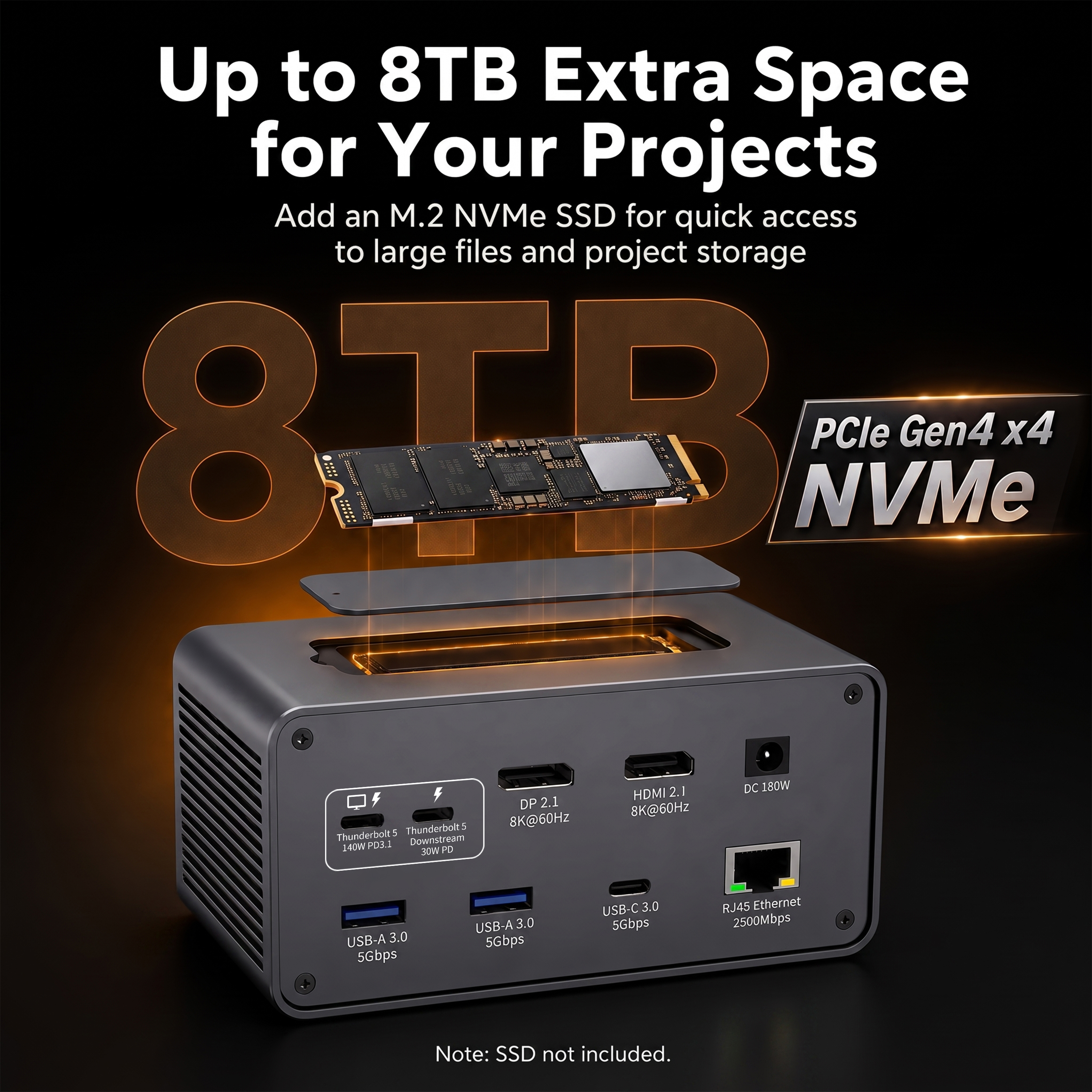
Our 18-in-1 Thunderbolt 5 Docking Station is a useful example because it does not force the buyer to choose only one display connector. The host side uses Thunderbolt 5, while the display-side configuration includes HDMI 2.1, DisplayPort 2.1, and a downstream Thunderbolt 5 port with video capability.
Product in Context
18-in-1 Thunderbolt 5 Docking Station
HDMI 2.1 DisplayPort 2.1 Downstream Thunderbolt 5 2.5Gbps Ethernet Up to 140W PD 3.1
The product configuration specifies HDMI 2.1 at up to 8K@60Hz or 4K@240Hz, DisplayPort 2.1 at up to 8K@60Hz or 4K@240Hz, and downstream Thunderbolt 5 video output. It also integrates USB connectivity, an M.2 NVMe slot, card-reader connectivity, audio, and high-speed networking.
View Product → Explore Thunderbolt 5 Docks →
These are interface capabilities of the dock, not a promise that every laptop can drive every listed display mode simultaneously. Maximum external-display count and timing still depend on the host GPU, Thunderbolt implementation, operating system, cable path, and connected monitors. For purchasing and deployment, the host matrix should therefore be verified before a maximum display configuration becomes part of an RFQ or end-user specification.
What Changes With a Thunderbolt 4 Dock?
Thunderbolt 4 remains relevant for fleets that do not require the additional Thunderbolt 5 headroom. Our 18-port Thunderbolt 4 docking station illustrates a different display architecture: it combines one DisplayPort 1.4 output rated up to 8K@30Hz, two HDMI outputs rated up to 4K@60Hz, VGA, and Thunderbolt 4 alongside USB, Ethernet, charging, audio, and card-reader connections.
This configuration highlights an important sourcing point. An interface decision is often about port mix, not simply choosing the newest protocol. A corporate customer with existing 4K HDMI monitors may gain more practical value from multiple HDMI outputs than from a higher-spec DisplayPort connector that requires new cables or adapters.
Should You Choose Thunderbolt-to-DisplayPort or HDMI?
The better choice is determined by the deployment. For many B2B buyers, the fastest way to decide is to start with the monitor ecosystem and the use case rather than the connector specification alone.
Buyer Decision Guide
Option 01
Choose DisplayPort
Best For
PC monitors, professional workstations, high-refresh displays, and MST-oriented deployments.
Why
A natural fit for many desktop and workstation monitor ecosystems.
Watch For
GPU limits, monitor inputs, OS behavior, MST support, and cable requirements.
Option 02
Choose HDMI
Best For
TVs, conference rooms, projectors, hospitality systems, and broad installed AV environments.
Why
Broad compatibility can reduce adapter requirements and simplify deployment.
Watch For
The HDMI generation, resolution, refresh rate, and cable specification.
Option 03
Choose Both
Best For
Distributor products, OEM programs, mixed offices, and docks intended for several markets.
Why
HDMI covers a broad AV base while DisplayPort gives PC and workstation users a native option.
Watch For
Port count alone does not guarantee simultaneous display capability across every host.
What About Gaming and High-Refresh Monitors?
For gaming or high-refresh professional visualization, start with the monitor's native inputs and supported timing rather than with the dock connector alone. A monitor may support its highest refresh mode on DisplayPort, HDMI, or both depending on the model.
Practical Validation Tool
High-Refresh Display Checklist
Validate the complete signal path before approving a maximum display mode.
01 Confirm the exact target resolution and refresh rate.
02 Verify the GPU's external-display capability.
03 Check the dock's HDMI or DisplayPort implementation.
04 Confirm the monitor input supports the requested mode.
05 Use a cable rated for the intended link and display mode.
This becomes especially important for modes such as 4K@120Hz, 4K@144Hz, 4K@240Hz, or 8K, where color depth, chroma format, DSC support, and the rest of the signal path can determine whether the requested mode is actually available.
Multi-Monitor Support Depends on More Than the Number of Ports
A docking station with three display connectors does not automatically guarantee three independent external monitors on every computer. The host must expose enough display resources, the dock has to route them appropriately, and the operating system must support the intended topology.
3 Display Ports ≠ 3 Guaranteed Independent Displays
The final display topology still depends on:
Host GPU • Operating System • Thunderbolt Implementation • Dock Routing • Monitor Configuration
Windows and macOS should therefore be treated as separate validation targets rather than assumed to behave identically. Even within one operating-system family, laptop GPU and processor configurations can have different external-display limits.
For enterprise rollouts, channel products, and private-label docking stations, we recommend creating a host/display validation matrix during sampling. Record the host model, operating system, Thunderbolt generation, monitor model, cable, resolution, refresh rate, number of active displays, and whether each display is mirrored or extended.
Can Thunderbolt Connect Directly to HDMI?
Yes, when the host and adapter or dock provide the required video support. A Thunderbolt port can connect to an HDMI display through a Thunderbolt or USB-C dock with HDMI output, or through a suitable adapter.
The important point is that the physical USB-C connector alone is not enough. A basic USB-C port without the required display capability will not suddenly gain monitor output simply because an HDMI adapter is attached.
Cables and Adapters Can Become the Hidden Bottleneck
Procurement specifications often define the dock and monitor but leave the cable as an afterthought. That can create avoidable failures during deployment.
Thunderbolt Cable Wrong generation, length, bandwidth, or power capability can limit the host-to-dock link.
Display Cable The HDMI or DisplayPort cable must support the requested link rate and display mode.
Adapter / Converter An additional conversion stage introduces another component that must be validated.
A Thunderbolt cable must support the intended Thunderbolt generation, bandwidth, length, and power requirement. The display-side cable must likewise support the requested DisplayPort or HDMI mode. An adapter adds another active or passive component to the signal path and should be validated as part of the complete system.
This is one reason a dock with native HDMI and DisplayPort outputs can be preferable to a design that depends heavily on external adapters. Fewer conversion stages generally simplify the bill of materials, end-user instructions, troubleshooting process, and compatibility testing.
Backward Compatibility Does Not Guarantee Identical Display Performance
Thunderbolt generations are designed with backward compatibility in mind, but a newer dock operating from an older host cannot create capabilities the host does not provide. The negotiated connection can fall back to the lower platform capability, and display, data, and charging behavior should be verified for the specific product.
That matters when a distributor wants one Thunderbolt 5 dock to serve both new Thunderbolt 5 notebooks and an installed base of Thunderbolt 4 machines. The product may still be useful across both groups, but users should not expect the older hosts to gain Thunderbolt 5 bandwidth simply by connecting a newer dock.
Our guide to Thunderbolt 5 backward compatibility explains how to approach mixed-generation fleets and why host-side validation remains necessary.
OEM/ODM Buyers: How to Choose the HDMI and DisplayPort Port Mix
For an OEM/ODM docking station project, the correct question is not “Which connector is best?” It is “Which connector mix best matches the product's target host and monitor ecosystem?”
Buyer / RFQ Planning Tool
Define the Product Before Finalizing the Port Layout
Use these three decision layers before sampling or locking the docking-station architecture.
01 / TECHNICAL
What must the product deliver? Target hosts and GPU platforms
Required resolution and refresh rate
Number of simultaneous displays
Required Thunderbolt generation
02 / COMPATIBILITY
Where must it work? HDMI vs DisplayPort monitor ecosystem
Windows and macOS requirements
USB-C or older-host fallback expectations
Cable and adapter environment
03 / COMMERCIAL
How will it be positioned? Target price and BOM position
Target market and customer profile
Retail, distributor, enterprise, or professional positioning
Required port mix for the intended sales channel
Through our OEM and ODM docking station services, we can work from customer specifications and support product design, engineering, prototyping, testing, manufacturing, private labeling, and custom packaging. For a display-focused project, the RFQ should define the required host and monitor matrix before the physical port layout is finalized.
A Practical Display RFQ Example
Instead of requesting “Thunderbolt 5 dock with HDMI and DP,” a more useful sourcing brief would specify the Thunderbolt generation, required host families, number of simultaneous monitors, each target resolution and refresh rate, preferred HDMI and DisplayPort quantities, charging requirement, data interfaces, Ethernet requirement, operating systems, cable package, and acceptance test matrix.
That information allows the finished docking architecture to be evaluated as a complete product rather than assembled around a list of attractive connector labels.
Thunderbolt-to-DisplayPort or HDMI: Buyer Recommendations by Use Case
Different deployment environments create different priorities. The table below summarizes where each display strategy is likely to make the most sense.
| Use Case | Likely Priority | Why |
| Professional PC workstation | DisplayPort or mixed DP + HDMI | Matches many workstation monitors while preserving compatibility with HDMI equipment. |
| High-refresh gaming monitor | Follow the monitor's best supported input | Either modern DisplayPort or HDMI may be appropriate; validate the requested timing end to end. |
| Conference room / projector | HDMI | Large installed base and fewer adapter requirements. |
| Trading / multi-monitor desk | Mixed outputs with validated topology | Monitor count and OS/GPU support matter more than a single connector preference. |
| Channel / retail dock | Mixed HDMI + DP | Covers a broader installed monitor base. |
| OEM professional Thunderbolt 5 dock | Requirement-driven configuration | Port architecture should follow host, monitor, bandwidth, power, BOM, and target-market requirements. |
Related Resources
Continue Exploring Thunderbolt Docking Topics
Use these guides to move from interface comparison into platform, bandwidth, compatibility, and product selection.
Frequently Asked Questions
Is Thunderbolt to DisplayPort better than HDMI?
Not universally. Thunderbolt-to-DisplayPort can be preferable for DisplayPort-native PC monitors, high-refresh workstation setups, or deployments that need DisplayPort-specific capabilities. HDMI may be preferable for televisions, projectors, conference systems, and monitor fleets already standardized on HDMI. Compare the complete host-to-monitor path rather than the connector names alone.
Can Thunderbolt output DisplayPort?
Yes. DisplayPort can be transported through Thunderbolt. A compatible Thunderbolt host can therefore send display traffic through a Thunderbolt connection to a dock, downstream Thunderbolt display, or DisplayPort output implemented by the docking system.
Can Thunderbolt connect directly to HDMI?
Yes, through a compatible dock or adapter that routes the supported display signal to HDMI. The host must provide the required display capability; the USB-C connector shape by itself does not guarantee video output.
Is DisplayPort better than HDMI for 4K or high refresh rate?
It depends on the generations implemented by the GPU, dock, monitor, and cable. Both modern DisplayPort and HDMI implementations can support demanding 4K display modes. Use the monitor's supported input specifications and the dock's verified output capability to make the decision.
Does Thunderbolt 5 improve monitor performance?
Thunderbolt 5 provides more host-to-device bandwidth than Thunderbolt 4 and can allocate additional transmit bandwidth for display-heavy workloads. This creates more headroom for demanding display and data combinations, but it does not increase the native capability of a monitor, GPU, cable, or display interface beyond their own limits.
Can a Thunderbolt dock use HDMI and DisplayPort at the same time?
Some docks can. Our 18-in-1 Thunderbolt 5 dock is configured with HDMI 2.1, DisplayPort 2.1, and downstream Thunderbolt 5 video interfaces designed for simultaneous display output. The actual number of monitors and available resolution/refresh combinations remain dependent on the host, OS, and complete display path.
Does every USB-C port support DisplayPort?
No. USB-C describes the connector. A system must implement the required DisplayPort, Thunderbolt, USB4 display capability, or another supported video path. Always check the computer manufacturer's port specification before assuming a USB-C port can drive a monitor.
Which is better for a docking station: HDMI or DisplayPort?
For many B2B docking products, supporting both is the more practical answer. DisplayPort serves PC monitor, workstation, and high-performance display applications, while HDMI provides broad compatibility with monitors and AV equipment. OEM buyers should choose the ratio based on the target host, installed display ecosystem, required display count, resolution, refresh rate, operating systems, product cost, and sales market.
Choose the Display Architecture, Not Just the Connector
Thunderbolt-to-DisplayPort is not inherently better than HDMI, and HDMI is not inherently better than DisplayPort. The better solution is the one that delivers the required monitor topology reliably through the complete host, dock, cable, and display chain.
For high-performance PC monitors and workstation environments, DisplayPort may deserve priority. For broad AV compatibility, HDMI remains highly valuable. For many docking station products, especially those intended for distribution or private-label programs, combining HDMI, DisplayPort, and downstream Thunderbolt can provide the most useful coverage.
OEM / ODM Project Planning
Planning a Thunderbolt Docking Station Project?
Define your target laptops, operating systems, monitor count, resolution, refresh rate, HDMI/DisplayPort mix, Thunderbolt generation, charging requirement, and target price before finalizing the port layout. Our team can use those requirements as the starting point for an OEM/ODM docking station discussion.
Contact YUANSHAN About Your Dock Project →