The best docking stations turn one laptop into a stable workstation.
In this guide, you will learn what makes a docking station powerful.
We will compare bandwidth, displays, charging, speed, and daily workflow needs.
2. What Makes the Most Powerful Docking Station?
Connection Standard: Thunderbolt, USB4, or USB-C
The host connection sets the performance ceiling. This is the port linking your laptop to the dock. If it is slow, the whole setup may feel limited.
A thunderbolt dock usually gives stronger bandwidth than a basic USB-C dock. Thunderbolt 4 docking station models are common in professional setups. They are useful for dual 4K displays, fast storage, and stable device expansion.
A thunderbolt 5 docking station sits higher in the performance range. It is built for heavier display and data needs. It may suit video editors, 3D users, and power users. Still, your laptop must support Thunderbolt 5. Otherwise, the dock cannot reach its full speed.
USB4 also matters. It can deliver strong bandwidth, but real performance depends on the laptop and dock design. Standard USB-C docking stations vary more. Some are simple hubs. Others support strong display output and charging.
Display Output Capacity
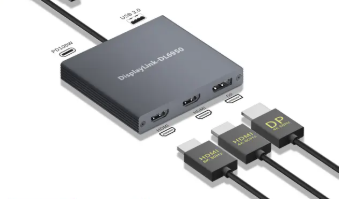
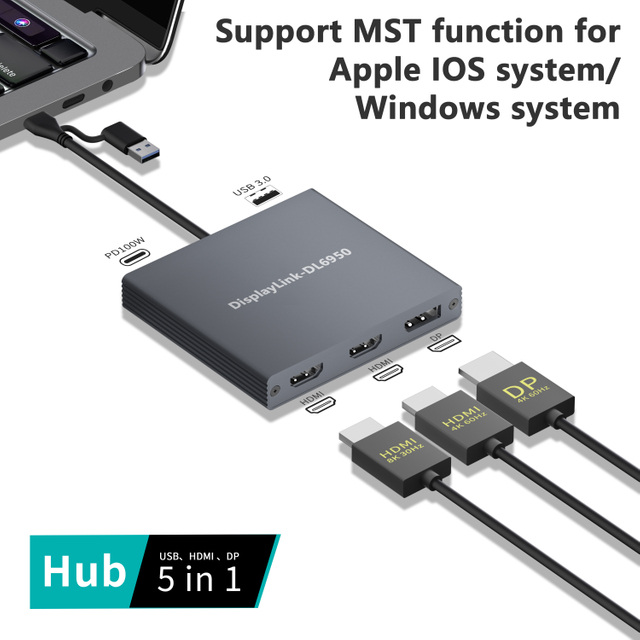
Display support is one of the biggest signs of power. A basic dock may support one external monitor. A stronger laptop docking station 4K setup may support dual 4K displays at 60Hz. Advanced docking stations may support triple displays or higher resolutions.
You should check three things. First, how many monitors can it run? Second, what resolution can each monitor use? Third, does refresh rate drop when more screens connect?
“4K support” can be vague. A dock may support 4K at 30Hz, which can feel less smooth. For office work, 4K at 60Hz is usually better. For creative work, higher resolution and color stability also matter.
If your team uses dashboards, code editors, video timelines, or design tools, a docking station for multiple monitors can improve workflow. It lets users spread tasks across screens. That saves time and reduces window switching.
Power Delivery Performance
A docking station with power delivery keeps the laptop charged while devices stay connected. This is important for clean desks and stable workstations. It also reduces cable clutter.
Check the wattage before buying. Many business laptops need less power than mobile workstations. A thin laptop may work well with 65W or 85W. A performance laptop may need 100W or more. Always compare the dock output with the original charger.
Power Delivery is not only about the laptop. The dock also powers USB devices, drives, card readers, and sometimes phones. If the power design is weak, connected devices may disconnect or charge slowly.
Port Variety and Practical Layout
A multiport dock should match real devices. More ports do not always mean better performance. The right mix matters more.
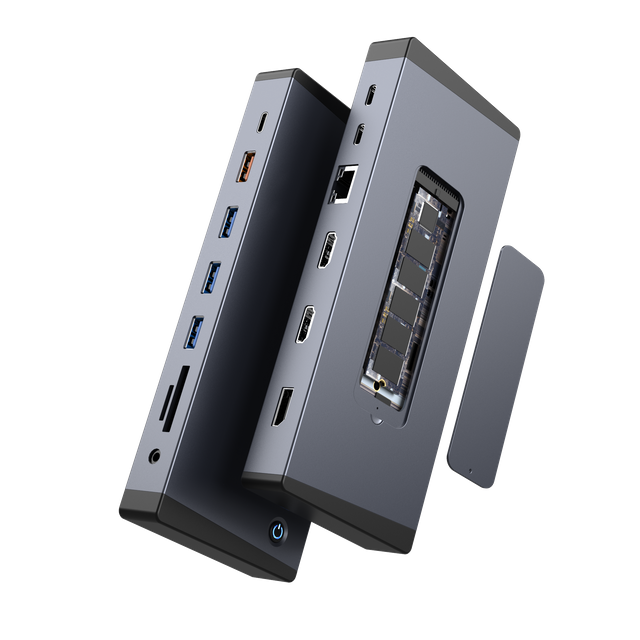
Common ports include HDMI, DisplayPort, USB-A, USB-C, Ethernet, audio, SD, and microSD. Office users may need keyboard, mouse, webcam, headset, and Ethernet. Creative users may need SD card slots, fast USB-C, and high-resolution display outputs.
Port layout also affects daily use. Rear ports are better for monitors, Ethernet, and power. These cables stay connected. Front ports are better for SD cards, headphones, USB drives, and temporary devices.
A powerful dock should support productivity, not create cable stress. Poor layout can make even a strong dock annoying to use.
Data Transfer and External Storage Speed
Fast data transfer is essential for many teams. It matters when users move large files, run backups, edit media, or use external SSDs. A slow dock can become the hidden bottleneck.
Thunderbolt and high-speed USB-C ports help reduce waiting time. They also support more demanding devices. If your work involves video files, engineering data, or large image libraries, this is critical.
Card reader speed also matters. Some docks include SD slots, but not all perform equally. For photographers and content teams, this can affect daily productivity.
Network Performance
Wired Ethernet still matters in business environments. Wi-Fi is convenient, but it may be less stable. A dock with Ethernet gives users a fixed network connection at the desk.
Gigabit Ethernet is enough for many office tasks. It works well for video calls, cloud tools, and shared drives. For larger files, NAS workflows, or media teams, faster Ethernet may help.
A strong network port also reduces connection drops. That matters during calls, uploads, and remote collaboration.
Heat Control and Long-Term Stability
A powerful dock handles data, display, charging, and network traffic at once. This creates heat. If heat is not managed well, performance may drop.
A good dock should stay stable under load. It should not disconnect monitors or storage during long workdays. It should also avoid excessive surface heat.
Thermal design matters more for professional users. They may run two monitors, Ethernet, external drives, and charging for hours. In this case, reliability is part of power.
Tip:For enterprise use, test docks under full load before bulk purchase.
3. Thunderbolt vs USB-C Docking Stations: Which Is More Powerful?
When Thunderbolt Docking Stations Are the Stronger Choice
Thunderbolt docking stations are usually stronger for demanding setups. They suit users who need high bandwidth, multiple displays, fast drives, and clean cable management.
A thunderbolt 4 docking station is often a strong choice for professional desks. It can support advanced display setups, fast peripherals, and stable expansion through one cable. It also tends to offer better consistency than basic USB-C hubs.
A thunderbolt 5 docking station is aimed at heavier workloads. It is useful when users want more display bandwidth, faster storage, or future-ready setups. Still, it only makes sense when the laptop supports it.
Choose Thunderbolt when performance matters more than price. It is better for creative studios, analysts, engineers, developers, and high-end office setups.
When USB-C Docking Stations Are Enough
A USB-C dock is enough for many users. It can support a monitor, keyboard, mouse, storage, and charging. It often costs less and works well for everyday office tasks.
A USB-C docking station dual monitor setup can also be practical. However, you must check resolution and refresh rate carefully. Some USB-C docks reduce quality when two screens connect.
USB-C docking stations are ideal for simple workstations. They also fit mobile teams, shared desks, and travel kits. For users with one monitor and basic peripherals, USB-C may be the smarter choice.
USB4 as a Middle-Ground Option
USB4 sits between basic USB-C and Thunderbolt in many discussions. It can offer strong bandwidth and broad device support. But the label alone is not enough.
Two USB4 docks may not perform the same way. One may support better displays. Another may offer stronger charging or faster data ports. Always read the actual specifications.
For buyers, USB4 can be a good path. It may offer strong performance without always moving into the highest price range.
Compatibility Limits Users Should Check First
The dock is only one part of the system. The laptop also matters. Its port standard, graphics capability, operating system, and firmware can all limit performance.
Some laptops support only one external display. Some require drivers for extended displays. Some USB-C ports support charging but not video output. These details can cause confusion.
Before buying, check the laptop manual. Confirm Thunderbolt, USB4, or DisplayPort Alt Mode support. Also check your monitor inputs. A dock cannot fix every hardware limit.
4. How to Match Docking Stations to Different Workflows
For Creative Professionals
Creative teams need more than extra ports. They need high-resolution displays, fast storage access, SD card support, stable Ethernet, and good cooling.
A powerful docking station helps editors move files faster. It also supports clean multi-monitor timelines and preview windows. For design teams, display quality and stability matter more than the number of USB-A ports.
A thunderbolt dock is often the better option here. It provides stronger bandwidth for demanding devices and high-resolution displays.
For Office and Remote Workers
Office users usually need practical reliability. A good dock should connect monitors, keyboard, mouse, webcam, headset, Ethernet, and power. It should also reduce desk clutter.
For many users, a USB-C docking station dual monitor setup is enough. It creates a productive desk without requiring premium specifications.
Remote workers also need stability during calls. A reliable network port and audio connection can matter more than rare high-speed ports.
For Engineers, Analysts, and Power Users
Power users often use many tools at once. They may need multiple monitors, fast external storage, wired network speed, and several USB devices.
A high performance docking station helps reduce switching time. It also supports cleaner workflows across dashboards, code, documents, and technical tools.
For this group, bandwidth and reliability are critical. A low-cost dock may work at first, but it may limit productivity later.
For Mobile Workers and Students
Mobile users do not always need the most powerful docking station. They often need a compact USB-C dock, HDMI output, USB ports, SD access, and light weight.
A compact laptop dock can be better than a large desktop dock. It fits bags, meeting rooms, classrooms, and travel setups.
For these users, practical value matters more than maximum specifications.
5. Key Specifications to Compare Before Buying Docking Stations
Number and Type of Ports
Start with actual devices. Count monitors, keyboard, mouse, webcam, headset, external drive, printer, Ethernet, and speakers. Then match the port list.
A multiport dock should reduce adapters. If users still need many dongles, the dock may not fit the workflow.
Look for the right port types. HDMI and DisplayPort serve monitors. USB-C handles faster devices. USB-A supports common accessories. Ethernet supports stable networks. SD slots help media teams.
Maximum Display Resolution and Refresh Rate
Display claims need careful reading. A dock may support 4K, but only at 30Hz. It may also reduce resolution when two or three displays connect.
For office use, dual 4K at 60Hz is a strong target. For creative use, higher resolution may be useful. For dashboards, multiple screens may matter more than extreme resolution.
Check if your laptop supports the same display output. The dock cannot exceed the laptop’s limits.
Charging Wattage and Power Adapter Design
Charging wattage affects daily convenience. If the dock charges too slowly, users may still need the laptop charger. That defeats part of the purpose.
A docking station with power delivery should match the laptop’s needs. It should also leave enough power for connected devices.
A dedicated power adapter can improve stability. Bus-powered hubs are portable, but they may not handle heavy setups well.
Operating System and Laptop Compatibility
Check Windows, macOS, ChromeOS, and Linux support. Also check driver requirements. Some docks work best after software installation.
Display behavior can vary between systems. This is especially true for multi-monitor setups. Business buyers should test their main laptop models first.
A standard hardware checklist reduces surprises. It also helps IT teams support users faster.
6. Common Mistakes When Choosing Powerful Docking Stations
Choosing by Port Count Alone
Many buyers choose the dock with the most ports. That can be a mistake. A dock with fewer high-quality ports may perform better.
Speed, display support, and reliability matter more than raw count. A weak port mix can slow the whole setup.
Ignoring Laptop Display Limitations
The laptop controls much of the display output. Its chipset, graphics support, port standard, and operating system can limit monitor count.
A docking station for multiple monitors will not always create multiple extended screens. Check support before buying.
Overlooking Cable Quality
Cables affect charging, data, and display stability. A poor cable can cause flicker, slow transfer, or random disconnects.
Use certified cables where possible. This is especially important for Thunderbolt and USB4 setups.
Buying More Power Than the Workflow Needs
The most powerful docking station is not always the best purchase. A simple worker may not need premium bandwidth or triple-display support.
Overspending can reduce ROI. Choose enough power for the workflow, plus some room to grow.
7. How to Decide Which Docking Station Is the Most Powerful for You
Start With Your Monitor Setup
Begin with displays. Do you need one monitor, dual 4K displays, triple screens, or higher-resolution creative monitors?
This choice shapes the whole purchase. A laptop docking station 4K setup needs different specs from a simple HDMI hub. A dual-monitor desk needs stronger video support than a travel adapter.
Write down your monitor resolution, refresh rate, and connection type. This prevents wrong purchases.
Check Your Laptop’s Port and Charging Requirements
Next, check the laptop port. Look for Thunderbolt, USB4, or USB-C video support. Do not assume every USB-C port does the same thing.
Then check the charger wattage. Match the dock output to the laptop’s original power adapter. This helps the laptop stay charged during full workdays.
List Your Daily Peripherals
List every device used at the desk. Include keyboard, mouse, webcam, headset, external SSD, card reader, printer, Ethernet, and speakers.
Then separate fixed devices from temporary devices. Fixed cables should sit at the back. Temporary devices should be easy to reach.
This makes the dock more useful every day.
Balance Performance, Reliability, and Desk Setup
Finally, think about the physical setup. Vertical docks save space. Horizontal docks may give easier access. Compact hubs suit travel. Monitor-stand docks can clean up the desk.
For B2B teams, reliability often matters more than maximum specs. A dock should be easy to deploy, easy to support, and stable over time.
The most powerful docking station for your team is the one that fits the actual work environment.
8. Conclusion
The most powerful dock removes workflow limits.
It balances bandwidth, displays, charging, speed, heat control, and compatibility.