A training room has a 4K display at the front and an older VGA projector aimed at the back wall. Both are staying. The team ordering USB-C docks needs to know what image the HDMI display will receive when the projector is in use. That answer belongs in the room specification, alongside the names of the two connections.
On the Yuanshan YSTC8713M, one HDMI display can run at up to 4K at 30 Hz with VGA disconnected. With an HDMI display and a VGA projector connected at the same time, the dock’s HDMI output is 1920 × 1080 at 60 Hz. The change matters if the front display is used to read fine detail during the same session that the projector is on. For an order that will go into several classrooms or meeting rooms, write down the setup each room actually needs before asking for a quote.
What Each Connection Delivers on the YSTC8713M
| Display connections in use | HDMI output | VGA output |
| One HDMI display, with VGA disconnected | Up to 4K at 30 Hz | — |
| One HDMI display and one VGA display | 1920 × 1080 at 60 Hz | Supports up to 1920 × 1080 |
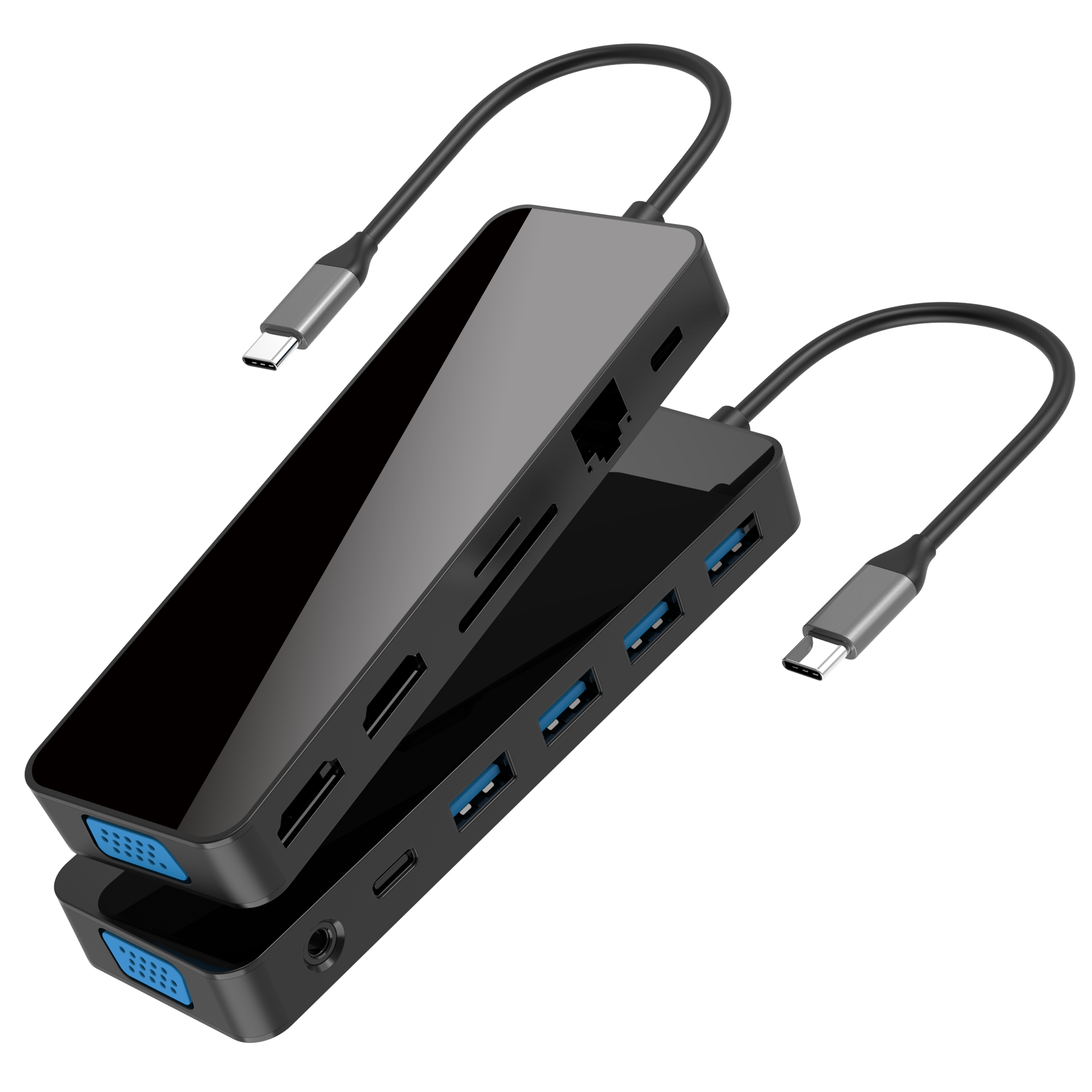
![YSTC8713M USB-C hub shown from two angles, with the pair of HDMI ports and blue VGA connector visible]()
The YSTC8713M has two HDMI outputs and a VGA output. The table covers a single HDMI display and the combination of one HDMI display with one VGA display.
Resolution and refresh rate describe different parts of the signal. The first tells you how many pixels the display receives. The second tells you how often the image can refresh. On this hub, adding VGA reduces the HDMI resolution while changing the refresh rate from the advertised HDMI-only maximum of 30 Hz at 4K to 60 Hz at 1080p. Record both values when evaluating the sample. A monitor sold as a 4K display can still receive a lower-resolution signal, so the monitor model alone tells you little about what the dock is sending in that setup.
If your room will use the second HDMI output as well, write down that connection as a separate configuration for the supplier to confirm. Give the supplier the full set of screens and the intended resolution of each one. A port count is useful for planning cable connections. The results for the complete room configuration belong beside it.
Decide Which Screen Needs the Detail
A classroom showing the same slides on both screens. An instructor wants students at the front to see the same material as students watching the projector. Ask the instructor to provide a representative slide deck. With the projector connected, review the smallest text or diagrams on the HDMI screen from the seats that need to read them. If that material is clear in the mixed setup, the room can use both displays while keeping the projector already in place. For repeated room layouts, test one representative room before carrying its specifications over to the rest of the order. How USB-C hubs fit shared workspaces
A meeting room used to review drawings, spreadsheets or dashboards. Ask when 4K is required. A team may need it for detailed reviews and use the projector on different days for presentations. Those are two distinct room configurations, and you can document both. If a single session needs the projector and the detail screen at the same time, put that on the purchase request. That timing changes which configuration a supplier should quote.
A training desk with an instructor view and an audience view. Ask which information belongs on each screen. A trainer may want a reference document on one external display and a demonstration on the projector. That is a request for separate content on the two external displays. Add the expected display layout to the purchase request alongside the resolution. Where the laptop itself will show the instructor’s notes, identify the laptop screen explicitly so the supplier can demonstrate the intended layout.
Check Windows and macOS Separately
On the YSTC8713M, a compatible Windows laptop can use Multi-Stream Transport (MST) to extend the desktop to external displays in a supported configuration. Give the supplier the Windows laptop model and the two output ports you plan to use. If different content must appear on the HDMI display and the VGA projector, ask for a sample check of that exact arrangement.
On macOS, this hub uses Single-Stream Transport (SST), so its connected external displays show the same image. That can suit a classroom that wants to repeat the presenter’s material. A room that needs two independent external desktops has a different requirement. Include it in the request for the Mac setup and have the supplier propose a configuration that supports it.
For rooms where presenters switch between a Windows laptop and a Mac, record a separate expected result for each. A check made with a Windows machine can confirm the image arrangement for that Windows setup. The Mac setup still needs its own sign-off. In the request, spell out which two screens should show the same image and which should show different material. That is easier for a room installer to act on than a note that says “dual display.” What to check when selecting a USB-C dock for two monitors
Put the Connection and the Expected Image on the Purchase Request
A buyer can start with a single row for each room type. Give each row a short name, such as “Classroom with VGA projector” or “HDMI-only review desk,” so purchasing, the supplier and the installer refer to the same setup.
| Field | What the buyer should provide |
| Host computer | Laptop model, operating system and the USB-C port that will be used for the dock |
| Display connections | Display and projector models, their inputs and which dock outputs will be connected together |
| HDMI requirement | The minimum resolution and refresh rate required while those displays are connected |
| Image arrangement | Whether the two external displays should show the same image or separate content |
| Normal room use | Whether VGA stays connected or is switched in for particular sessions |
If the projector is wired through a wall plate or a longer installed cable, include that detail in the room description. It helps the supplier understand why a short cable on a workbench may be a different setup from the one the installer will hand over. Where several rooms appear identical on a floor plan, check whether their projectors and wall connections really match before grouping them under the same requirement.
For a permanent installation, ask the site contact to photograph the connection at the presenter’s desk and the one at the projector. Some rooms route the projector through a wall plate, a switch or other installed equipment. The supplier needs to know which connection actually goes into the dock. A room inventory that simply says “VGA projector” describes the display at the end of the path. A photo or an installer’s note can answer the separate question of whether the dock itself is expected to use its VGA socket. Keep that information with the room row so the correct setup is on the bench when the sample is evaluated.
Here is a sample line a school could send with its request.
One HDMI display and one VGA projector will be connected to the dock at the same time. The HDMI display must receive 1920 × 1080 at 60 Hz. Please confirm that both external screens can show the same presentation on our listed laptops, and record the result for Windows and macOS separately.
The line states the buyer’s expected result. A room with a requirement for HDMI to stay at 4K during projector use would need a different line. Keep a copy of the final requirement with the approved dock and room list so later orders use the same conditions. What to include in an OEM docking station specification sheet
Verify the Two Setups Before Ordering in Volume
Begin with the laptop model and the HDMI display the customer is actually buying for. Connect the dock’s USB-C host lead to the laptop’s video-capable USB-C port. Connect one HDMI output on the dock to the display’s HDMI input. With the VGA projector disconnected, record the active HDMI signal using the display’s information menu or the operating system’s display settings, where available. If the HDMI-only room requires 4K, capture a result showing the resolution and refresh rate together. If the settings show separate values for desktop resolution and active signal resolution, copy the active signal value into the test record. Use that same source for the second reading.
Then connect the dock’s VGA output to the projector’s VGA input, using the room’s intended cable or installed path. Read the active HDMI signal again while the projector is connected. Show the slides, drawing or dashboard that will actually be used in the room and check how both displays behave. If the room requires separate external content, put a different window on each display and record what each screen shows. A photo can document the layout, and a screenshot of the display information can document the signal.
A projector can also stay cabled to the dock even when staff turn it off between classes. If that is how the room runs, test the HDMI signal with the projector switched off and the VGA cable still attached. Record that as a separate observation from the HDMI-only test with the cable physically disconnected. Ask the supplier to confirm the behavior on the equipment being purchased so the handover note can tell staff exactly what to do between classes and detailed review sessions.
For a room where users connect the projector partway through a session, try that sequence on the sample. Record what happens when VGA is connected and what the installer needs to do when the room returns to its HDMI-only setup. That gives staff a useful handover note based on the actual room equipment. Where both Windows and Mac are in use, carry out the check on the models listed in the order before approving the room setup. How buyers can test multi-monitor docks before mass production
When the Room Needs 4K and VGA at the Same Time
If the projector must stay in use while the HDMI display receives 4K, write that combination as a single acceptance condition. Include the required refresh rate and say whether the two displays need separate content. Ask for a sample result with both displays connected. A demonstration with the projector unplugged confirms a different room setup.
Some rollouts can use two equipment lists. Keep the mixed HDMI and VGA arrangement in presentation rooms where 1080p works for the material, and specify a configuration with verified 4K output for rooms that review fine detail. If a site can change its projector connection during the rollout, quote that option separately and have the installer confirm what changes in the room. For buyers considering a higher-resolution setup, the figures to compare are the ones for the full set of displays that will be active together. What system integrators should check in a dual-4K dock
Before signing off, give the installer one line for each approved room setup showing the two connections, the HDMI signal and the intended image on each screen. That line is what the installer can check when the projector and display are finally on the same desk.