Setting up a modern workstation should be as effortless as plugging in a single cable. You sit down, connect your laptop, and expect your screens to spring to life. Yet, countless professionals frequently encounter a frustrating reality: a persistent blank screen. In many instances, the hardware itself is flawless. The underlying communication is broken. Missing software is usually the culprit.
Docking stations operate through vastly different underlying technologies. While some hubs rely on native hardware protocols like Thunderbolt or USB-C DisplayPort Alternate Mode, others utilize software-driven technology to transmit video data over standard USB connections. This brings us to the core component of software-driven video: the DisplayLink Driver. This comprehensive guide helps professionals and IT administrators understand exactly when a docking station requires this specific software. We will explore how it resolves complex hardware limitations and share best practices for managing installations across diverse computing environments.
Key Takeaways
Software-Driven Video: A driver is strictly required when a docking station utilizes software algorithms to compress and transmit video signals over standard USB connections, rather than relying on the native GPU output of the host computer.
The MacBook Solution: Base-level Apple silicon such as M1, M2, and M3 chips natively supports only a single external monitor. Installing the appropriate software bypasses this hardware limitation, facilitating a highly functional multi-display setup.
Universal Compatibility: Docks equipped with this technology are exceptionally effective in mixed operating system environments. They serve as a reliable bridge for legacy devices lacking native USB-C video output capabilities.
Powerful Chipsets: High-performance docking stations frequently integrate advanced silicon that depends entirely on the driver software to successfully output dual 4K displays at a fluid 60Hz refresh rate.
Streamlined IT Deployment: For corporate enterprise and education sectors, the ability to manage mass software installation and configure automatic updates is a critical component for seamless infrastructure management.
What is a DisplayLink Driver and How Does It Work?
To fully grasp when this software is necessary, you must first understand the underlying technology. DisplayLink is a proprietary graphics transport protocol. Engineers designed it to connect computers and displays using standard USB, Ethernet, or WiFi connections. The driver itself serves as the essential software bridge. It allows the host operating system to communicate effectively with the hardware inside the docking station.
Think of the software as a virtual graphics card. When you connect a monitor to a compatible dock, the CPU and the installed driver work in tandem to render the display output. Specifically, the software compresses this video data. It then transmits it as standard data packets over the USB connection. Once these packets reach the docking station, the internal chip decodes the data. It seamlessly converts it back into a standard video signal like HDMI or DisplayPort that your monitor can display.
Why does this mechanism matter? It decouples video output from the physical limitations of the internal graphics card. Furthermore, it allows almost any computer equipped with a functional USB port to output high-quality video. This holds true regardless of whether that specific port was originally designed to handle native video transmission.
USB-C DP Alt Mode vs. DisplayLink: What is the Difference?
When selecting a docking station, IT professionals and everyday consumers typically choose between two primary video transmission protocols. These are USB-C DisplayPort Alternate Mode and software-driven virtual graphics. Understanding this distinction is crucial for determining whether a software installation is required.
When No Driver is Needed: DisplayPort Alternate Mode is a hardware-level feature built directly into specific USB-C and Thunderbolt ports. It allows the port to physically reallocate internal pins. This transmits native video signals from the internal GPU straight to the monitor. Because it relies entirely on native hardware protocols, this mode is strictly plug-and-play. It requires absolutely no additional software to function.
When the Driver is Mandatory: In contrast, if a docking station is marketed as universal, connects via an older USB-A port, or explicitly features a software-driven logo, installing the manager application is mandatory. Without this software bridge, the dock cannot process the video data. You will be left staring at a blank screen.
| Feature | USB-C DisplayPort Alternate Mode | Software-Driven Technology |
| Technology Type | Native Hardware Video Output | Software-Driven Virtual Graphics |
| Driver Requirement | None Plug-and-play | Mandatory installation |
| Host Port Requirement | Must support Alternate Mode or Thunderbolt | Standard USB-A or USB-C data port |
| System Resource Usage | Relies on internal GPU | Relies on CPU for video compression |
| Primary Use Case | Gaming, high-framerate tasks | Universal hot-desking, bypassing limits |
Industry Trends: The Shift Toward Universal Connectivity
Looking at recent shifts in enterprise hardware, the demand for software-driven docks is surging. As hybrid work solidifies into the permanent standard, rigid and hardware-locked ecosystems are rapidly falling out of favor. We are seeing a massive market shift toward universal hubs. Organizations must support a highly fragmented landscape of devices. An employee might use an ARM-based silicon laptop at home and an aging legacy Windows machine in the office. Forcing companies to overhaul their entire IT infrastructure to match one video protocol is financially unviable. Consequently, software-driven video transport has transitioned from a niche workaround to a foundational enterprise requirement.
![DisplayLink Docking Station Setup]()
When Does a Dock Need a DisplayLink Driver?
There are highly specific hardware environments and user requirements where utilizing a software-driven dock is not just an optional upgrade. It is a strict technical necessity.
Overcoming MacBook Multi-Monitor Limitations
One of the most prominent scenarios involves recent Apple hardware architecture. While Apple silicon offers exceptional processing power, the base M1, M2, and M3 chips are engineered with a rigid hardware limitation. They natively support only one external display. For creative professionals and analysts who require dual or triple monitors for productivity, this limitation presents a massive workflow bottleneck. By installing the appropriate software, Mac users can easily bypass this hardware constraint. The application creates virtual displays. This allows users to build a robust Multi Monitor setup with two, three, or even more screens connected to a base-model MacBook Air or Pro without triggering hardware errors.
Expanding Beyond GPU Limits
Windows PC users also frequently encounter scenarios where their native hardware falls painfully short. Imagine a user requiring a four-screen setup for financial day-trading or complex software programming. However, their laptop integrated graphics card might only support a maximum of two displays. In this scenario, a software-driven dock fills the gap perfectly. By offloading the video processing of the additional monitors to the CPU via the driver, users can expand their workstation far beyond the physical boundaries of their internal GPU.
Connecting Legacy Laptops
Furthermore, many organizations still operate massive fleets of older laptops equipped exclusively with standard USB-A 3.0 ports. These legacy ports were designed strictly for data transfer. They possess zero native video output capabilities. To connect these older machines to modern high-resolution docking stations, the software bridge is absolutely essential. It enables the USB-A port to transmit compressed video data. This effectively modernizes legacy hardware and extends its usable lifecycle in a contemporary office.
The Role of the DL6950 Chipset and Practical Selection Guide
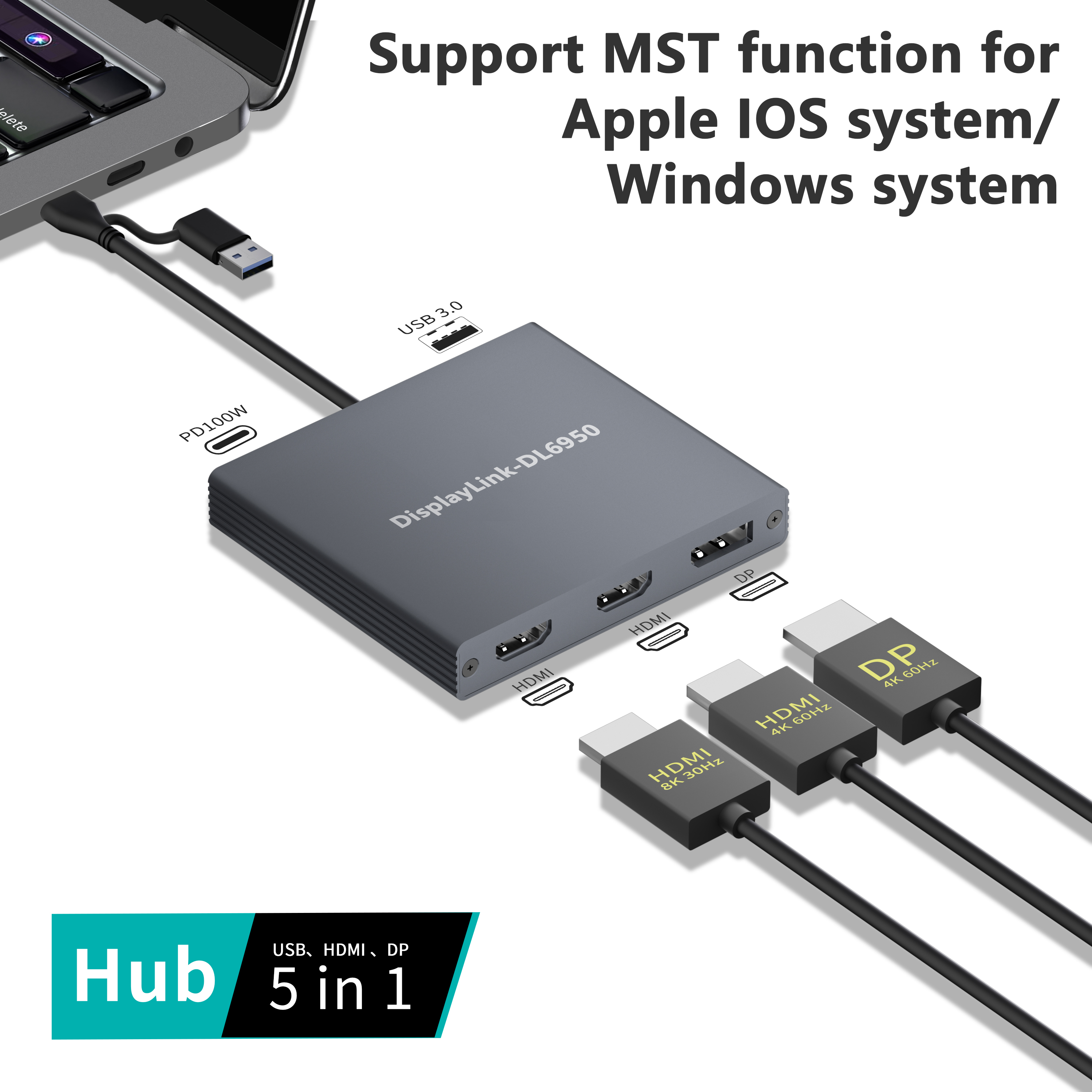
As display technology rapidly advances, the demand for higher resolutions and faster refresh rates increases exponentially. In the realm of universal docking stations, the DL6950 stands out as the flagship chipset. Engineers specifically designed it to handle the massive bandwidth requirements of modern workstations.
What makes this silicon so critical for enterprise deployment? The primary performance specification that sets this chipset apart is its remarkable ability to support dual 4K displays at a fluid 60Hz refresh rate. Some advanced implementations even support 8K resolution via Multi-Stream Transport configurations, all routed through a single USB connection. This feat is achieved through advanced adaptive compression algorithms that dynamically adjust to the content being displayed. Whether you are reading crisp text or watching smooth video playback, the chipset ensures high fidelity without overwhelming the CPU.
When evaluating a dock for your workspace, do not just look at the port count. Look at the underlying architecture. A professional-grade dock should feature the DL6950 chip to guarantee dual 4K stability. It must offer 100W Power Delivery to keep high-performance laptops charged under heavy loads. Additionally, look for hybrid connectivity. The best units provide both USB-C and USB-A 3.0 host cables, ensuring seamless integration for both modern iOS devices and legacy Windows machines. However, it is critical to emphasize the inherent software dependency of this hardware. Docks featuring advanced chipsets cannot function independently. They require the latest version of the manager application to execute the complex compression and decoding processes.
Enterprise and Education: IT Deployment Strategies
For an individual user at home, downloading an application is a minor inconvenience. In contrast, for enterprise IT administrators and education technology coordinators, software dependency introduces logistical challenges that require meticulous strategic planning.
Solving the Hot-Desk Dilemma
Modern corporate and educational environments increasingly rely on flexible workspaces where users connect varying devices to a shared universal workstation. On any given day, an IT admin might need to support a Windows laptop, an M2 MacBook Air, a Chromebook, and a Microsoft Surface Pro at the exact same desk. Native docks often fail here due to port incompatibilities. Universal docks are the preferred solution because they standardize the hardware connection. As long as the appropriate software is present on the host machines, any user can plug in and immediately utilize the dual monitors, ethernet, and peripherals.
Mass Deployment Strategies
To facilitate this standardization, IT teams must handle the Driver Install process at scale. Manually configuring software on thousands of machines is highly inefficient. For Windows environments, administrators typically utilize Microsoft Installer packages. They deploy them silently via command-line switches using endpoint management tools like Microsoft SCCM or Intune. For macOS environments, IT teams leverage Mobile Device Management solutions like Jamf Pro or Kandji. This pushes the application directly to the Mac fleet, ensuring the software is fully pre-configured before the employee even arrives at the desk.
Managing Updates Automatically
The ongoing challenge of maintaining a stable IT Deployment involves keeping software updated to maintain compatibility with constant OS patches. Outdated software is a primary cause of docking station failures. To manage updates automatically, Windows administrators can configure Group Policies to allow the software to update seamlessly via Windows Update. In enterprise Mac environments, the application can be configured via MDM profiles to check for updates silently in the background. This minimizes end-user disruption and drastically reduces the volume of IT support tickets related to blank screens.
Device Compatibility: Mac, Windows, and Surface Devices
Because the technology is universal, it interacts slightly differently depending on the host operating system. Understanding these OS-specific nuances is vital for ensuring a stable and reliable setup.
macOS: For Mac users, the setup process involves downloading the dedicated manager application. Due to strict privacy architecture, users must manually navigate to System Settings, select Privacy & Security, and grant the application Screen Recording permissions. While this sounds alarming, it does not mean the software is spying on the user. Rather, it is simply the required API to capture the video output and send it to the virtual display. Users should also note specific limitations. High-bandwidth Digital Content Protection is not supported. This means protected content from platforms like Netflix or Apple TV will display a black screen when routed through the dock.
Windows & Microsoft Surface: Integration within the Windows ecosystem is incredibly seamless. For Windows 10 and Windows 11, the operating system often auto-installs the necessary software via Windows Update the moment the dock is physically connected. This frictionless experience makes it highly effective for Microsoft Surface Pro tablets. These tablets often lack multiple dedicated video ports, but a universal dock instantly transforms them into multi-monitor desktop replacements.
ChromeOS & Ubuntu: Device compatibility extends beautifully to alternative operating systems as well. ChromeOS features native built-in support for this technology, meaning Chromebooks are essentially plug-and-play. For Linux users, specifically on Ubuntu distributions, dedicated driver packages are available. Installation requires executing specific terminal commands and ensuring compatibility with the active Linux kernel version.
Common Issues and Troubleshooting
Even with proper installation and robust hardware, users may occasionally encounter technical hurdles. Fortunately, most issues stem from minor software conflicts or system resource limitations rather than catastrophic hardware failure.
High CPU Usage or Lag: Because the technology relies heavily on the host CPU to compress video data, users with older processors may experience high CPU usage or noticeable mouse lag. This is particularly evident when displaying rapidly changing content, such as high-definition video gaming. To mitigate this, users should close unnecessary background applications to free up valuable CPU cycles. Additionally, ensuring the laptop is connected to external wall power prevents the OS from aggressively throttling CPU performance.
Blank Screens After OS Updates: A highly frequent support issue arises when docks stop functioning immediately following a major operating system update. Major OS updates often alter kernel extensions, security protocols, or display APIs. This can temporarily break the virtual display communication path. The simplest and most effective fix is to completely uninstall the current software, reboot the machine, and reinstall the latest version directly from the official support website.
Permissions Errors: On macOS, users frequently encounter a frustrating error stating no USB monitors are detected, even when all cables are securely connected. This is almost exclusively a permissions error. It indicates that the Screen Recording permission was either denied during initial setup or revoked during a recent OS update. Navigating back to the Mac Privacy & Security settings, toggling the permission off and back on, and restarting the application typically resolves the issue immediately.
Conclusion
Ultimately, a docking station needs this specific software whenever it relies on virtual graphics processing to transmit video over a standard USB connection. Whether you are trying to bypass the strict monitor limitations of a modern MacBook, breathe new life into an aging USB-A laptop, or standardize a sprawling corporate office with universal hot-desks, this software bridge is the key to unlocking true multi-display productivity.
Before purchasing your next hub, always check your laptop native specifications and evaluate your specific multi-monitor needs. If you require dual 4K monitors on an M2 MacBook or need to support a highly diverse fleet of office laptops, investing in a dock equipped with a premium DL6950 chipset is undoubtedly your best solution for a seamless, frustration-free workstation.
Ready to upgrade your workspace with enterprise-grade connectivity? Explore our high-performance universal docking solutions at Yuanshan Tech. Whether you need 8K support, 100W Power Delivery, or robust DL6950-powered dual 4K hubs, we have the exact hardware to match your professional requirements.
FAQ
Do I need to install a DisplayLink driver for every dock?
No. Only docks that utilize software-driven virtual graphics technology require the installation. Docks using native hardware protocols, such as Thunderbolt or USB-C DisplayPort Alternate mode, are completely plug-and-play and do not require any additional software to output video directly from your GPU.
Is the DisplayLink driver free to download?
Yes, the software is completely free of charge. It can be easily downloaded directly from the official Synaptics website or from your specific dock manufacturer support page. It is highly recommended to download it only from these official sources to ensure maximum security and system stability.
Can I use a DisplayLink dock for PC gaming?
It is generally not recommended for high-end or competitive PC gaming. Because the technology uses CPU compression to package and send video data over USB lanes, it can introduce slight latency and lower frame rates compared to a direct native GPU connection. It is best suited for office productivity, web browsing, and standard multimedia consumption.
Why is my DisplayLink dock not working on my Mac?
The most common reason for failure on macOS is that the manager application is not actively running in the background. Furthermore, you must explicitly grant the application Screen Recording permissions in your Mac Privacy & Security settings. This specific permission is strictly required for the software to capture the screen and generate the virtual display output.
Does a DisplayLink dock charge my laptop?
Yes, provided the docking station supports Power Delivery and is connected via a USB-C port that accepts charging. The video driver itself handles only the display data, while the hardware power delivery chip negotiates the charging wattage. This often reaches up to 100W on premium models.
Can I install the DisplayLink software without administrator rights?
Generally, no. Installing the core driver requires system-level administrator privileges, especially on Windows and macOS. For corporate environments, IT departments must pre-deploy the software or grant temporary admin rights to allow users to complete the installation.